
A finished sticker pack: the $7 Focus Labels example
Imagine you already made eight small planner labels. Someone wants a quick way to mark a task as planned, due or done. They need usable images, a preview that matches the download and simple import instructions—not another design tutorial.
What the offer should say
- Product
- Focus Labels — eight transparent PNG planner labels.
- Contents
- PLAN, FOCUS, BREAK, DONE, REVIEW, IDEA, DUE and NEXT, plus a README in one ZIP.
- Image size
- 600 × 240 pixels per PNG, including transparent space around the label.
- Price example
- $7 USD, one-time purchase, with any applicable tax shown at checkout.
- Delivery
- A private download after confirmed payment. Buyers extract the ZIP and import the individual PNGs.
- Not included
- No physical stickers, shipping, app subscription or automatic Goodnotes installation.
The files below are a free educational sample. The $7 price is a worked example, not a claim that this sample has made sales. Use the actual scope and permission terms of your own pack.
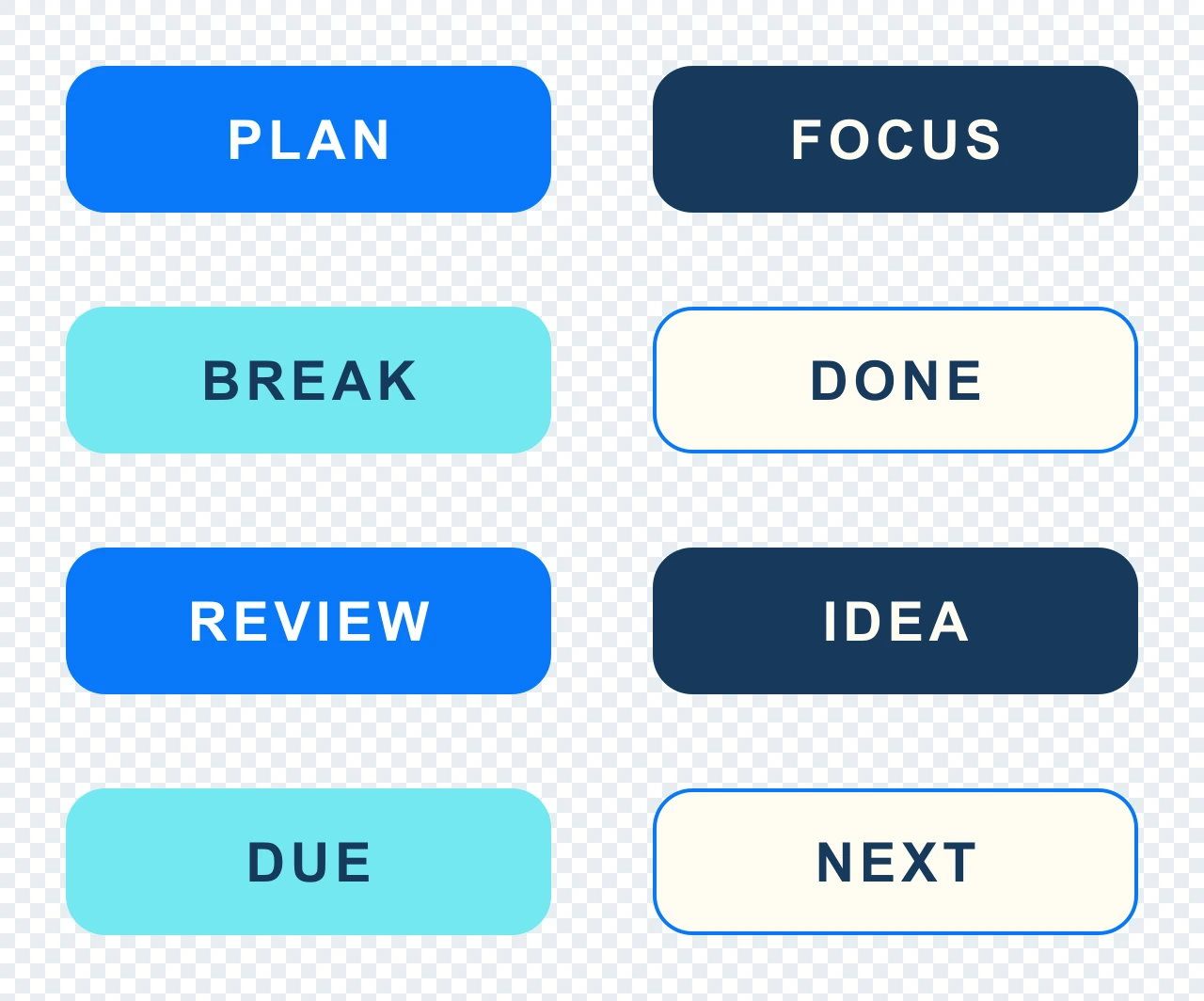
Get the eight PNGs and README as a ZIP. Keep this as a reference for packaging; your paid pack should have its own contents and clearly stated use rights.
Package the files so buyers know what to open
- Keep original transparency. Export each sticker as a PNG with transparent space outside the artwork. Do not replace it with a screenshot or JPEG.
- Check useful bounds. Leave enough space to avoid clipping shadows or rounded edges, without a huge invisible canvas that makes a small sticker hard to place. Inspect the image at its intended size.
- Name the images clearly. Use simple filenames that match the preview, such as
focus-label-plan.png. Give variants a meaningful suffix rather than “final-final-2.” - Add a README. List the contents, image dimensions, extraction steps, import instructions, permitted uses and support contact. State which app and device were actually tested.
- Make one ordinary ZIP. Include the promised images and instructions. Remove hidden working files, duplicate drafts and nested archives. Extract a copy yourself and count its files.
A PNG pack, an app-native collection and a printable sheet are different products. Do not promise all three when the download contains only PNGs. If you also sell a hyperlinked planner, treat the stickers as a separate companion pack; see the planner packaging guide.
Include only artwork and assets you have permission to distribute. Explain whether the buyer may use the files personally, in client work or in other products, and whether raw-file redistribution is allowed. “Commercial use” alone leaves important questions unanswered. Use the digital-product permission checklist to define the scope.
Show the sticker count, file type and one real use
Use one overview showing every included design, then a close-up at a readable size. A separate example can show a label placed on a planner page. Label that demonstration so a buyer does not assume the planner or app is included.
Product-page copy to adapt
Focus Labels — 8 transparent PNG planner stickers
Mark your next task, focus block or completed item with eight blue planner labels. Get eight 600 × 240 PNG images and a short README in one ZIP. Download, extract and import the images into your chosen compatible app. $7 USD, one-time purchase. No physical product or automatic app installation is included.
Add compatibility only after checking it. For example, “PNG images; see the import instructions for your Goodnotes version” is narrower than claiming “works with every planning app.” If you have tested an exact version and device, name them and describe what passed. Use the sales page worksheet to make the sample, contents and purchase button easy to find.
Upload the finished pack and choose a price
- In Genesize Studio, choose Add product → Choose file and select the original ZIP.
- Genesize suggests a title and saves the file to a private draft. Under Product details, review the name, describe what buyers receive, set a starting price and save.
- In Your content, confirm the attached filename and file size. Complete the content-rights confirmation in Review & sell for files you may sell.
- Open Review & sell to configure the sales page. Show a separate public sample, set the final price and currency, and connect your seller Stripe account for a paid offer.
- Run the buyer checks below. Review and publish the offer when ready, then copy the public sales page link to share.
Uploading an existing pack does not use AI credits. Free to Sell provides the basic upload, storefront, checkout and delivery route without a monthly subscription. AI, Growth, CRM and email marketing are not part of that tier. You can use your existing audience and write promotional copy yourself.
Current Genesize uploads support PNGs and ZIPs, up to 10 attachments of 50 MiB each, subject to workspace storage capacity and archive checks. Those are Genesize delivery limits, not a guarantee that the buyer’s app accepts a file of that size. The small sample is deliberately easy to inspect and transfer.
| Sale source | Rate | Genesize fee | Left before processing |
|---|---|---|---|
| Direct sale | 10% | $0.70 | $6.30 |
| Marketplace-attributed sale | 30% | $2.10 | $4.90 |
Stripe processing and other applicable costs are separate. Paid plans have subscriptions and their own commission rates. Small sticker-pack prices make per-order costs worth checking; use the fee calculator and current plan comparison before deciding whether to sell one pack or a larger themed set. A commission illustration is not a profit forecast.
Test the ZIP the buyer actually receives
Test the saved product rather than a different copy sitting on your computer. A correct sales-page preview does not establish that the attached download contains the right files.
- As the workspace owner, save the draft and open Review & publish → Test buyer experience.
- Review the offer and choose Complete simulated checkout. This creates no order or charge.
- Open the private test delivery link in a browser where you are signed out of Studio. Choose Open test purchase, then download the ZIP under Included downloads.
- Extract that downloaded archive. Check the eight expected PNGs and README, open the images, and compare the files with the intended edition.
- Check the PNGs against both light and dark backgrounds. Then perform a separate import and reopen test in the app and device you intend to support.
A private test link lasts 30 minutes while the tested draft remains unchanged. Generate a fresh test after edits or expiry. Where available, Send test receipt sends only to the verified seller email; do not post that private receipt or delivery link publicly. The public sales link is the one to share.
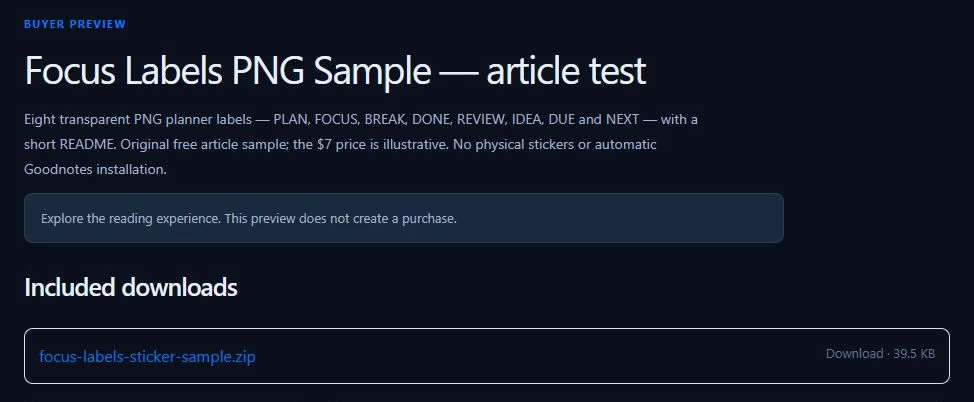
What we verified: we uploaded this exact ZIP to a private Genesize draft, completed the no-charge simulation and downloaded the delivered archive on a computer. Its SHA-256 checksum matched the uploaded original. The archive contained eight 600 × 240 transparent PNGs and the README; each PNG opened for inspection. No real payment was made and no test email was sent.
That verifies the desktop download for this saved draft. We did not independently verify a signed-out browser session, a phone download or a Goodnotes import for this sample. Use the device and app checks below before advertising those compatibility claims.
The no-charge simulation does not verify an actual Stripe payment, tax calculation, webhook or every mobile browser. Those need their own checks. For delivery recovery, buyers can use My purchases with their checkout email; see the purchase-access guide.
Help a buyer use the PNGs in Goodnotes
Goodnotes distinguishes Marketplace items that are added directly to Elements from externally downloaded JPG/PNG images that users import. A normal Genesize PNG pack follows the external-file route. Goodnotes’ sticker explanation.
- Find the downloaded files. For this pack, extract the ZIP in the device’s file manager so the individual PNGs are available.
- Open the intended notebook. Use the app’s image tool to insert the original PNG from Photos or Files. Menu labels vary by platform and version; follow the current Goodnotes image-insertion instructions.
- Inspect the result. Resize it without stretching, place it over light and dark areas and confirm the artwork stays clear at the size you need.
- Make it reusable if desired. Goodnotes documents creating Elements from selected content and organizing collections. Check the controls available on your device rather than assuming the PNG download has already created a collection. Elements instructions.
- Reopen the notebook. Confirm the image is still present. If the app reports a size, connection or format limit, resolve that particular error before advertising compatibility.
Extracting first is a practical route for our individual-image pack, not a claim that Goodnotes universally rejects ZIPs: its iOS documentation includes folder import through ZIP. Android, Windows and web have their own supported formats and limits. Current import documentation.
Do not repeat the blanket claim that importing from Photos always removes PNG transparency. Goodnotes’ 2026 release notes describe preserving it through that picker. Check the actual downloaded image and current app behavior. Goodnotes’ April–June 2026 update.
Fix the specific packaging or import problem
| What the buyer sees | What to check | Useful next step |
|---|---|---|
| One ZIP, but no visible stickers | Whether the archive was extracted and where the files were saved. | Point to the README and individual PNGs. Do not tell the buyer that an ordinary ZIP installed a native app collection. |
| A white or checkerboard box around the artwork | The original PNG’s alpha channel and whether a screenshot or JPEG was substituted. | Inspect it over contrasting backgrounds, then import the original file again. |
| The sticker looks tiny when selected | Excessive transparent canvas around the design. | Export a sensible image boundary and update the preview and listed dimensions together. |
| The label is blurry when enlarged | Pixel dimensions and the size at which it is being used. | Supply a suitable export and state its intended use. A larger canvas does not restore detail missing from the artwork. |
| The app refuses the import | File type, app/platform limits, account tier and exact error. | Try one small original PNG through the documented image route. Genesize’s upload cap does not override app restrictions. |
| The order says PNGs, but the buyer expected printed stickers | Headline, preview labels and description. | State “digital PNG download” and “nothing shipped” before checkout. Treat print-and-cut sheets as a separate deliverable. |
| The buyer lost the download email | The store and email used at checkout. | Use Genesize My purchases for a Genesize order, keeping private access links out of public comments. |
Common questions about selling digital stickers
How do I sell digital stickers online?
Package your finished sticker images, add instructions and publish a product page with checkout and private delivery. State the file types, sticker count, dimensions and intended use. Test the downloaded copy before sharing the public sales link.
What files should a digital sticker pack contain?
For an individual-image pack, provide the original transparent PNGs and a README explaining extraction, import, contents and permitted uses. A ZIP keeps the pack together. Add a native app collection or printable sheet only if you actually supply and test it; they are different deliverables.
Can I sell PNG stickers through Genesize Free to Sell?
Yes. Genesize supports original PNG files and ordinary ZIP packs within its upload and storage limits. Free to Sell has no monthly subscription, but sales commissions and Stripe processing fees apply. It does not include AI, Growth, CRM or email marketing.
Will the download automatically install into Goodnotes?
A normal PNG pack sold through Genesize is a file download, not a native Goodnotes Marketplace installation. Buyers import the images in their app. Goodnotes documents JPG and PNG image imports, with controls that differ by platform and version.
Does Goodnotes support ZIP files?
Goodnotes documents an iOS route for importing folders as ZIPs, so ZIP support is not a universal no. For a cross-platform individual-PNG pack, extracting the ZIP and inserting the PNGs is a straightforward documented image workflow. Check the current instructions for the buyer’s device.
Why does my PNG sticker have a white box?
Check whether the downloaded original really has transparency. A checkerboard baked into an image, a screenshot, a JPEG replacement or an opaque export can produce a box. Test the original PNG over both a light and a dark background before changing the artwork or blaming the app.
Can I test sticker delivery without making a payment?
A Genesize workspace owner can use Test buyer experience on a saved draft, complete its simulated checkout and open the private test delivery. No order or charge is created. Download and extract the ZIP while signed out. The private link lasts 30 minutes while the tested draft remains unchanged; payment processing and app import need their own checks.
Are digital stickers the same as printable stickers?
No. A digital PNG pack is used as images in compatible software. A printable sheet may need print dimensions, cut lines, material guidance or other files. Describe only the product you deliver; a digital download does not include printed stickers or shipping.
Your stickers are ready. Give them a place to sell.
Upload the original pack, show buyers what is inside and test the download before sharing your link.
Explore Free to Sell