
1. Give your finished product a page buyers can open
Start with the exact product you want to promote. On its public page, show the price, an example, the file format, and what buyers receive. Open the page in a private browser window and check it on a phone before designing the Pin.
If you use Genesize, upload your finished product, connect Stripe for paid sales, and use Test buyer experience to check the saved download. Publish the sales page and copy its public link, which uses the /p/ path. A hosted product page works when you don’t have a separate website. Genesize publishing guide.
Promoting a print-at-home worksheet? The $9 printable pack example shows what to say about paper sizes, page counts and digital-only delivery before linking a Pin to the offer.
2. Create three Pins around one product
Show what a buyer will get, what it looks like in use, or a small result they can try now. Use real pages from your product. Give the image one short headline that is readable on a phone. A vertical 2:3 image is a useful starting format. Pinterest’s image Pin specifications.
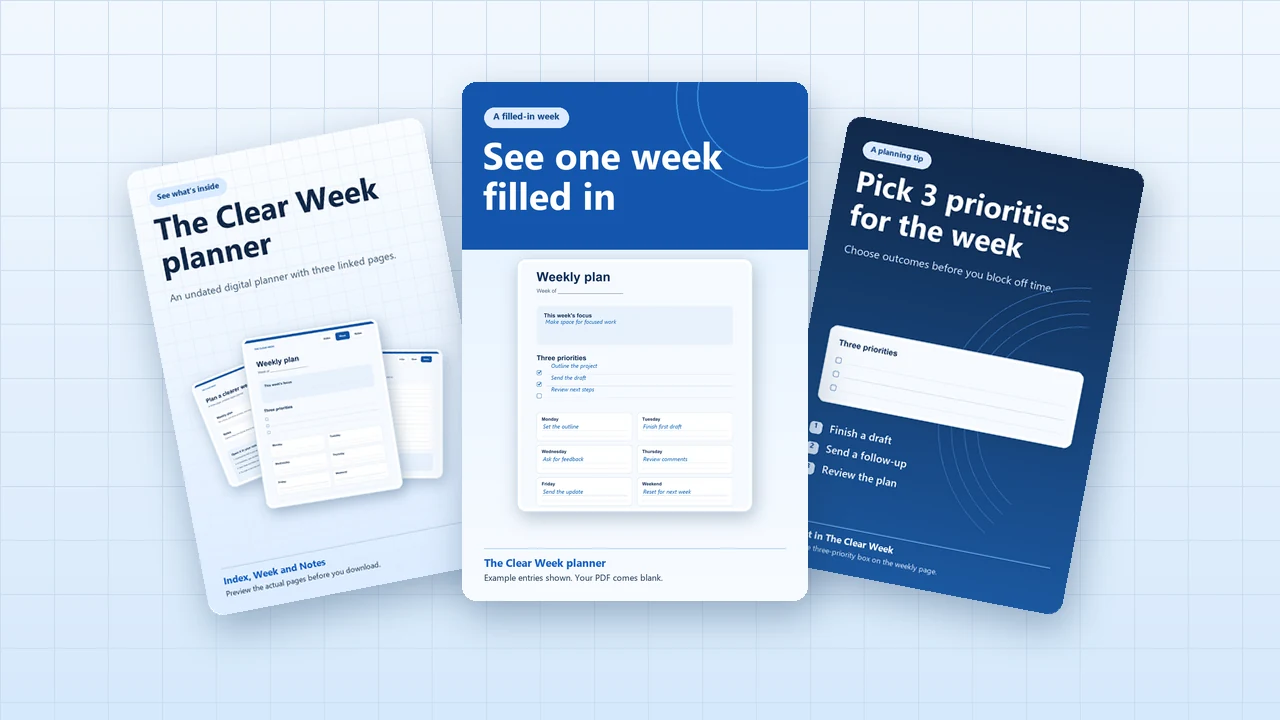
These examples use The Clear Week, the three-page planner from our digital planner guide. Replace the example destination with your own public product page. See the original planner sample.
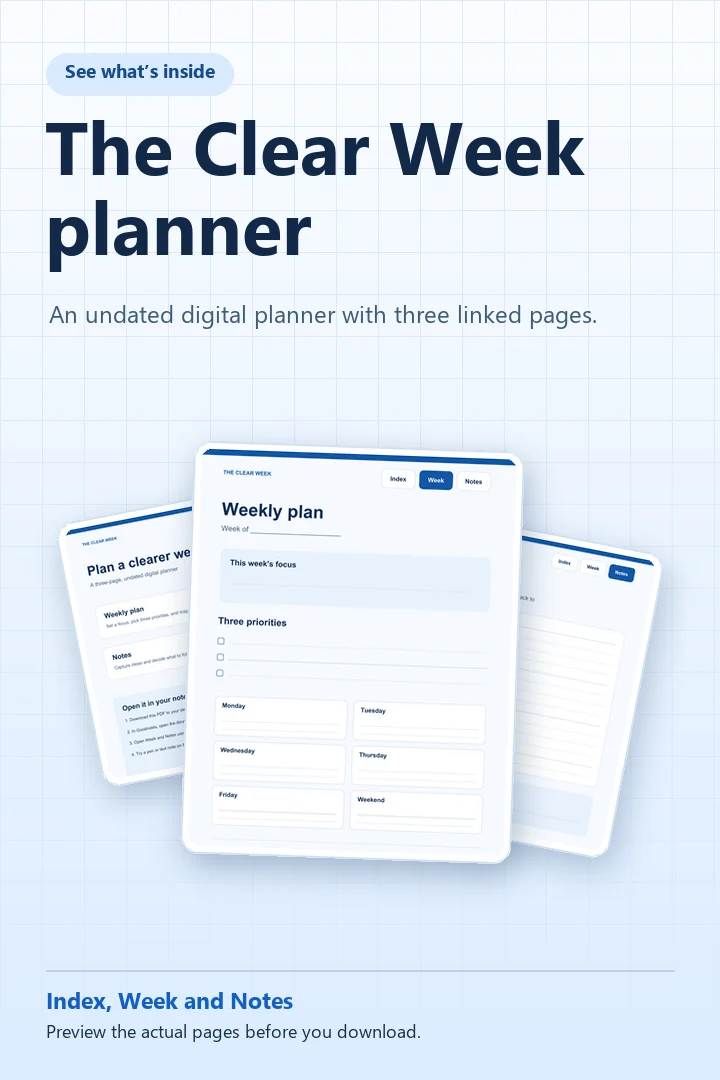
Show what’s inside
Pin title
Weekly digital planner PDF with three linked pages
Pin description
See what’s inside The Clear Week: an undated weekly plan, a notes page, and an index that links them. View the pages and see what comes with the PDF.
Example linkhttps://store.example/weekly-planner?utm_source=pinterest&utm_medium=social&utm_campaign=clear-week-preview
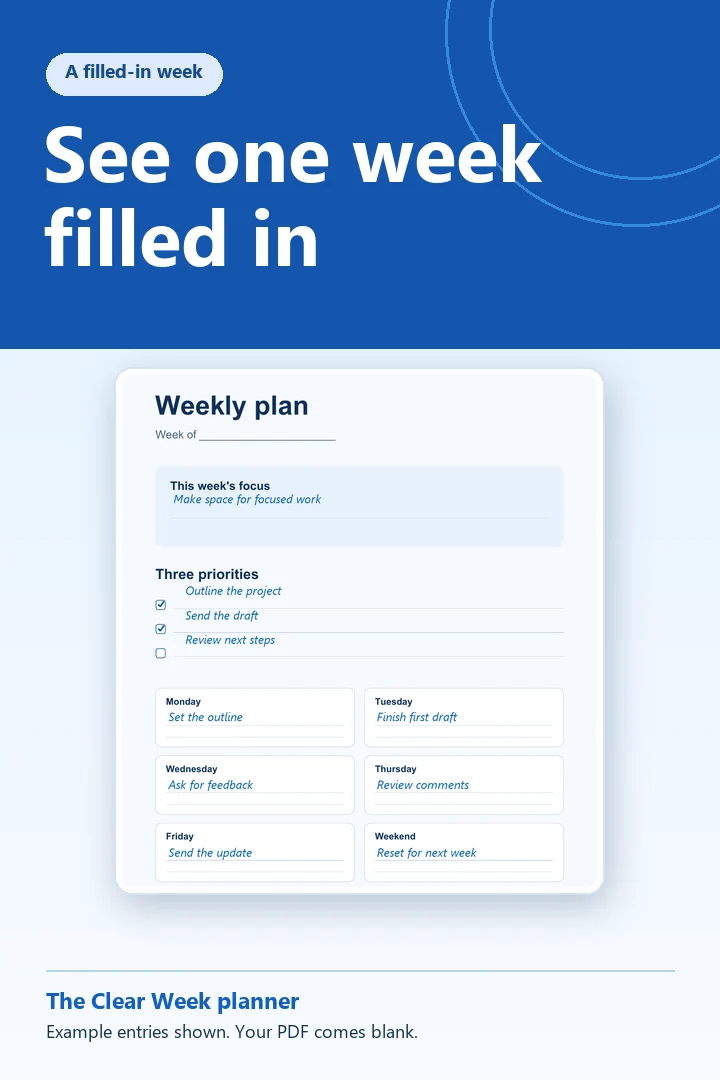
Show a filled-in week
Pin title
Filled-in weekly planner example for a busy workweek
Pin description
See how an example workweek fits into The Clear Week planner. Use the blank PDF to lay out your own focus, priorities, and plans.
Example linkhttps://store.example/weekly-planner?utm_source=pinterest&utm_medium=social&utm_campaign=clear-week-filled
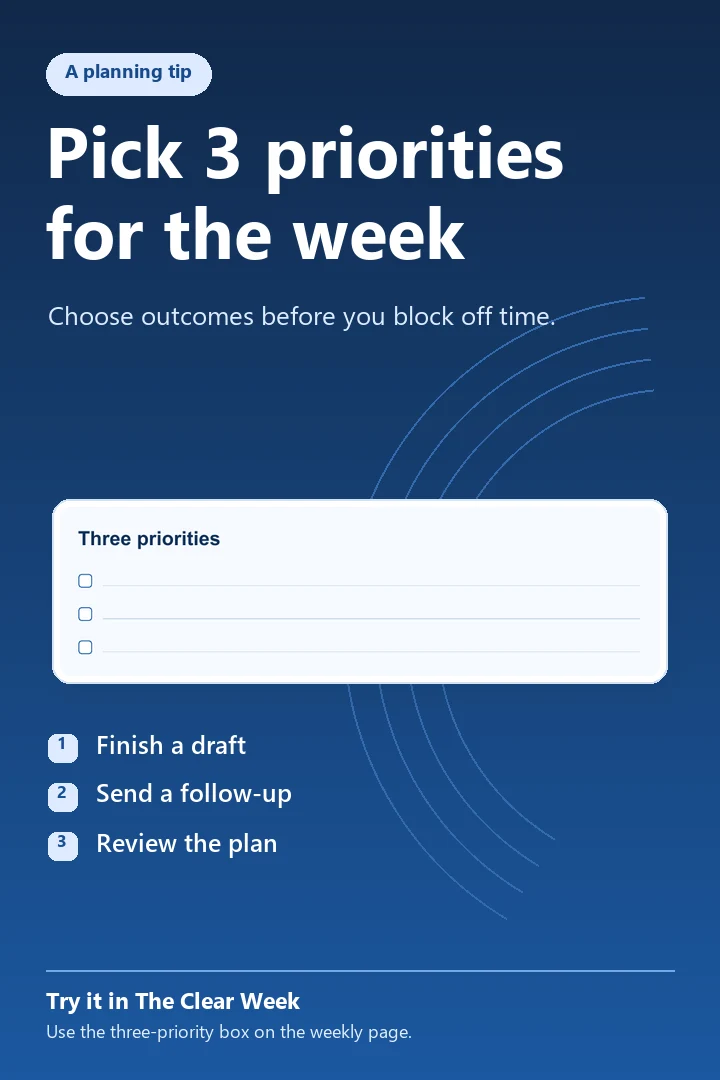
Share a useful planning tip
Pin title
Pick three priorities with a weekly digital planner
Pin description
Try this before you fill your calendar. Choose one focus and list three priorities you can finish this week. See the weekly page from The Clear Week planner.
Example linkhttps://store.example/weekly-planner?utm_source=pinterest&utm_medium=social&utm_campaign=clear-week-tip
Copy the three Pin examples
Get the titles, descriptions, and URL tags in one editable text file.
3. Add the public product link and test it on a phone
- In Pinterest, create an image Pin. Upload the preview image, add a descriptive title, and choose a board that fits the product.
- Put the exact product URL in the Pin’s Link field. Keep
utm_source=pinterestandutm_medium=social. Changeutm_campaignfor each example. - Open the tagged link in a fresh browser session. Confirm the page loads, the advertised product is visible, and the price matches. After publishing the Pin, follow its link from Pinterest on a phone and repeat the check.
Use ordinary image Pins for this workflow. Pinterest also offers website claiming for sites whose ownership you can verify. It has separate setup requirements, including access to the site’s source code. Pinterest’s steps for creating an image Pin · Pinterest’s website claiming requirements.
4. Read Pinterest clicks alongside your store’s orders
In Pinterest Analytics, use a business account and look at outbound clicks for each Pin. On a paid Genesize plan, open Analytics → Overview → Tracked traffic sources and look for Pinterest and the campaign label. Compare the same dates across both reports. Pinterest’s definitions of Pin metrics.
On Free to Sell, check each Pin’s outbound clicks in Pinterest and look at orders for that product in Genesize. The full source and campaign report is part of paid Analytics.
| Signal | Where to look | What to check next |
|---|---|---|
| Outbound clicks | Pinterest Analytics | If a Pin gets impressions and few outbound clicks over time, try a clearer preview or title. |
| Measured sessions | Genesize tracked traffic sources | If sessions are missing, check the destination URL, campaign tag, and reporting dates. |
| Paid orders | Genesize order list, or tracked traffic sources on a paid plan | If the product gets visits and few paid orders, review what’s included and test the checkout and delivery from a phone. |
Tracking depends on browser and analytics choices. Some orders will have an unknown source. A Pin click can open a close-up on Pinterest, and an outbound click takes someone to a destination outside Pinterest. Read each count in its own report, and use several comparable periods before deciding which creative to repeat.
Common questions about selling digital products on Pinterest
Can I sell digital products on Pinterest without a website?
Yes. Publish your finished product on a hosted sales page and put that public URL in the Pin’s Link field. The sales page handles the offer, checkout, and delivery. Test the link on a phone before sharing it.
Can buyers pay directly on an ordinary Pinterest Pin?
In this workflow, the Pin sends buyers to the linked product page. Buyers pay there and receive the file through the seller’s checkout and delivery setup.
Can I send several Pins to the same product page?
Yes. Make each Pin helpful on its own, such as a product preview, a filled-in example, or a quick tip. Use a distinct campaign label on each link if you want to compare their traffic.
Why do my Pinterest outbound clicks and store visits differ?
The reports measure different events. Someone can click before the page finishes loading, and tracking choices can limit which visits your store measures. Compare consistent date ranges and look at each report on its own.
Have a product ready to share?
Upload your finished file and publish the page you’ll link from each Pin.
See Free to Sell