Review your offer
- Open your product and choose Publish & sell.
- Check the name, sales copy, price, currency, and what the buyer will receive. For a paid offer, finish payment setup and any sales commission steps shown in the review.
- Choose Preview page to inspect the sales page. Then choose Review & publish and complete any steps the review lists.
- Confirm that you’ve reviewed the price, sales copy, and product contents. Choose Publish reviewed product. For changes to a live offer, choose Publish reviewed changes.
Check PDF and EPUB before publishing an ebook
- In Publish & sell, choose PDF delivery and save the Store draft. Editable ebooks published with PDF delivery include both PDF and EPUB.
- Open Buyer Preview and choose Saved draft. Download both formats. Check the PDF pages, then open the EPUB in a reading app and check the chapters, links, and images.
- Publish the reviewed edition and open its live sales page. Look for Read online or download as PDF or EPUB.
Republish an older PDF-only ebook to offer both formats to new buyers. Each buyer keeps access to the edition and formats included in their order.
Offer a sample chapter
- In your editable ebook project, open Design & exports and choose one chapter under Public chapter sample.
- Open Buyer Preview, choose Saved draft, and expand Preview public chapter to review the text and images visitors will see.
- Publish the offer to show Read a sample on its sales page. To remove the sample, select No public sample and publish again.
Copy the live link
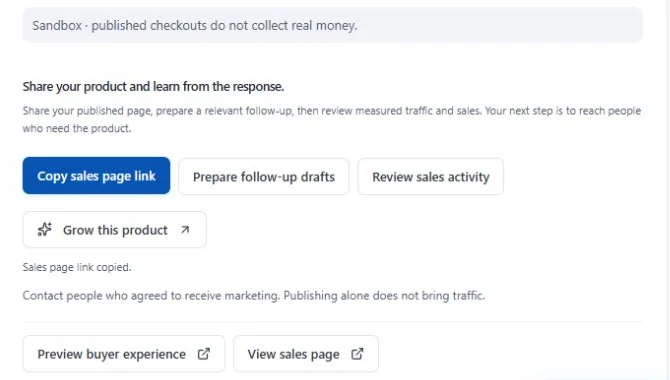
Under Your product is live, choose Copy sales page link. Open that link in a private browser window on your phone and check the offer before sharing it.