
Create a discount code
Workspace owners on Starter, Scale, and Business can create discounts for paid, fixed-price products and bundles.
- Open Sell → Storefront in Studio, then select Discounts.
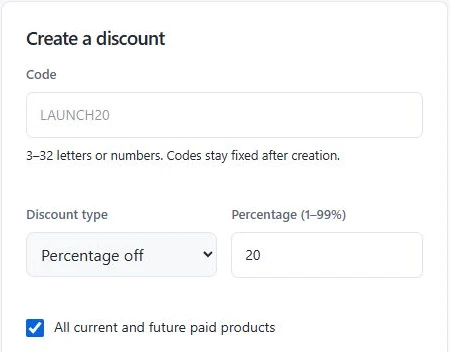
- Enter a code such as LAUNCH20. Use 3–32 letters or numbers. Create a new offer if you need a different code later.
- Choose Percentage off or Fixed amount off. Enter a whole percentage from 1 to 99, or enter a fixed amount and choose the product’s currency.
- Keep All current and future paid products checked, or clear it and select the eligible products or bundles.
- Set optional start and end dates and a total checkout use limit. Leave Enabled checked, then select Create discount.
Run an automatic launch sale
- Fill in the same discount form. Enter a code so you can identify the offer in Your offers.
- Set Starts and Ends if the sale should run for a set time. The fields use your device’s local time zone.
- Select Apply automatically as a launch sale and leave Enabled checked. Select Create discount. Buyers see the sale price during the active dates.
Genesize uses the best eligible offer at checkout. Discounts never stack. A fixed discount requires a matching currency, and the discounted price must be at least 1.00 in that currency.
Pause or update a discount
- In Your offers, select Edit offer.
- Update the details or clear Enabled to pause the offer. Select Save changes.
Updates apply to future checkouts. Open checkouts keep the agreed price. A checkout waiting for a verified outcome can temporarily reserve a use. A failed or expired checkout releases it, while a refund does not restore a used code.