
Prepare the products you want to include
Product bundles are available on paid plans. A bundle can include 2 to 10 of your published individual products, including downloads and courses.
- Publish each product you want to include. Use the same currency on every product and on the bundle.
- Choose individual products with a fixed one-time price or free access.
- Complete your store name and support email in Storefront settings. For a paid bundle, finish Stripe setup and any required sales fee agreement.
Build and price your bundle
- In Studio, open Storefront and choose Create bundle.
- Enter the Bundle title and Short description. Use About this bundle to explain what buyers get.
- Choose Currency and enter the One-time price, or select Offer this bundle for free.
- In Choose your products, check the products you want to include. Use Find a product to search the list, or Load more products if that button is available.
- Choose Store visibility and select Save draft. If you want a cover image, upload it after saving the draft.
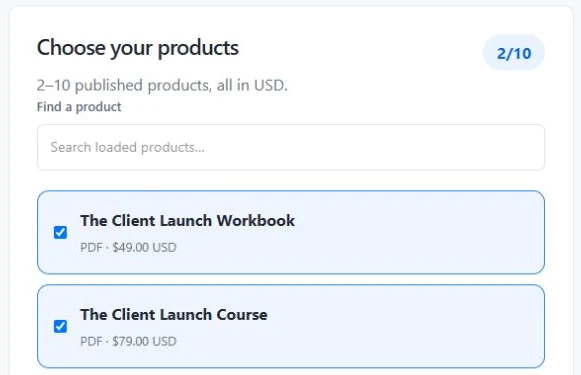
If a product is missing or you can’t select it, check that it’s an eligible published product, that its currency matches, and that you have room for another item.
Update or pause a live bundle
- From Storefront, choose Edit on the bundle. Save your changes, then choose Review & publish to review and publish them for future buyers.
- To stop new sales, choose Pause sales in the bundle editor.
Existing buyers keep the editions included in their purchase. If an included product is unpublished, new bundle sales pause until that product is available again.