
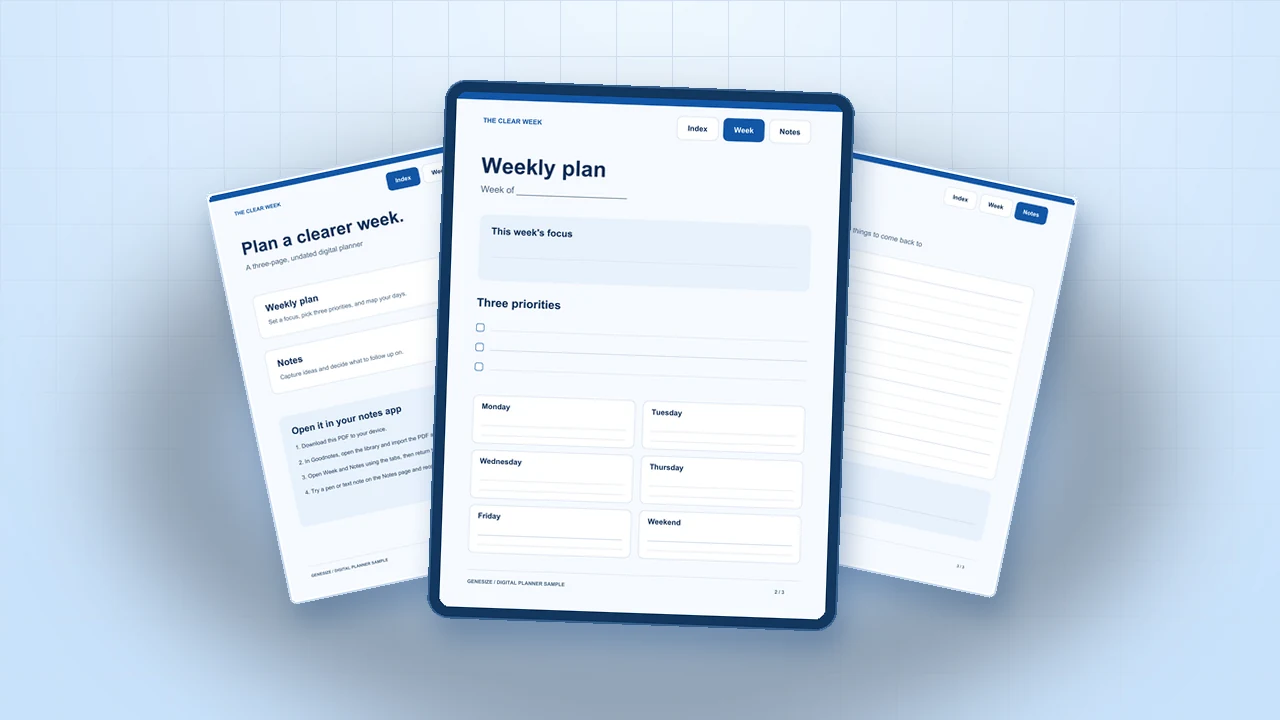
1. Package the planner buyers will actually receive
If you also have a finished PNG sticker pack, package it as a distinct companion download. The digital sticker guide shows transparent PNGs, a sample ZIP and buyer import instructions; an image pack is different from the planner PDF itself.
Export the finished PDF from your design tool. Give it a filename buyers can recognize in Downloads, such as the-clear-week-planner.pdf. Put import steps in the index or attach a one-page Start Here note with the file.
- Planner PDF. State the page count, page orientation, and whether dates are pre-filled. If you offer Monday and Sunday starts, name both files separately.
- Start Here note. Give the exact filename, the import steps for the app you tested, the first tab to try, and a way to get help.
- Listing images. Show the index, a weekly spread, and a filled-in page. Caption any filled-in example so buyers know which pages come blank.
Try The Clear Week
Download an original three-page planner with Index, Week, and Notes tabs and a short import guide on page one.
2. Import the finished PDF and test every tab
- Download the exported file to the device your listing names. Open your Goodnotes library, choose New → Import, and select the PDF.
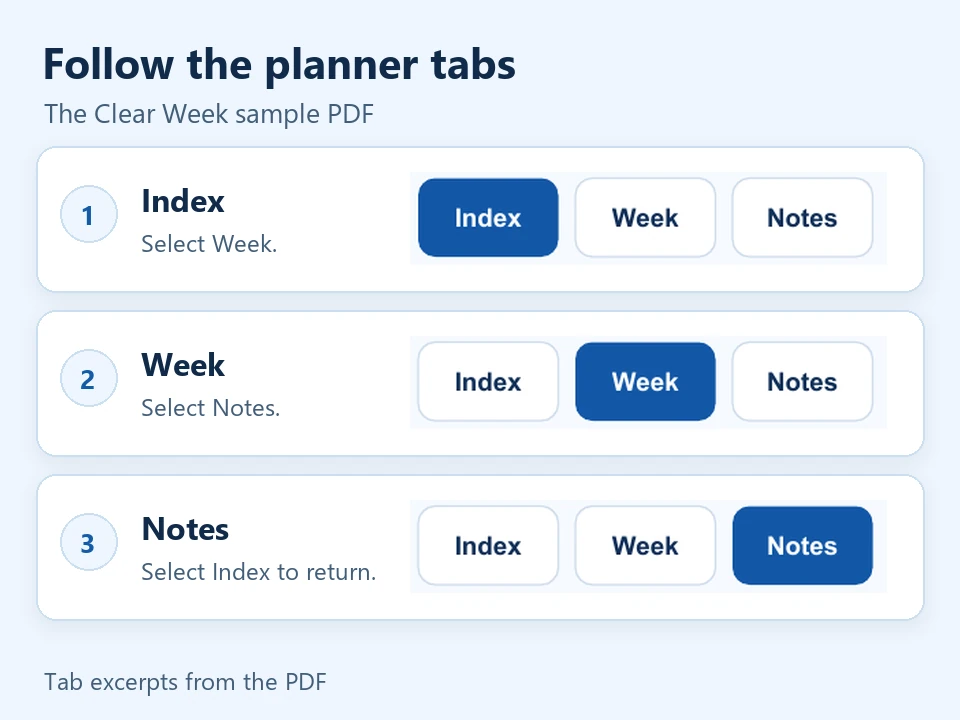
- In the sample, open Week, tap Notes, then return to Index. For your own planner, work through every tab, including the last month or week.
- Write a short note, close the imported copy, and open it again. Check that your writing is still there and that you can return to the index.
- Ask someone to follow only your Start Here note. If they need to ask which file to open or how to navigate, add that detail to the instructions.
Genesize checked all eight internal link targets in the sample PDF and rendered its three pages on a computer. The Goodnotes steps follow the official import and hyperlink guides. Run them on each device you intend to list as compatible. Goodnotes import instructions · Goodnotes PDF hyperlink instructions.
| App or device | How to try the tabs | What to verify |
|---|---|---|
| Goodnotes on iPad | Import the PDF and tap a linked tab. | Open the correct pages, write a note, close, and reopen. |
| Goodnotes on Android, Windows, or web | Open a link in Read Only Mode, or press and hold it in Edit Mode and choose Open Link. | Verify import, page navigation, and annotation on each advertised platform. |
| Another PDF annotation app | Use the app’s own PDF import and link controls. | Check the exact exported file before naming the app in your listing. |
3. Choose where to sell the planner
Choose based on where your customers will find the planner and what the buyer has to do to open it after paying.
| Channel | When it fits | Delivery check |
|---|---|---|
| Etsy instant download | You want an Etsy listing that people can find while shopping there. | Etsy allows up to five files at 20 MB each. Make the planner PDF and import note easy to identify. |
| Direct product link | You want to share the same page from your bio, website, or newsletter. | Verify what happens after checkout and how buyers return to their download later. |
Etsy’s digital listing requirements · Sell from a hosted product link
4. Publish the planner and check the download
- In Genesize Studio, choose Add product → I already have a product → Files & digital downloads. Attach the exported PDF and any separate import note, then save.
- Set the price and add photos or screenshots of your actual planner. Include the file type, page count, and tested apps near the buy button.
- Open Review & publish → Test buyer experience. Run the simulated checkout, choose Open test delivery, then Open test purchase. Download and open the PDF. A separate payment test verifies the payment path.
- Connect Stripe for paid sales. When the checks pass, publish and share your product link. After payment, buyers can open the files from their purchase page or return through the link in their receipt.
Upload an existing product · Run a buyer test and publish

5. Fix common planner download problems
- A tab opens the wrong page.
- Check where that tab points in your design file, especially after duplicating or moving pages. Export again and test the final PDF.
- The PDF opens, but the buyer can’t write on it.
- Have them save the file and import it into a PDF annotation app. A browser preview can display the pages without offering the same writing tools.
- The download is too large to import.
- Check the buyer’s app and plan limits. Reduce the size of large decorative images, or split bonus pages into a separate PDF. After exporting, test links again in both files.
Common questions about selling digital planners
Can I sell a digital planner without Etsy?
Yes. Publish the finished PDF on a hosted product page and share its link from your site, social profile, or newsletter. A tool like Genesize can handle checkout and file delivery. Decide how buyers will find your page before launch.
Should I deliver a PDF or a .goodnotes file?
Start with a hyperlinked PDF for a planner whose layout is finished. Goodnotes supports PDF import and annotation. Offer a .goodnotes edition only if you have tested the native file and your selling platform can deliver it. Check the exact file type in the product description.
Why are my planner tabs not working in Goodnotes?
First open the exact downloaded file and check that the PDF already contains the links. On iPad, tap the linked tab. On Android, Windows, or the web, use Read Only Mode or press and hold the link in Edit Mode and choose Open Link.
Can I sell a planner I designed in Canva or Keynote?
Export the finished planner as a PDF using settings that preserve links. Open the resulting file and test the tabs in the app listed on your product page. Attach the exported file and clear import instructions to your listing.
Have your planner ready?
Upload your finished PDF, test the buyer download, and publish your sales page.
See Free to Sell