

1. Make a Canva Template link
Start with the design you want customers to copy. For example, a freelance designer might sell a four-page Client Welcome Kit with a welcome page, timeline, contact sheet, and kickoff checklist. Make a clean version for sale and remove client names, draft pages, and notes.
- Open the design and choose Share above the editor.
- Choose Template link. If it’s hidden, select See all first.
- Choose Create template link, then Copy.
This link lets buyers start from a copy. An edit link can give people access to your original. Creating a Template link requires an eligible Canva plan. Canva also lists a paid-plan requirement for recipients who share the seller’s work email domain in some cases. Canva’s Template link instructions
Canva says templates for sale must be original designs. If the design uses Canva Pro content, deliver it through a Canva Template link. Keep the editable design in Canva and use the PDF for access instructions. Test the design on Canva Free before promising buyers they can use and export it with that account. Canva’s selling guidance · Canva’s watermark guidance
2. Put the link in a one-page PDF
The delivery PDF needs the product name, a clear link such as Open your template in Canva, and a few steps for making and editing a copy. Tell buyers which Canva account they need and where to contact you for help. Export the PDF and click the link inside that file to make sure it survived the export.
Sample delivery PDF
See how to lay out the link and instructions for a Client Welcome Kit. Replace the marked example with your own Template link before selling.
On the sales page, show screenshots or a few flattened previews of your original design where Canva’s rules allow. Keep the working Template link inside the paid file.
3. Publish and sell your Canva template
- In Genesize, choose Add product, then I already have a product and Files & digital downloads.
- Enter a name and choose Add my product. In Your content, select Choose a file, attach the delivery PDF, and save the draft.
- Open Review & sell to preview the buyer experience and set up the sales page. List what’s included, the price, and any Canva account requirements.
- Connect Stripe for paid sales. Review the files, sales page, and price, then publish and share the product link.
For the welcome kit, the listing could say: “Four editable Canva pages for welcoming a new client. You’ll download a PDF with the link to make your own copy in Canva.” See the publishing guide for the full checklist.
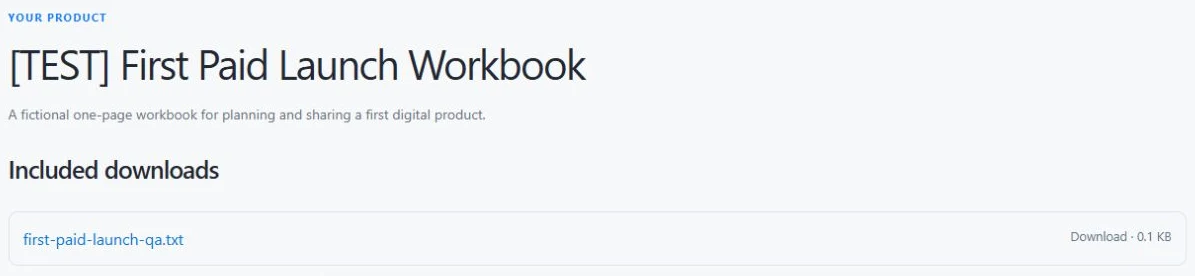
4. Test the PDF from a buyer’s account
- Open the PDF from Buyer Preview. On a phone, tap the link and check that Canva opens the expected design.
- Use a separate Canva account with the same plan you tell buyers to use. Make a copy, change one heading, and confirm the original stays the same.
- Export a sample from that copy. Check for watermarks, missing fonts, or a paid prompt before advertising Canva Free compatibility.
- If your test setup sends a store access email, use it to reopen the purchase and download the PDF again.
Deleting a Canva Template link makes its URL inactive. If you publish a new PDF in Genesize, future buyers receive it. Earlier buyers keep their original file, so check the old link and plan how those buyers can get a replacement if needed. Canva’s Template link guide.
See what a preview, $0 order, and sandbox payment can verify. Checkout and delivery tests.
Common questions
Can I sell Canva templates without Etsy?
Yes. Use a storefront that accepts digital downloads. Upload a PDF with your Canva Template link and instructions. Genesize gives you a sales page to share, takes payment through your connected Stripe account, and unlocks the PDF after payment is confirmed.
Do I need Canva Pro to sell templates?
You need a Canva plan that supports creating Template links if you are selling editable copies this way. Canva Pro is one eligible plan. Buyers’ requirements depend on their account and the elements in your design. Test on the account type you list on your sales page.
Can buyers share the Canva link?
Yes. Genesize controls who can download the delivery PDF from the purchase page. After opening the PDF, a buyer can still copy or forward the Canva Template link.
What if buyers see Request access?
Open the link from the actual delivery PDF in a separate Canva account. Check that it is a Template link and that it is still active. If you removed the old link, it stops working. When you replace a link, check how earlier buyers can get the new one.
Have a Canva template ready to sell?
Upload your delivery PDF, publish the sales page, and share your link.
Start selling for free