

Choose how the buyer gets the file
Say you’re selling a finished Client Kickoff Checklist PDF for $15. After payment, the buyer needs the full PDF and a way to get back to it from their inbox. Use a separate sample on the public page if you want people to see what they’re buying.
- 1. Confirm payment
- 2. Unlock the file
- 3. Email the access link
| Setup | When to use it | What the buyer gets |
|---|---|---|
| Stripe confirmation or redirect | You want to show a thank-you message, instructions or a public sample. | A message in Stripe or a page you choose. |
| Payment Link with a delivery tool | You already use a Stripe Payment Link and want to keep it. | Access to the purchased file once the tool confirms the payment. |
| Storefront with Stripe and delivery | You want a product page, checkout and file delivery in one setup. | A purchase page and a private link to return to the file. |
If you’re testing a new offer with a handful of buyers, you can check for a successful payment in Stripe and send each buyer a private link yourself. Set up automation when you want buyers to get their files while you’re away.
Set up automatic delivery for a Stripe Payment Link
- Create or open the link in Stripe. Go to Payment Links in your Stripe Dashboard. Add your product and price if you’re creating a link. Check that the name, price and currency match the PDF you’re offering.
- Set the confirmation page. In the Payment Link’s After the payment settings, choose a message or redirect to a thank-you page. Tell buyers how they’ll get the file and where to get help. Keep the full PDF at a private address.
- Connect your delivery tool. Map the Stripe product or price to Client-Kickoff-Checklist.pdf. Set it to wait for a confirmed payment and send the buyer a private access link. Check how the tool handles expired links and resends.
- Test the email separately. Confirm the payment receipt and the file access instructions both reach the buyer. Your delivery tool may send the download link in a separate email.
A buyer can close their tab before a redirect loads. Use a payment event to trigger delivery so it runs even when the thank-you page never opens. Stripe’s Payment Links guide.
For a custom Stripe integration. Verify the webhook signature and handle checkout.session.completed. If you accept delayed payment methods, also handle checkout.session.async_payment_succeeded. Retrieve the Checkout Session and check for a paid status before granting access. Record fulfillment once per session ID so a repeated event leaves the buyer with one delivery. Stripe’s checkout fulfillment guide.
Deliver the same PDF with Genesize
Genesize can host the product page, send buyers through your connected Stripe checkout and give them access after payment. Here’s what that looks like for the same finished checklist.
- Upload the finished file. Choose Add product, then I already have a product and Files & digital downloads. Attach the full PDF and list what’s included on the product page.
- Set your price and connect Stripe. Follow the launch checklist to finish payments. Review the product page and publish it when Stripe is ready. Share the published product link with buyers.
- Check the buyer’s access. After confirmed payment, the buyer can open the purchase page and find the PDF under Included downloads. The receipt has a private link they can use to return.
Free to Sell has a $0 monthly fee. Genesize sales fees and Stripe processing fees apply to paid orders. See Genesize pricing.
Test the purchase from a phone before sharing the link
Start with the preview, then test the steps a real buyer will use. Open the buyer link on a phone in a fresh browser session and use an inbox you control.
| Test | What it checks | Still to verify |
|---|---|---|
| Buyer Preview | The saved files, filenames, and buyer-facing content. | Order creation, payment, and email delivery. |
| $0 sample order | The store’s confirmation page, access email, and download. | Stripe payment confirmation for a paid order. |
| Paid sandbox checkout | Whether a simulated payment unlocks the right file, if your store supports that test. | Automatic Stripe receipt email delivery, which requires a live payment. |
Use test cards in the sandbox. Stripe can generate a test receipt, and you can send it manually. Test the store’s file-access email separately if your test setup can send it. Stripe’s test receipt documentation.
- Before payment. Check the price and currency, then confirm the full PDF is private.
- After successful payment. Download the exact file you attached. Open it on a phone and check the name and contents.
- From the store’s access email. When your test setup sends it, close checkout, reopen the purchase from the email in a fresh browser, and download the file again.
- With a failed or pending payment. Use the test environment to confirm access stays locked until a payment succeeds.
In a Genesize live delivery check, a $0 sample order sent a receipt. A requested private purchases link also arrived, and the sample opened on a phone. For a test-mode Payment Link or sandbox-enabled integration, use a test payment to check the paid confirmation step.
What to check when a buyer can’t download
- The buyer paid but got no link. Check that the payment succeeded and the delivery tool processed it. Verify the checkout email and sending status. In Genesize, open the order in Storefront → Orders and check Payment, Access and Email delivery. Use Resend access email if it’s available for the order.
- The wrong file opens. Check what the buyer’s order included. Genesize buyers keep the edition and files from their order. If you attached a new file, publish the update and use a fresh test order to check what future buyers get. An access email opens the buyer’s original purchase.
- The receipt link expired or the buyer lost the email. Use your store’s access recovery option. In Genesize, buyers can request a fresh link even if they no longer have the original purchase page.
Find a Genesize purchase without the original receipt
- Open My purchases and enter the email used at checkout.
- Choose Email me a private link. Look in your inbox and spam folder for the email.
- Follow the email link, choose Open my purchases, then open the product and look under Included downloads.
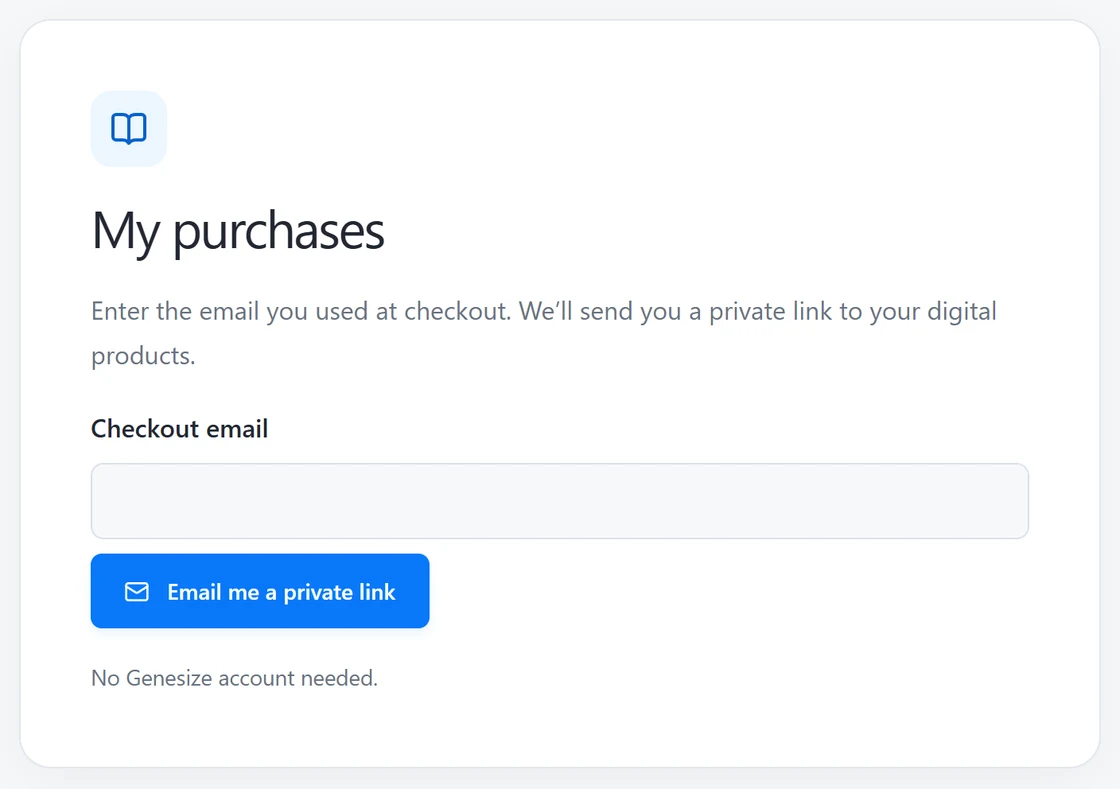
The buyer can do this without a Genesize account. If they still need help, ask for the product name, checkout email and order reference if they have it. Keep payment card details private. Share the purchase recovery steps or the download help guide with the buyer.
Common questions
Can I sell digital downloads with Stripe Payment Links?
Yes. Create a Payment Link for the product to collect payment through Stripe Checkout. Set up file delivery separately with a fulfillment tool or a custom integration that grants access after payment is confirmed.
Does a Stripe receipt deliver my PDF?
A Stripe payment receipt records the payment. Set up your delivery tool to send a private link to the purchased file. Stripe only emails payment receipts automatically for live payments. Test your store’s access email and file download separately.
How do I keep the download private?
Keep the full file in private storage and grant access for a confirmed purchase. Share the product page publicly and give buyers a purchase link or sign-in route for the download. Anyone with a public file URL can open it.
Can I use my existing Stripe Payment Link with Genesize delivery?
To use Genesize delivery, share the published Genesize product page. It opens Stripe checkout for the Genesize order. If you keep a Stripe Payment Link you made separately, connect a delivery tool to that link’s payments.
Have a finished file ready to sell?
Upload it, publish your product page and share your link.
Explore Genesize Free to Sell