

1. Prepare a clean copy in Notion
Build the pages, databases, views, and formulas in Notion. Make a separate copy of the finished template for buyers. Replace client names, contact details, and real records with fictional examples. For a Freelance Client Tracker, for example, give buyers an example project they can delete and a simple first task such as adding a client and setting a follow-up date.
Publishing a page in Notion also publishes its subpages by default. Check those pages, database rows, and any links back to your own workspace. Notion also includes contributor names, profile photos, and email addresses in public page metadata, so review which accounts contributed to the version you publish. Notion’s publishing guide.
2. Publish a Notion link buyers can duplicate
- Open the clean template in Notion. Choose Share, then Publish, and publish the page.
- Turn on Duplicate as template. If the setting is in Site customization, open Header, enable it, and choose Publish changes.
- Copy the site address from Share → Publish. From a separate Notion account, open it, choose Duplicate, and pick the destination workspace.
A buyer’s copy opens in their workspace. Check that the copy has the pages and database views you promised. Notion’s guide to duplicating public pages.
3. Choose where buyers pay
| Sales channel | What the buyer opens | What you set up |
|---|---|---|
| Notion Marketplace checkout | A Notion listing and checkout. | Apply for direct payments on Marketplace and follow Notion’s listing process. |
| Your Genesize store | A Genesize sales page, Stripe checkout, and a PDF with the Notion link. | Publish a Notion copy buyers can duplicate, attach the PDF, and connect Stripe. |
Selling through both? Notion says a template sold through its Marketplace checkout can send visitors to that checkout from the original Notion Site link. Publish a separate copy at a different Notion Site address for your Genesize buyers so they can duplicate the template after they’ve paid. Notion’s Marketplace guidance.
4. Sell and deliver the template with Genesize
- Make a one-page delivery PDF. Add the template name, a link labeled Open your Notion template, and instructions to sign in, choose Duplicate, and select a workspace.
- Upload the PDF. In Genesize, choose Add product, then I already have a product and Files & digital downloads. Attach the PDF and save your draft.
- Review your offer and publish. Explain what the buyer will get and that they need a Notion account to duplicate it. Connect Stripe for paid sales. Preview the offer, publish, and share the Genesize sales page.
Sample Notion delivery PDF
Use the Freelance Client Tracker example to see what buyers need. Replace the placeholder with your own published Notion link.
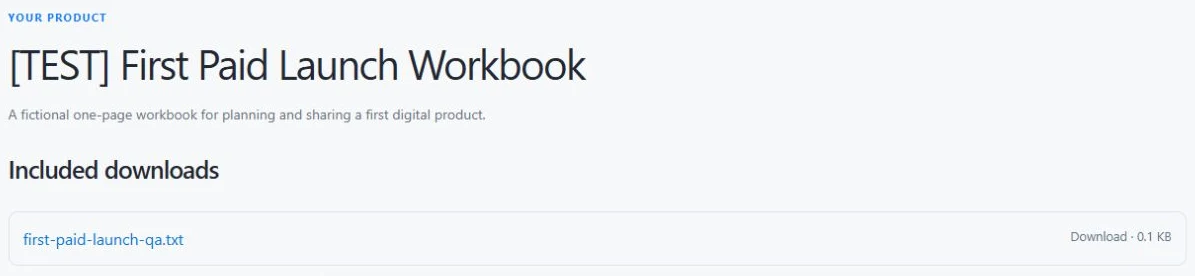
After payment, buyers can find the attached PDF under Included downloads on their purchase page. Genesize manages access to the PDF. The Notion link inside can still be forwarded, so keep it out of your public listing and samples.
5. Test what your buyer can actually use
- Open the actual PDF. Download it from Buyer Preview and tap the link on a phone.
- Make a copy in a different account. Use a workspace that has no access to your original. Open the subpages, add one fictional client, and check the status views and any formulas.
- Fix any “No access” blocks. Check whether a linked view points to a private database. Put the data buyers need inside the template, then duplicate it again to check the fix. Notion’s guide to linked data sources.
If you update the template later, buyers keep the copy they already made. If you change your Notion workspace domain, links that use the old domain stop working. Check an earlier delivery PDF before making that change and plan how to give those buyers the replacement link. Publishing a new PDF on Genesize updates future orders. Earlier orders keep their original download. Notion’s guidance on published URLs.
For checkout and email checks, see the delivery test guide.
Common questions
Can Genesize build a Notion template?
Build your pages, databases, formulas, and views in Notion. Use Genesize for the sales page, checkout, and delivery of a PDF that contains your Notion duplicate link.
Can I sell a Notion template outside Notion Marketplace?
Yes. Publish a copy of the template in Notion with Duplicate as template enabled, put the link in a delivery PDF, and sell that file from your own store. If Notion Marketplace handles payment for your existing listing, publish a separate copy at a different Notion Site address for your own store.
Why is the Duplicate button missing on my Notion template?
Open the published Notion Site link while signed in to a separate Notion account. Check whether Duplicate as template is enabled and saved in the site’s Header settings. If the link opens Marketplace checkout, use a separate published copy for buyers from your own store.
Can buyers forward the Notion link?
Yes. Genesize controls access to the delivery PDF through the buyer’s purchase. Anyone who gets the public Notion link can open the page and duplicate it when duplication is enabled.
Have a Notion template ready to sell?
Upload your delivery PDF, publish the sales page, and share your link.
See Free to Sell