
Where can viewers click a product link on YouTube?
Choose the link placement before writing “link below” into your script. The following rules were checked against YouTube’s link guidance on November 19, 2026.
| Placement | What it can do | What to check |
|---|---|---|
| Channel profile link | Open your external product page. | Publish the link with a specific product name and open it from the channel page. |
| Long-form video description or comment | Open an external URL when the channel has advanced-feature access. | Confirm access and test the published link. Pinning comments also requires the relevant access. |
| Shorts description or comment | Display ordinary URL text without a clickable external link. | Do not rely on a pasted or pinned product URL here. |
| A Short’s Related Video | Open eligible YouTube content from your own channel. | It is not an external product URL. Use an eligible walkthrough whose description has the product link. |
If external description links are unavailable
In YouTube Studio, open Settings → Channel → Feature eligibility. Check the channel’s actual status. Advanced access involves phone verification plus sufficient channel history or an available identity-verification route; it is not an automatic result of uploading a video. Feature-access overview · Verification steps and availability.
This guide uses ordinary website links. YouTube Shopping shelves and product tags have separate eligibility and store requirements. Do not assume publishing a Genesize page connects a Shopping shelf.
A finished $19 PDF: from useful demonstration to download
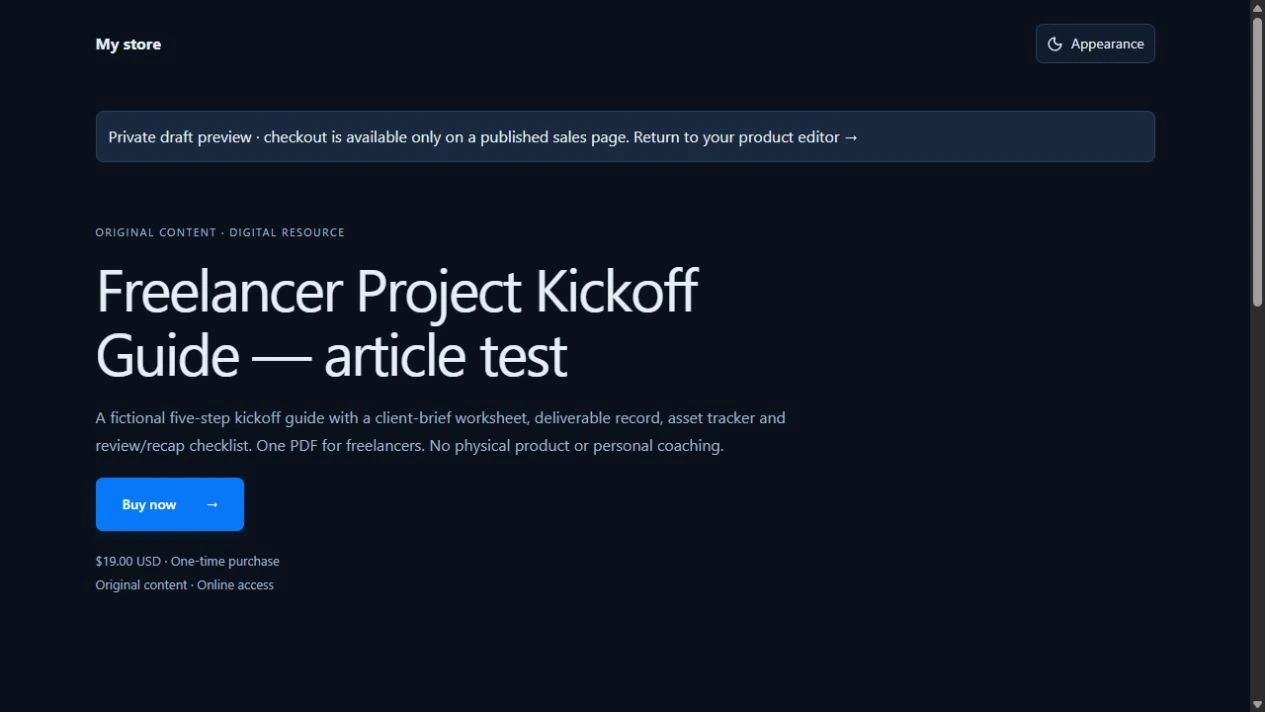
Our fictional Client Kickoff Guide is for freelancers preparing a new client meeting. It covers five steps: the brief, deliverables, required assets, feedback and the next milestone. A useful video could show how to record the person responsible for approving the work, using fictional project details. The $19 price is an example; the teaching sample below is free.
- 1. Show a useful example
- 2. Open the product page
- 3. Buy through checkout
- 4. Receive the PDF
Before recording, make the destination ready:
- Attach the finished file. In Genesize, add an existing product and upload the PDF. You do not need to recreate it with AI.
- Explain the offer. Name the intended buyer, show a sample, list the contents and price, and state whether it is editable. Include permitted-use and refund terms.
- Complete seller payment setup. Connect your own Stripe account and resolve any outstanding requirements for paid sales.
- Test, publish and copy the public link. Use the buyer-test controls in Review & publish. When the page is ready, copy its public
/p/URL for YouTube.
Genesize Free to Sell has no monthly subscription. It charges 10% on direct sales and 30% through Genesize Marketplace, before tax. At $19, the direct-sale Genesize fee is $1.90, leaving $17.10 before Stripe processing and other applicable costs. Linking from YouTube to your product page uses the direct route. Paid plans have different fees; use the fee calculator to compare them.
Free to Sell includes selling and delivery, with purchase receipts. AI, CRM and email-marketing tools are separate paid features. You can deliver the bought PDF without setting up a marketing sequence.
Copy the tutorial and link worksheet
Get an original walkthrough outline, description and comment copy, a Shorts route, and a buyer-test checklist.
Download the fictional kickoff PDF sample to see the packaging. The sample is free and does not represent customer sales.
Add the finished product to your channel profile
Use a descriptive label such as “Client Kickoff Guide — PDF”. It tells visitors what they will find before leaving YouTube.
- Sign in to YouTube Studio and open Customization → Profile.
- Under Links, choose Add link. Enter the product title and public sales-page URL.
- Put the offer you want people to find first at the top of your profile links, then choose Publish.
- Open the published channel page as a visitor and test the link on a phone.
YouTube currently supports up to 14 profile links and displays the first prominently. That is room for more links, not a reason to make someone search through unrelated offers. Official channel-profile instructions.
Make a tutorial that helps before it asks for a sale
Start with a task the intended buyer already needs to complete. For the kickoff PDF, a focused title could be “How to prepare your first freelance client kickoff meeting”. Show a useful part of that process with the actual guide, rather than making the whole video an advertisement.
- Name the situation. “You have a new client and need to agree who gives feedback before work begins.”
- Demonstrate one step. Show the client-brief worksheet and record a fictional approval contact in your own project notes. Explain how you would use that decision in the meeting.
- Show what the paid product adds. Briefly preview the remaining steps on deliverables, assets and the next milestone. State that this example is a PDF download, not a coaching call or software subscription.
- Give one specific next step. “If you want the full Client Kickoff Guide, the first product link in this video’s description shows the pages and $19 price.” Use that wording only after confirming the link works.
Copyable long-form description
Preparing a first client kickoff meeting? This walkthrough shows how to record the person approving the work and agree the next action.
Client Kickoff Guide — $19 PDF: [your public product URL]
The guide covers the brief, deliverables, assets, feedback and the next milestone. See the sample and permitted use on the product page. I created and sell this guide.
A pinned comment can repeat the relevant link
On an eligible long-form video, a useful comment could say: “The PDF shown in this walkthrough is the Client Kickoff Guide. See the sample, contents and $19 price here: [public product URL].” Check the published link, and keep the main offer in the description too. The same external URL under a Short does not become clickable when pinned.
Only demonstrate work you can use and sell. Keep real client details out of the recording, and make the destination match the offer. YouTube’s external-links policy applies to clickable links, visible URLs and spoken directions.
How to sell digital products from YouTube Shorts
Do not make a Shorts description or comment URL your only buying path. YouTube makes ordinary external URLs there non-clickable. Use one of these routes:
- Profile route: show one useful page and say, “The Client Kickoff PDF is linked on my channel profile.” Confirm visitors can find that named link.
- Walkthrough route: attach an eligible Related Video from your own channel. That video explains the product and has the external link in its long-form description.
To set the second route after uploading a Short, open YouTube Studio → Content, select the Short, choose Related Video from your channel, and save. The destination must be public or unlisted. The dedicated Help page requires advanced-feature access; check your available controls. Related-video requirements and steps.
A Related Video links to YouTube content, not directly to Genesize. An unlisted video used here becomes accessible to people who follow the link. Make sure it is appropriate to share before selecting it.
Example Short: show a blank approval-contact field, fill it with fictional information, and explain why you ask that question. End with “Watch the linked walkthrough to see the full meeting setup.” The next screen should deliver that walkthrough, with a clearly described product link for interested viewers.
Check the public link, checkout and buyer’s download
Test each placement you actually use. A working profile link does not prove that a description link is clickable, and a correct description does not prove the file is delivered.
- Open the published placement on a phone. Use a signed-out browser where available. For the app-specific experience, test in the YouTube app separately. Find and tap the profile or long-form link. For a Short, follow its profile or Related Video route.
- Inspect the destination. Confirm the same product name, price, format and sample. Open the live buy action and check the intended checkout; stop before payment if you are only inspecting it.
- Test delivery separately. In Genesize’s Review & publish area, choose Test buyer experience, complete the simulated checkout and open test delivery. Use Send test receipt if you want to test the email path to your verified seller address.
- Open the delivered file. Follow the receipt on a phone while signed out of Genesize, choose Open test purchase, and download the PDF under Included downloads. Check its pages, links and opening instructions.
We previously verified the sample PDF’s receipt and download in signed-out Safari on an iPhone. See the receipt-test walkthrough. That earlier check is not a YouTube in-app browser or paid-payment test. Repeat the relevant checks for your product and channel.
A simulated checkout creates no real payment or order. Its private test link expires after 30 minutes from the simulation. Use a fresh simulation when needed, and keep private test and purchase-access links out of public descriptions. A separate supported payment sandbox is needed to verify a paid transaction end to end.
YouTube views but no sales: check the next step
Use a distinct campaign label for the tutorial description, profile or pinned comment if you want to distinguish those placements in measured store traffic. Keep the same product-page base URL. For example, replace this entire illustrative address with your own:
https://store.example/client-kickoff?utm_source=youtube&utm_medium=video&utm_campaign=kickoff-tutorial-description
| What you see | Check first | A useful next change |
|---|---|---|
| Views, little product traffic | Can viewers click the named link from that specific placement? | Fix an unavailable link or make the invitation more specific. Do not treat a Shorts URL as a working buy button. |
| Product visits, few checkout starts | Does the page explain the same product and outcome shown in the video? | Show the contents, format and a real sample near the price. Use the sales-page worksheet. |
| Checkout starts, no verified paid orders | Does checkout open correctly on a phone, and is seller payment setup complete? | Repeat the buyer checks and fix a concrete error before concluding the price is wrong. |
| Paid orders, access questions | Can the receipt be found and the correct file opened? | Clarify delivery instructions. Check the payment-to-download path. |
On paid Genesize plans, Analytics → Overview → Tracked traffic sources shows measured source and campaign traffic. On Free to Sell, inspect the product’s order list and the YouTube metrics available to your channel. Full source reporting is a paid feature.
Browser and analytics choices limit measurement, and some orders have an unknown source. A shared profile link cannot identify the exact video that prompted a visit. A related-video link also introduces another step. Keep those paths separate in your notes, compare the same dates, and count confirmed paid orders rather than sample downloads or simulations. Small samples do not establish that a product failed or that a change caused more sales.
If the buying path works but you still need suitable people to reach it, use the first-buyer plan for a finished product. Choose one explanation or demonstration to improve, record the dates, and review the next comparable period.
Common questions about selling digital products on YouTube
How do I sell digital products on YouTube?
Publish a product page with checkout and digital delivery, then link it from your channel profile and eligible long-form video descriptions. Demonstrate a useful part of your finished PDF, template or course. Viewers follow the external link to buy; a video view or link click is not a purchase.
Why is my product link not clickable in YouTube Shorts?
YouTube makes ordinary URLs in Shorts descriptions and comments non-clickable. Use a channel profile link, or add an eligible Related Video from your own channel and put the product link in that long-form video’s description. A Related Video cannot point directly to your external checkout.
Do I need a website to sell a PDF from YouTube?
You can use a hosted product page instead of building a separate website. Genesize lets you upload a finished PDF, publish its page and connect checkout and delivery. Link the public product page from YouTube, never a private buyer-test or purchase-access link.
Do I need YouTube Shopping to sell my own download?
This guide uses ordinary website links and an external checkout. YouTube Shopping shelves and tags are a separate feature with their own eligibility and supported-store requirements. The Genesize workflow described here does not connect a YouTube Shopping shelf.
Can I add a product link to a pinned YouTube comment?
On a long-form video, a pinned comment can repeat the relevant product link when the channel has the required advanced features. Test the published link. Pinning a comment under a Short does not make an ordinary external URL clickable.
Does Genesize upload my videos to YouTube?
No. In this workflow, you create and publish YouTube content yourself. Genesize provides the product page, checkout and delivery for the offer you link. A buyer’s download and your public demonstration video are separate.
Give your finished product a page viewers can buy from
Upload your file, explain what buyers receive, and check the journey before sharing the link.
Explore Free to Sell