
Native Download product or an external buy button?
If Squarespace already manages your store, its native route may be the simpler fit. Use an external product link when you deliberately want another platform to manage the offer and delivery. You do not need a custom script for a normal website link.
| Question | Native Squarespace Download | Squarespace button to Genesize |
|---|---|---|
| Where is the order managed? | Squarespace’s store and order tools. | Genesize, after the visitor follows the external link. |
| How are files attached? | One file up to 300 MB; use a ZIP for several resources. | Up to 10 supported attachments, 50 MB per file, within workspace storage allowances. |
| What does the website control? | The native product presentation and store journey. | Your introductory page and button; the linked store controls its own offer and checkout. |
| When is it a useful fit? | You want download sales alongside your existing Squarespace orders. | You want a separate creator-store workflow and accept the extra handoff and its costs. |
Check the current Squarespace Download product requirements and Genesize publishing guide. Genesize’s per-file limit is lower, so it is not a solution for a file that exceeds Squarespace’s native limit.
Prepare one finished $19 PDF before changing your website
Use a small, understandable offer. Our fictional Client Kickoff Guide covers the brief, deliverables, required assets, feedback and the next milestone. The $19 USD price is a worked example. The teaching sample linked below is free.
- Show a sample page and explain who the guide helps.
- State the file format, what is included, required software, permitted use and refund terms.
- Use the same title, price and currency on the website and destination page.
- Open the actual exported file on a phone and computer before attaching it.
- 1. Explain the finished file
- 2. Choose the selling route
- 3. Review checkout
- 4. Open the buyer’s download
Choose and check your download setup
Use the editable checklist for the native-versus-external decision, website copy and buyer-access checks.
Open the free kickoff PDF sample for a packaging example. It is not a live $19 offer or evidence of customer revenue.
Route 1: sell through a Squarespace Download product
For Squarespace 7.1, add a Store through the Pages panel if needed. Open the store’s add-product control and choose Download. Add the description and images, upload the file, set the price, then use Save → Publish. The 7.0 store-creation menu differs. Follow the current product-creation instructions for your version.
Download products use a single uploaded file. They are not the same product type as a course or recurring membership, and do not have the usual variant or subscription controls. Use a ZIP when the promised resources belong in one pack. Native download specifications.
Decide how the pack will be used after extraction. For example, name the guide clearly, include a short readme, and put license terms beside the file. Do not assume compressing an oversized video makes it small enough; check the resulting file size and whether a downloadable video is actually the right delivery format.
Compare download-selling fees rather than the wrong product category
For the current Basic, Core, Plus and Advanced plan family, Squarespace classifies ordinary downloadable files under commerce transaction fees. Its separate Digital Products fee category concerns products such as courses and member sites. Legacy plans differ. Check Squarespace’s current fee table and plan features for your account.
| Route | Selected platform selling fee | Left before processing and other costs |
|---|---|---|
| Native download on current Squarespace Basic | 2% = $0.38 | $18.62 |
| Native download on current Squarespace Core, Plus or Advanced | 0% commerce transaction fee | $19.00 |
| Button to Genesize Free to Sell | 10% direct-sale commission = $1.90 | $17.10 |
This is not a full-cost or profit comparison. Keep your Squarespace website subscription in the budget for both routes. Payment processing, applicable tax obligations, refunds and support also matter. Genesize Free to Sell has no monthly subscription; paid plans have different fees and features. Use the fee calculator for your numbers.
Genesize Marketplace sales have a separate rate: currently 30% on Free to Sell. This example uses an ordinary website link to the product page, not a Marketplace checkout. Free to Sell includes purchase delivery and receipts; AI, CRM and email-marketing tools are paid features.
Check mobile checkout, receipt and file access separately
If you chose native Squarespace delivery
Follow Squarespace’s supported test-order process. Its test mode can prevent real checkout purchases while enabled, so plan the test safely rather than interrupting a selling store. The documented payment-provider support and public-site requirements matter; do not assume every payment method can be simulated.
Check the confirmation and receipt on a phone, then open and use the delivered file. Native access links are time-limited to 24 hours; clicking an expired link sends a fresh one to the original buyer’s email. File replacement can affect link refresh, so follow the provider’s resend instructions when needed. Download delivery and recovery details.
If you chose the external Genesize route
- Open your published Squarespace page while signed out of the seller tools. Tap the button and confirm the product, price, currency and format on the linked offer.
- Open the intended checkout and review its details. Stop before paying if this is only a navigation check.
- In Genesize’s Review & publish area, use Test buyer experience, complete the simulated checkout and open test delivery. You can choose Send test receipt to check delivery to your verified seller address.
- Open that receipt on your phone while signed out of Genesize, choose Open test purchase and download the file under Included downloads. Open the downloaded copy in the app you recommend.
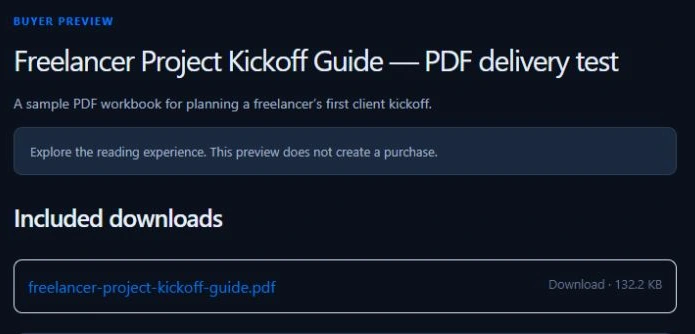
Our earlier tester confirmed that the sample PDF’s receipt arrived and its file opened in signed-out Safari on an iPhone. See the verified receipt walkthrough. That evidence does not establish native Squarespace checkout success or a new Squarespace button test. Check the route you actually publish.
The Genesize buyer simulation creates no real payment or order. Its private link lasts 30 minutes from the simulation. Keep it out of website buttons, and run a separate supported payment-sandbox test if you need end-to-end paid-payment evidence.
Common Squarespace digital-download problems
| Problem | What to inspect | Next action |
|---|---|---|
| Visitors can open the paid PDF immediately | The website button may point to a public file. | Use the product offer with checkout and keep the full paid attachment in the chosen delivery system. |
| The upload is too large | The destination’s actual per-file limit. | Check the finished export. Genesize’s lower per-file cap is not an oversized-file workaround. |
| The button opens Studio or a sign-in screen | A seller or private preview URL. | Replace it with the published product page and retest as a visitor. |
| An external purchase is missing from Squarespace Orders | Where the buyer actually checked out. | Look in the external store. A normal link does not create a Squarespace order. |
| Receipt or access link is missing | Payment status, checkout email and Junk folder. | Use the delivery provider’s recovery process. In Genesize, buyers can request access through Purchases. |
| The downloaded copy is wrong or hard to use | The actual attachment, edition and required app. | Download the buyer’s file, check its contents, and review how an update affects existing buyers. |
For deeper delivery checks, use the payment-to-download guide. If visits arrive but people cannot understand the offer, use the sales-page example and worksheet.
Sources and verification
Squarespace’s official product, button, fee and test-order documentation was checked on November 19, 2026. Genesize’s attachment limits and commission calculation were checked against its implementation. We did not create or pay for a Squarespace order for this article. The $19 example is fictional; the linked iPhone evidence is an earlier Genesize delivery check.
Common questions about selling downloads on Squarespace
Can I sell a PDF on Squarespace?
Yes. You can use a native Download product with its payment and delivery setup, or add a Button block that opens an external product page with checkout. Choose where the order and file delivery should be managed before adding the link.
Do I need Squarespace Commerce if I link to Genesize?
An ordinary external button opens the linked product page; it does not use Squarespace checkout for that sale. You still need your Squarespace website setup and a payment-ready Genesize store. Review both services’ current costs and requirements rather than treating external checkout as cost-free.
Can I attach several files to one Squarespace download?
Squarespace’s native Download product accepts one uploaded file. Package several resources into a ZIP and check the buyer’s extraction instructions. An external platform may have a different attachment model; check its supported formats and limits separately.
Will an external purchase appear in my Squarespace order list?
When the button sends the buyer to Genesize, Genesize handles that order and delivery. Look there for the purchase; a normal link does not synchronize external orders into Squarespace.
Should the Squarespace button link directly to the PDF?
For a paid product, link to the public product offer with checkout. A direct public file URL gives visitors the file without completing that purchase. Keep free preview files separate from the paid attachment.
Can Genesize take files larger than Squarespace’s native limit?
No. The current native Squarespace Download limit is 300 MB for one file. Genesize currently accepts supported attachments up to 50 MB each, within workspace storage allowances. Choose the service and file format that actually fit your product.
Choose the route you can explain and support
Keep the offer clear, check the real file and follow the same steps a buyer will take.
Explore the Genesize selling route