
1. Set up a $19 PDF product
The example is a Client Kickoff Guide for freelancers. It sells for $19 USD as a one-time purchase. The PDF covers the project brief, deliverables, and asset checklist, with reusable kickoff notes for the next project.
- In Genesize, select Add product → I already have a product → Files & digital downloads and attach the finished PDF.
- Write what the buyer gets, set the price and currency, and add a separate sample if you want visitors to preview a page.
- Connect your Stripe account before publishing a paid offer. In Review & publish, check the price and open the file buyers will receive.
- Publish the reviewed offer and copy the public product page link. On WordPress, show the same title and price next to the button.
For more on preparing the file and setting up delivery, see how to sell a finished PDF.
2. Add the buy button in the WordPress editor
- Edit the page or post where you describe the download.
- Open the block inserter with +, search for Buttons, and insert the block.
- Enter Buy the PDF — $19. Select the button and open the link control in its toolbar.
- Paste the public Genesize product page URL and apply it. Save or update the WordPress page.
- Open the visitor-facing page while signed out and follow the button. Match the product name, price, and currency across both pages.
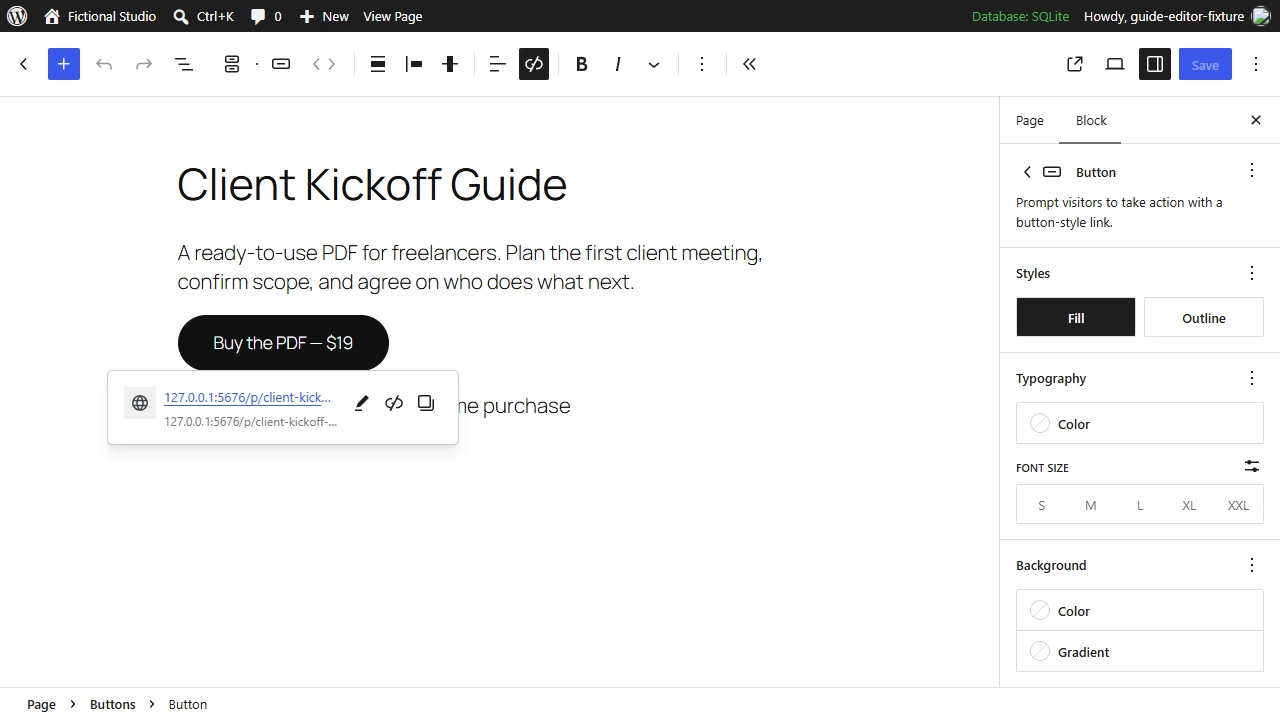
Keep the full PDF in the product’s delivery settings. Buyers receive their own access link after checkout. If you want a preview on WordPress, upload a separate sample. See the WordPress button controls
3. Test the button, receipt, and PDF on mobile
- Buy button. In a signed-out browser on your phone, open the WordPress page, tap the button, and verify the product and price on the destination.
- Test receipt. In Studio, open Review & publish and select Test buyer experience. Choose Complete simulated checkout, then Send test receipt. Look for the email that starts with [TEST] Your purchase at the seller’s verified address.
- Download. While signed out on your phone, follow the receipt link, tap Open test purchase, and open the PDF. Check the filename and contents. The private test link expires after 30 minutes.
What we verified. The WordPress button opened the $19 product page in a signed-out browser emulating an iPhone. We ran checkout in simulation, captured the test receipt in a local inbox, and opened its link while signed out. The downloaded PDF matched the uploaded file. For a separate iPhone inbox and Safari download check, see the PDF selling guide.
To verify confirmed payment and post-payment delivery together, run a full order in a supported payment sandbox. See the Stripe delivery checklist.
Which WordPress setup fits your product?
Using Squarespace for another site? Compare its native download setup with an external buy button in the Squarespace digital-download guide.
| Setup | Payment and delivery | When to use it |
|---|---|---|
| WordPress Button with hosted checkout | WordPress links to the public offer. Your selling platform handles checkout and controls access to the file. | You already have a site and want to sell a finished download from a page or post. |
| WordPress.com Payment Buttons | On eligible WordPress.com plans, the block takes payment through Stripe and can include a file URL in the confirmation email. Anyone with that direct URL can open it. | You use WordPress.com’s payments setup and are comfortable sending a shareable file link. |
| WooCommerce | Your WordPress store manages orders and delivery, with configurable download methods, limits, and expiry. | You want your catalog, cart, orders, and download settings in WordPress. |
WordPress.com digital product guide · WooCommerce download documentation
Fix common problems before sharing your page
| What you see | What to check |
|---|---|
| Button opens an editor or sign-in screen | Copy the published product page link. Update the button in WordPress and try again while signed out. |
| The full PDF opens before checkout | Check for a direct file link on the WordPress page. Use the public product page for the button and attach the full file to the offer. |
| The page and checkout show different prices | Check that the correct product and currency are selected. Update the WordPress label after price changes and account for any tax shown at checkout. |
| Payment went through but there’s no receipt | Confirm payment and the checkout email address, then check Junk. Use the order’s confirmation page or the supported purchase recovery option to restore access. |
| The buyer gets the wrong file | Check the files attached to the purchased edition. Download the buyer’s copy and open it before publishing any update. |
Common questions
Can I sell a PDF from a WordPress blog post?
Yes. Add a Buttons block to the post and point it to the public product page. Choose a selling platform that supports PDF, checkout, and file delivery.
Can I use the same steps on WordPress.com and self-hosted WordPress?
Yes. A standard Buttons block can link to an external product page from either setup when the site uses the WordPress block editor. WordPress.com also documents a separate Payment Buttons feature.
Does a standard WordPress button take payment?
The button opens its destination URL. In this example, buyers see the offer on Genesize and pay through checkout on the seller’s connected Stripe account.
Can a buyer share a PDF after downloading it?
Yes. Purchase links can restrict access to the download from your store. Someone who saves a copy of the PDF can still share that copy.
If your file is ready, set up your download with Genesize Free to Sell and use its public product link on the WordPress page your audience already reads.