
Choose a discount code or an automatic launch sale
Start with a finished, fixed-price product: a PDF, template, workbook or downloadable kit. Decide who the offer is for and what problem the lower price is meant to address. If visitors cannot understand what they receive, improve the product page and sample before assuming a discount is the missing piece.
| Offer | Buyer’s action | Useful when |
|---|---|---|
| Manual discount code | Enter a named code, such as LAUNCH20, and apply it. | You want to share a recognizable promotion with your audience. Anyone receiving the code may forward it. |
| Automatic sale | Review the eligible reduced price without typing a code. | The same offer should be visible to eligible visitors during the sale period. |
| Ordinary product price | Pay the stated price. | You do not need a campaign. Avoid claiming savings against an invented reference price. |
Genesize’s native codes and automatic sales are available to workspace owners on eligible Starter, Scale and Business plans. Free to Sell does not include these controls. Eligible trials can have plan access; this is not a requirement to make your first subscription payment. Check the discount setup guide for the current controls.
A worked example: a $29 PDF with 20% off
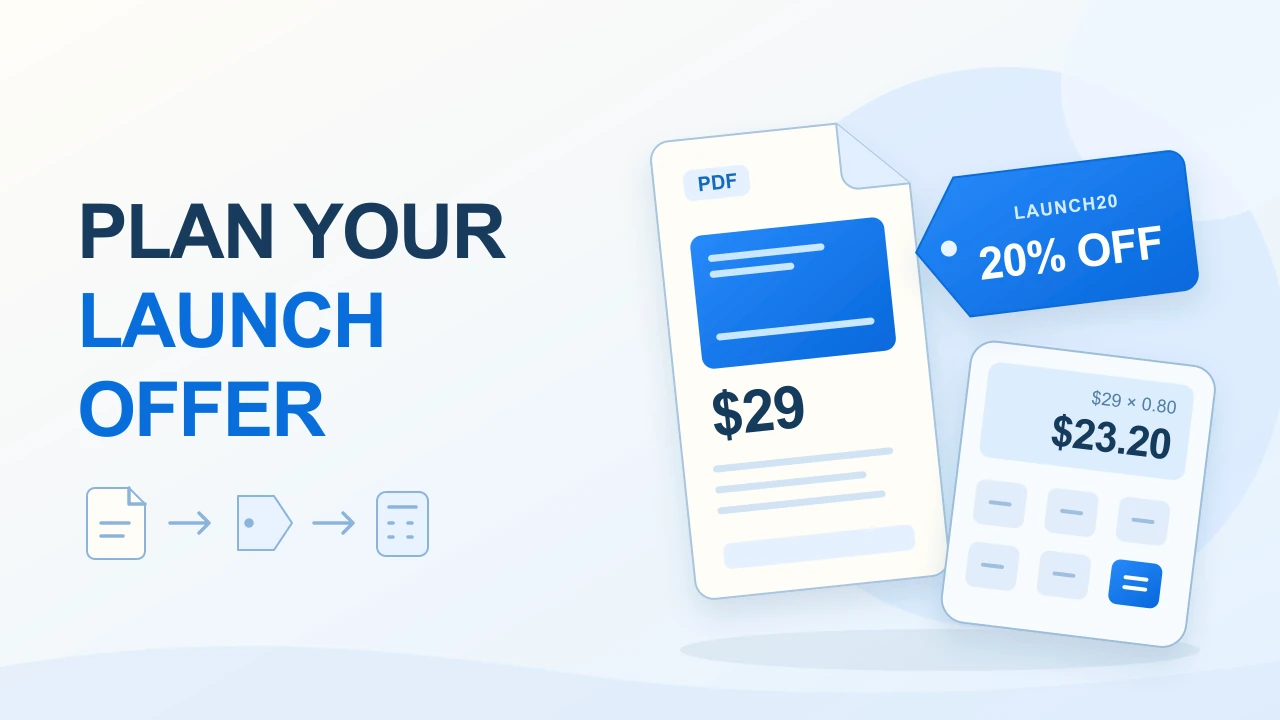
Imagine a finished Client Project Planning PDF offered at a genuine $29 USD price. You decide to test a 20% launch offer. This fictional example explains the arithmetic; it is not a recommended market price, a live promotion or a sales forecast.
| Step | Calculation | Amount |
|---|---|---|
| Product price | Original example price | $29.00 |
| Discount | 20% × $29.00 | −$5.80 |
| Discounted product price | $29.00 − $5.80 | $23.20 |
| Genesize direct-sale fee | 6.45% of $23.20, rounded to cents | −$1.50 |
| Before Stripe processing and other costs | $23.20 − $1.50 | $21.70 |
Genesize’s commission is calculated on the discounted amount before tax. Stripe processing, support, refunds and other applicable costs still affect what you keep. Marketplace fees differ from direct-sale fees. Use the digital product fee calculator for your actual plan and route.
A 20% price reduction needs 25% more orders for the same pre-fee revenue
Eight sales at $29 produce $232. Ten sales at $23.20 also produce $232. That is 25% more paid orders to reach the same revenue before fees and costs. Fixed processing charges and extra support can change the profit comparison. The calculation does not establish that a sale will bring those extra buyers.
Plan the offer before enabling it
Use the editable planner for the price calculation, campaign terms, buyer checks and results log.
If you want to sell several resources as one offer instead, compare the file-pack and native bundle approaches. A useful bundle does not need an arbitrary discount to explain its value.
How to create a digital product discount code in Genesize
- Open Sell → Storefront → Discounts as the workspace owner.
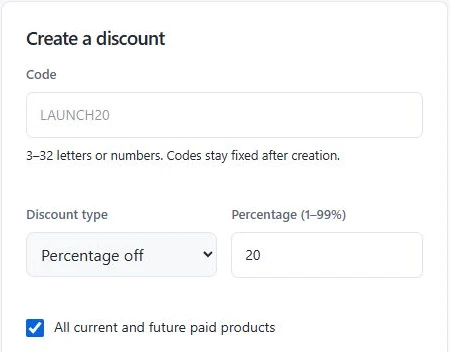
- Enter a code such as LAUNCH20. Use 3–32 letters or numbers. Codes normalize to uppercase and stay fixed after creation; create a new offer if you need a different code.
- Choose Percentage off or Fixed amount off. Percentages are whole numbers from 1 to 99. A fixed discount must use the product’s currency.
- Review All current and future paid products. Clear it and select the intended product or bundle for a narrow campaign, so future launches are not accidentally included.
- Set the optional start, end and total checkout-use limit. Review the terms before leaving Enabled checked and selecting Create discount.
To make the offer apply automatically
Use the same form and keep a code to identify the campaign. Select Apply automatically as a launch sale. During its active dates, eligible buyers can review the sale price without entering the code. Genesize uses one best eligible offer; discounts never stack.
Which products can use the discount?
- Paid, fixed-price individual products and bundles are eligible.
- Free and pay-what-you-want products are excluded. The reduced price must remain at least 1.00 in the product’s currency.
- Products with options: target the actual individual product or bundle the buyer chooses, rather than the options container.
- Optional upsells: the discount applies to the main product; the companion stays at its full price. See the $19 guide plus $9 extra calculation and buyer checks.
- Community memberships: Store discount codes do not configure recurring membership discounts. Those use a separate billing flow.
Write dates and limits buyers can understand
The creator’s Starts and Ends fields use the device’s local time zone. Check that zone before saving. In your public copy, give a date, time and zone rather than an ambiguous “ends tonight.” Buyers may see a localized date display.
A total-use limit counts checkout uses, not unique people. Do not describe it as “one use per customer.” Pending checkouts can reserve uses while their outcome is verified. Failed or expired checkouts release reservations, while a refund does not restore a redeemed use.
Fictional offer copy: “Use LAUNCH20 for 20% off the Client Project Planning PDF. The product price becomes $23.20 USD before any applicable tax. Offer ends [date] at [time and zone]. See the product page for contents and use terms.”
Replace every placeholder with the campaign’s actual terms. If a new product has never had an established $29 price, explain its introductory price without presenting a made-up previous price as a saving. Keep records of the offer, its dates and reference price. Canada’s Competition Bureau explains why reference prices must be genuine; check the rules relevant to your market.
Use the same code, product name and deadline on your sales page and chosen promotional channel. Share an email offer only with an audience you have permission to contact. Do not add an endlessly resetting countdown or claim that digital stock is running out when that is not true.
Check the price a buyer will actually see
Keep testing separate from sending traffic. The following checks describe what the creator should verify; this article did not activate a live sale or make a new payment.
- Open the published product page in a private browser window. For a manual code, enter it under Discount code (optional) and select Apply. Check the applied offer and reduced product price.
- Repeat on a phone. For an automatic offer, confirm it appears during the active dates. If you use the generated Open discount link, follow it and check the intended product.
- Inspect the intended checkout. Verify the product, currency, discount and any applicable tax before paying. If an optional companion is selected, check its full price separately.
- Check failure cases in a safe test setup. Try an invalid code, an ineligible product or currency, and an expired or paused test offer. Do not change a customer’s live campaign merely to manufacture a test.
- Verify delivery separately. Use Genesize’s Test buyer experience for the saved edition and its download. That simulation does not prove that a discount was applied in a paid Stripe checkout.
A separate supported payment sandbox is needed to test a discounted payment end to end without real money. Our earlier signed-out iPhone receipt check verifies the sample PDF’s email and download path, not this fictional discount. See the receipt and PDF walkthrough.
Why is my digital product discount code not working?
| What happens | Likely check | What to do |
|---|---|---|
| No discount controls in Studio | Plan or workspace role | Use workspace-owner access on an eligible Starter, Scale or Business plan. Free to Sell excludes this feature. |
| Code is rejected | Enabled state, dates, product, currency or use limit | Review Your offers. For fixed discounts, match the product currency and keep at least 1.00 payable. |
| The code does not lower an existing sale price | A better eligible offer may already apply | Check the applied offer and amount. Two discounts do not stack. |
| One package works; another does not | Selected product or bundle | For options, target the actual package the buyer selects. Check each intended package. |
| Upsell total is higher than expected | Companion price | The main-product discount does not reduce the optional companion’s price. |
| Limit reached with some payments still pending | Reserved checkout uses | Inspect used and reserved counts separately. A reservation is not proof of a paid sale. |
| A buyer sees an earlier price after the campaign changed | An already prepared checkout | Open checkouts retain their agreed terms. Changes apply to future checkouts. |
If the product page says the sale ended, refresh and review the current price. Do not tell the buyer a discount will apply later unless you have verified the current checkout terms. The Help Center’s discount guide explains editing and pausing an offer.
Measure paid sales and end the promotion cleanly
Record the offer, actual start and end, measured product visits, confirmed paid orders, refunds and relevant costs. Genesize’s campaign money totals are collected after refunds including tax; they are not your profit. Code uses, pending reservations, free downloads and simulated checkouts are different measurements.
Compare equivalent periods and note changes in traffic source, product edition or promotion. A short sale with a small sample cannot establish that the discount caused more revenue. If clicks increased but checkout did not, review the offer and buying path before making the price lower again. Use the sales troubleshooting guide to choose one next check.
To pause the offer, open Your offers → Edit offer, clear Enabled and save. Existing prepared checkouts retain their agreed price. Check the public page again, then remove or update promotional copy so a finished sale is not still advertised.
How this guide was checked
Reviewed November 19, 2026 against Genesize’s current discount controls, eligibility checks, price calculations and Help Center. The form image comes from an existing test workspace. The $29 example and planner are fictional teaching aids; no live discount, customer message or paid transaction was created for this article.
Common questions about digital product discount codes
How do I create a discount code for a digital product?
Choose a code, a percentage or fixed saving, the eligible paid products, and any dates or total-use limit. In Genesize, workspace owners on an eligible Starter, Scale or Business plan open Sell → Storefront → Discounts. Create the offer, then check its actual price on the published product page before sharing it.
Should I use a coupon code or an automatic sale?
Use a code when you want people to enter a named offer, such as a launch promotion shared with your audience. Use an automatic sale when eligible visitors should see the reduced price without entering a code. A shared code is not private access control and can be forwarded.
Can I create discount codes on Genesize Free to Sell?
Native discount codes and automatic launch sales require an eligible Starter, Scale or Business plan and workspace-owner access. Free to Sell can publish a paid product at its stated price, but does not include these campaign controls.
Can buyers combine two Genesize discount codes?
No. Genesize uses one best eligible offer rather than stacking discounts. A manual code may not reduce the price further if a better automatic sale already applies. Check the applied offer and final amount before continuing to checkout.
Can I discount a product bundle, optional upsell or membership?
Paid fixed-price products and bundles are eligible. For a product with options, target the actual individual product or bundle selected by the buyer. In an optional-upsell checkout, the main product is discounted and the companion remains full price. Store discount codes do not configure recurring community membership discounts.
Does refunding a purchase restore the discount code’s use?
No. A refund does not restore a redeemed use. Pending checkouts can reserve uses while their outcome is verified; failed or expired checkouts release reservations. A total-use limit is a limit on checkout uses, not a one-use-per-customer restriction.
Make the offer clear before you share it
Check the product, campaign terms and final buyer price, then review the results with real paid orders.
Follow the discount setup guide