
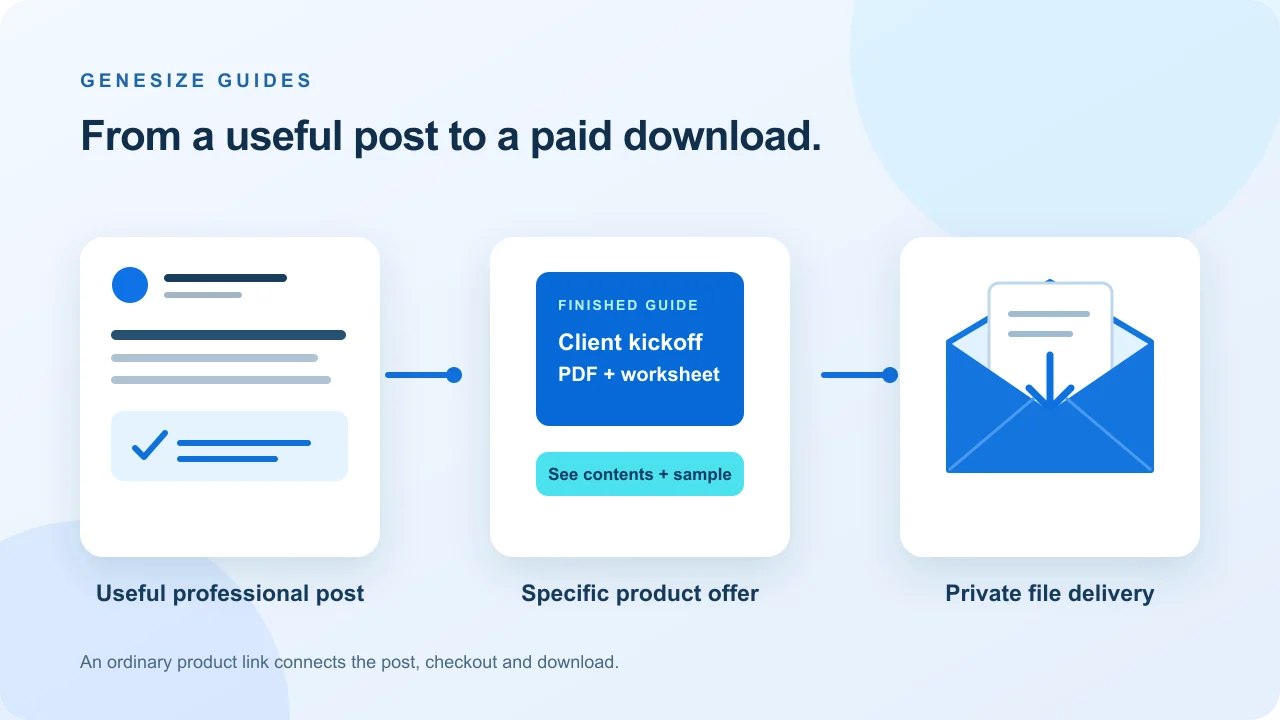
A finished product: the $19 Client Kickoff Guide
A freelancer who follows your professional advice might need help preparing their next client meeting. That is a specific buyer and task. “I sell digital products” gives them less reason to click than showing the decisions your guide helps them record.
The worked offer
- Buyer
- A freelancer preparing a client kickoff conversation.
- Product
- Freelancer Project Kickoff Guide: one ten-page PDF.
- Contents
- Five kickoff decision steps, a client-brief worksheet, deliverable record, asset tracker and review/recap checklist.
- Example price
- $19 USD, paid once, with any applicable tax shown at checkout.
- Delivery
- A PDF download after confirmed payment. No printed item, personalized consulting or editable source template.
The full teaching sample is free to inspect. The $19 price and promotional messages are illustrative, not a paid listing, revenue result or testimonial.
The offline launch planner helps record your buyer, offer, public link, post and review date. Its sample messages match this offer. Replace every sample detail before using it for a different product.
LinkedIn is a reasonable channel when the product helps people with work they already discuss there: a client template, project spreadsheet, professional workbook or practical guide. That is an audience-fit judgment, not evidence that LinkedIn will generate sales for every download.
A product link, a document post and a Premium button do different jobs
- 1. Demonstrate one useful task
- 2. Open the specific offer
- 3. Confirm the purchase
- 4. Download the paid file
| Placement | Useful for | Check before relying on it |
|---|---|---|
| Ordinary post with a URL | Showing a relevant problem and linking to its finished product. | Post audience, link preview and the exact external destination. |
| Document post | Sharing a useful free excerpt or worked example. | Viewers can download the uploaded document as a PDF. Do not upload the full paid file unintentionally. |
| Profile Featured item | Keeping a selected product link or demonstration easy to find. | Featured-section content requires the viewer to be logged in to LinkedIn. |
| Premium custom button | Adding an eligible account’s more prominent external action. | Availability depends on the account and plan. It is optional for this workflow. |
LinkedIn documents ordinary URL sharing, document downloads, Featured access and the Premium custom button separately. Do not buy a subscription just because a tutorial assumes everyone has the same profile controls.
Prepare the public offer before writing the post
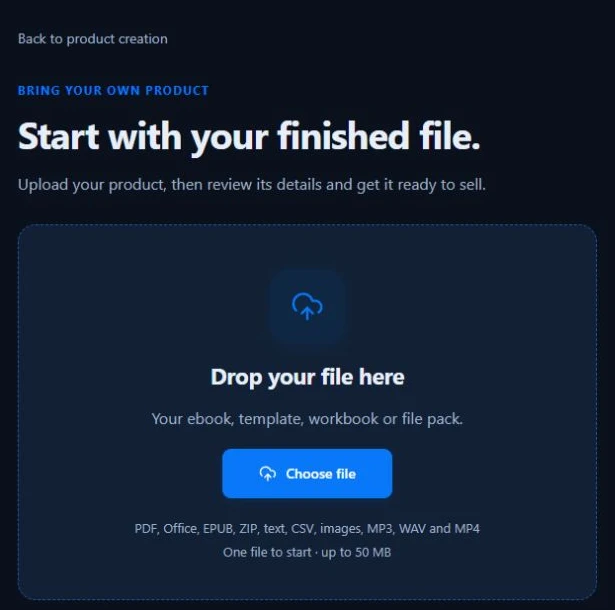
- In Genesize, open Add product → Choose file. Upload the finished PDF and wait for the original file to save to its private draft.
- Review Product details and the attachment under Your content. Confirm your permission to sell the material under Review & sell, then choose Continue launch.
- Prepare the sales page. State the buyer, ten-page PDF, actual contents, one-time $19 example price and exclusions. Show a separate public sample rather than exposing the paid download.
- Complete the required store details, support and seller terms, and Stripe setup for a paid offer. Save it, then use Review & publish → Test buyer experience for the checks below.
- After reviewing and publishing the offer, use Copy sales page link. Share this specific product destination rather than making someone search a general store.
Free to Sell has no monthly subscription. For the worked $19 direct sale, its 10% Genesize fee is $1.90, leaving $17.10 before Stripe processing and other costs. Genesize Marketplace sales use a different rate, and paid plans also charge sales commissions. These are not net-profit or payout figures. Compare current plans and the fee calculator.
Free to Sell includes upload, a storefront, checkout and delivery; AI creation, CRM and email marketing are not included. You can write the product copy and LinkedIn post yourself. The worked sales-page guide helps explain the offer clearly.
Three LinkedIn posts that show why the file is useful
Lead with a task the reader recognizes, show a small part of your method, then explain the paid resource. These examples describe the fictional guide above. They make no promise of income, saved hours or client results.
1. Teach one useful decision
Before a client kickoff ends, write down three things: the deliverable, who approves it, and the review date. “We’ll send feedback soon” leaves the next step unclear.
I put that decision record, a client-brief worksheet and a recap checklist in a ten-page Freelancer Project Kickoff Guide. It is a $19 USD PDF download, paid once. You can see the contents and a sample before buying: [your public product link]
2. Walk through one sample page
A useful kickoff note needs more than a list of tasks. In this sample, each deliverable has an owner, an approval step and a review date. I used fictional project details to show how the record works.
The full ten-page PDF also includes the client brief, asset tracker and recap checklist. $19 USD, one-time digital download; no consulting service is included. Preview it here: [your public product link]
3. Answer a real format question
Is this an editable project-management template? This version is a PDF guide and worksheet, not a Notion workspace or editable source file. It is for reading and recording the kickoff decisions in the way that suits your workflow.
If that matches what you need, the page shows all contents and a free sample. The full guide is $19 USD, paid once: [your public product link]
Download all three examples as plain text. Use the third only if it answers an actual buyer question; do not imply that someone asked you when they did not. Put the real price and format in the post and keep them consistent with the live offer.
Share the actual link in an ordinary post
- On desktop LinkedIn, open Start a post. Add your reviewed text and paste the public product URL.
- Wait for any preview to appear. Check its title, image and destination. LinkedIn says a link can still be shared when a preview image cannot be retrieved.
- Review the audience setting and decide whether the post belongs in that context. Publish only when the message and destination are ready.
These steps follow LinkedIn’s sharing instructions. This walkthrough does not post to LinkedIn for you. There is no supported claim here that hiding a URL in the first comment improves reach. Choose a clear placement and judge the evidence you actually collect.
Share a preview document deliberately
For a PDF-style post, prepare a separate sample that teaches something on its own. LinkedIn currently supports PDF, PPT/PPTX and DOC/DOCX document uploads within its documented 100 MB and 300-page limits. The shared document can be downloaded by its viewers, so leave the full paid file in private delivery. If the sample changes later, LinkedIn says you cannot replace the document in that existing post. Document-post instructions and limits.
Keep promotion relevant. LinkedIn prohibits unwanted or repetitive commercial messages and using invitations for promotion to people you do not know. Do not bulk-DM the example, scrape contacts or arrange artificial likes. Professional Community Policies.
Make the product easier to find after the post leaves the feed
Use the profile’s Featured section for a product link or a useful demonstration. In the desktop instructions, LinkedIn uses Me → View Profile → Add profile section → Recommended → Add Featured. Add the link or sample type shown in your account, review its title and save. Existing Featured items can be edited or reordered. Featured setup instructions.
Name the item by the buyer’s task, such as “Client kickoff PDF — contents and sample,” rather than “My products.” LinkedIn says Featured items require viewers to be logged in and are not discoverable through search. Keep the independently public sales page as the destination you can share elsewhere. Featured visibility details.
If your account offers a Premium custom button, you can consider a suitable label and URL. It is a separate optional feature, not the same as Featured. LinkedIn notes that adding or editing it can replace services shown on the profile. Review your existing setup before changing it. Custom-button eligibility and behavior.
Test the public destination and private download separately
- Open the published product URL while signed out of Genesize. Check the title, price, file type, sample, exclusions and purchase action at phone width.
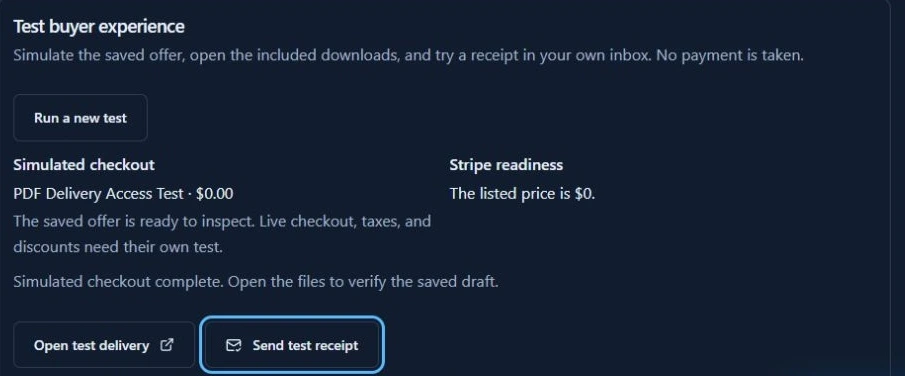
- From the saved offer, run Review & publish → Test buyer experience and complete the simulated checkout. Open its temporary private delivery while signed out and download the exact included file.
- Open the PDF on the devices you intend to support. Check all ten pages and the worksheets. An editable or fillable claim needs its own editing, save and reopen test.
- If you choose Send test receipt, verify inbox arrival and its link separately. A browser simulation does not establish receipt delivery or a real card payment.
- After posting yourself, tap the actual LinkedIn placement on your phone. Compare the same public URL in Safari or Chrome if a step fails inside the app.
Verification scope: This article reuses the original kickoff sample and established Genesize buyer-test workflow. Earlier signed-out delivery checks verified that sample’s downloaded bytes; the PDF guide also documents an iPhone receipt-and-download check. We did not publish a LinkedIn post, send a new email or make a payment for this guide, and have not verified LinkedIn’s in-app browser. Follow the steps above for your own offer and account.
The PDF buyer-check walkthrough and payment-and-delivery test guide explain these different checks. Buyers who lose their purchase link can use My purchases with their checkout email; sellers should inspect payment, access and email status in Orders before asking someone to pay again.
Measure the buying path, not just the post’s popularity
Open the post’s impressions or View analytics control. Depending on the content type, LinkedIn can show reach, social engagement and link engagement. Its external-link visits include repeated clicks, and your own activity is counted. Treat these as platform measurements, not unique buyers or sales. LinkedIn’s metric definitions.
| Question | Look at | Useful response |
|---|---|---|
| Did suitable readers see the post? | Available reach and audience data, plus relevant questions. | Choose a clearer professional task or more relevant context. |
| Did people follow the offer link? | Available link engagement and measured store traffic. | Check the actual URL, destination and call to action. |
| Did anyone buy? | Confirmed real paid orders and their amounts. | Keep simulated checks, free orders and failed payments separate. |
| Could buyers use the file? | Delivery checks and specific support questions. | Fix the file, instructions or access step they could not complete. |
Free to Sell and Starter users can keep a manual record in the planner. On eligible Scale and Business plans, Growth → Promote can help prepare a reviewed Social post. Save a distinct promotion for each placement, copy its unique link, and mark I shared this only after you manually post it. That starts its fixed seven-day review. The saved-promotions guide covers the exact controls.
Store measurements depend on consent and attribution coverage. Cross-device use and reused links can obscure the source. Keep the review dates consistent, record what was not measured and avoid calling one wording a winner from a handful of visits. For a specific drop-off, use the product-sales diagnostic.
Fix the missing step before rewriting the whole launch
| Problem | Check first | Next step |
|---|---|---|
| No Premium store button | Account eligibility and the available controls. | Use an ordinary URL post and an available Featured placement. |
| Readers already have the whole paid PDF | Whether the full file was uploaded as a document post. | Use a deliberate free excerpt for promotion and keep the paid file in private delivery. |
| Featured link is invisible while signed out | LinkedIn’s logged-in visibility requirement. | Test the public product page independently; do not rely on Featured for anonymous access. |
| Link opens Studio or a private preview | The copied URL and publication status. | Copy the published sales-page link and replace the wrong destination. |
| Post shows no preview image | The actual public URL and preview metadata. | Check the destination; LinkedIn permits sharing a link without a retrieved preview image. |
| Link works in a browser but fails in the app | Device, app, destination and the exact failing step. | Compare the same public URL in Safari or Chrome and record the error. |
| Likes or clicks but no paid order | Buyer fit, sample, format, price and checkout readiness. | Address one specific unanswered question and check the buying path. |
| Buyer cannot find their download | Checkout email, payment, access and sending status. | Inspect Orders and use My purchases recovery; keep private links out of comments. |
Download the launch planner to keep the offer, public URL and result notes together. It runs locally in your browser and does not post, email or connect your LinkedIn account.
Common questions about selling digital products on LinkedIn
Can I sell digital products on LinkedIn?
You can use relevant LinkedIn posts and available profile links to send readers to an external product page with checkout and delivery. This guide uses that outbound-link route, not native LinkedIn payment or automatic file fulfillment. Follow LinkedIn’s current policies and any account restrictions.
Do I need LinkedIn Premium to share my product link?
An ordinary post can contain an external URL; this route does not require the Premium profile custom button. LinkedIn describes that button as an eligible Premium feature. Use the controls available in your own account and test the actual placement.
Should I upload my paid PDF as a LinkedIn document post?
Only if you intend to give that document to the people who can view the post. LinkedIn says those viewers can download an uploaded document as a PDF. For a paid product, upload a separate useful excerpt or preview and keep the full paid file in private delivery.
Is a LinkedIn Featured link visible to signed-out visitors?
LinkedIn’s Featured-section FAQ says viewers must have a LinkedIn account and be logged in. A featured item is useful for profile visitors, but it is not a replacement for testing your external public sales page while signed out.
Which Genesize URL should I share on LinkedIn?
Use Copy sales page link from the published offer, or the reviewed unique link for a saved promotion when available. Do not share a Studio address, private draft preview, buyer-test delivery, receipt or purchases-access link. Open the public destination while signed out before posting.
Can I sell from LinkedIn without building my own website?
Yes. A hosted Genesize product page can explain the offer and provide checkout and delivery. Free to Sell has no monthly subscription, with 10% on direct sales and 30% on Genesize Marketplace sales before tax. Stripe processing is separate. AI creation, CRM and email marketing are not included in Free to Sell.
Do LinkedIn link clicks equal paid sales?
No. LinkedIn’s external-link visits include repeat clicks and its analytics can include your own activity. Store traffic measurement also depends on consent, device and attribution coverage. Count confirmed paid orders separately; neither impressions nor a simulated checkout establishes a real paid sale.
Can Genesize post to LinkedIn automatically?
The workflow in this guide is manual. On eligible Scale and Business plans, Growth → Promote can help prepare and save reviewed copy and its tracking link. You still review and publish the post in LinkedIn yourself; saving a promotion or marking it shared does not post it.
Your product is finished. Give the right reader a clear next step.
Upload the file, prepare the offer, test delivery and share a useful professional example.
Explore Free to Sell