

1. Organize the course around what the buyer will do
Watch the recordings once as a learner. Write down what each one helps the buyer finish, then put the related worksheet or exercise where they’ll use it. Remove dated instructions, mute or edit private client details, and check which materials you have permission to sell.
A single workshop can be one replay lesson with timestamps and a workbook. Use separate lessons if buyers need to finish one task before starting the next or return to a particular step later. Here’s how a fictional freelance pricing workshop could become a course.
| Lesson | Buyer’s next task | Course download |
|---|---|---|
| List project costs | Find the expenses the quote needs to cover. | Cost worksheet |
| Set an hourly floor | Work out the minimum rate for the example project. | Rate worksheet |
| Send the quote | Turn the numbers into a quote the client can approve. | Quote template |
Download the recorded course launch checklist
Use the sample lesson map and log which videos, files, and access steps passed before you share your course.
2. Choose how buyers can watch the videos
For an existing course, Genesize embeds supported HTTPS YouTube or Vimeo video links. The course page controls who can access the lesson. The video provider controls who can play the underlying recording.
- YouTube. An unlisted link can be watched and forwarded by anyone who has it. Make sure embedding is allowed. YouTube’s Private setting limits viewing to people you explicitly share the video with. YouTube privacy settings · YouTube embed settings.
- Vimeo. Paste the full link. Keep the privacy hash if Vimeo adds one for an unlisted video. If your host limits which domains can embed a video, test on the exact domain where buyers will watch. Vimeo privacy settings · Vimeo embedding errors.
- Downloadable files. Attach a worksheet, transcript, or other file you want the buyer to keep. An MP4 attached within the editor’s file limits is a download the buyer can save. For an in-lesson player, use a supported hosted video link.
Add captions through your video host where available and check them on mobile. If a clip contains a screen recording, confirm that labels and numbers remain readable in the player.
3. Set up and publish the course in Genesize
- Open Add product → I already have a product → Courses & existing videos. Name the course and create the draft.
- Under Your content, add a module and its lessons. Give each lesson a title, paste its hosted URL into Video link (optional), and add notes that tell the learner what to do next.
- Attach worksheets under Course downloads (optional). If several lessons share the same workbook, name the tab or page in each lesson’s notes.
- Under Review & sell, confirm you have the rights to sell the material, save the draft, and open Preview buyer experience.
- Choose Set up sales page. Describe the lesson count, files, access terms and how to get help. Connect your Stripe account for a paid offer, then use Review & publish and copy your sales link.
An existing course can use Genesize Free to Sell, with sales fees and no monthly Genesize subscription. For the current fees and detailed Studio steps, see Free to Sell · Add a product you already made · Publish a product.
4. Test access like a buyer before sharing the link
- Check the lesson page. In Buyer Preview, open the lessons in order and select Load video to play each recording. Download the worksheet and check that the first exercise makes sense without an explanation from you.
- Check a fresh session. Use a test purchase path with a buyer email you control, then open the purchase without being signed in to your video-host account. Repeat on desktop and mobile. For a simulated paid checkout, use a store configured for a Stripe sandbox. Changing the Stripe dashboard view alone leaves live checkout in live mode.
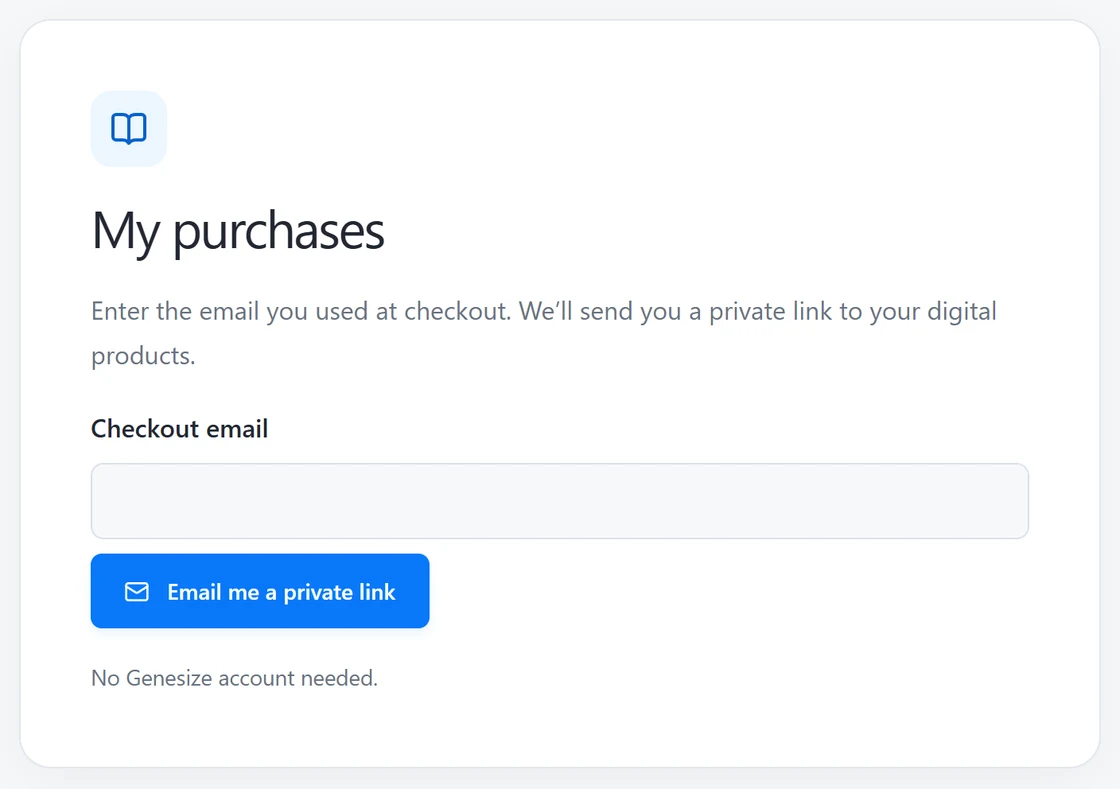
- Check return access. Close the course and reopen it from the purchase email. Try the included downloads again. Use the same checkout email in My purchases if you need a fresh access link.
Buyer Preview checks presentation and content. Use a separate order test for payment confirmation, purchase access and email delivery. See what each test verifies.
5. Fix playback and access issues before launch
- The video plays only for you. Open the lesson as a buyer in a separate browser session. Check the video’s privacy, embedding settings and the buyer-facing domain.
- Vimeo says the video doesn’t exist. Compare the saved link with the one Vimeo gives you. Check for a missing privacy hash or a domain restriction.
- The video works but the buyer can’t find the exercise. Name the exact course download and page in the lesson notes. Preview both places again.
- The buyer lost the email. Ask them to open My purchases using the email they checked out with. If they still cannot reach the course, check their order status. Recover a Genesize purchase.
Common questions about selling a pre-recorded course
Can I sell a course that I already recorded?
Yes. Organize the recordings into lessons, add any worksheets or notes, and publish a course page with checkout. In Genesize you can use an existing course and paste supported YouTube or Vimeo links into lessons.
Can I sell a pre-recorded course without a monthly Genesize subscription?
Yes. Genesize Free to Sell supports existing courses with written lessons, supported hosted videos and downloads. Genesize charges a fee when you sell. Stripe processing and any separate video hosting costs apply according to your setup.
Can someone share a video from my paid course?
Genesize controls access to the course page. Your video host controls the underlying video. Anyone who gets an unlisted YouTube link can watch and pass it along. If you need stricter control, verify your host’s playback settings before offering access.
Can I turn one workshop recording into a course?
Yes. You can publish it as one lesson with a timestamped outline and a workbook. If the buyer needs to complete distinct tasks in order, split the recording into separate videos and put one task with each lesson.
Have a course ready to sell?
Bring your recordings and course materials, then set up a sales page and checkout.
See Free to Sell