
1. Choose which Lightroom preset files to sell
| File | Which workflow it fits | What buyers should know |
|---|---|---|
.xmp | A custom preset exported from Lightroom Classic and tested in the buyer’s version of Lightroom. | Desktop can import preset files. Adobe also documents direct import of individual XMP files in recent Lightroom Mobile versions. |
.dng | An optional edition exported from Lightroom Mobile that carries adjustments on a photo. | Use a photo you can distribute. Check its exported metadata and test the import on each device you advertise. |
.zip | The download that groups your files and install note. | Extract it before following the mobile import steps. Distributing the pack and installing the presets are separate steps. |
In Lightroom Classic, find your custom preset in the Develop module, then open its context menu and choose Export. For a custom group, choose Export Group. If Adobe gives you a group archive, extract its contents before building your final ZIP. In Lightroom Mobile, Adobe documents exporting an edited photo using Share → Export as, the preset export option, and DNG as the file type. Adobe’s Lightroom Classic preset guide · Adobe’s mobile import and export guide.
2. Build one ZIP buyers can open without guessing
For a fictional Coast Light pack with three XMP presets and a Start Here note, the buyer would receive coast-light-xmp-v1.zip. Keep the filenames readable and match them to the names shown in Lightroom.
| Inside the ZIP | What the buyer does with it |
|---|---|
START-HERE.txt | Reads the install steps, tested versions, and support instructions. |
Coast-Light-Soft.xmp | A softer daylight look with gentle contrast. |
Coast-Light-Warm.xmp | A warmer look with golden highlights. |
Coast-Light-Cool.xmp | A cooler look for photos taken in shade. |
Name any included DNG files by the same look. List separately any camera profile the buyer must already have or install. Check that you can distribute every file. Create a standard ZIP with no password, installer, or ZIP inside it. When using Genesize, check the upload limit shown in the editor.
Copy the buyer install note
Fill in your actual filenames, tested Lightroom versions, and support details before adding it to the ZIP.
3. Install the buyer’s copy on desktop and mobile
Start from a fresh download. Extract the ZIP and follow the same note the buyer will receive.
- Lightroom Classic. In Develop, use the add control in the Presets panel to import the files. Check that each preset appears under the expected group.
- Lightroom on desktop. Use the preset import option in the File menu and select the extracted files. Apply each preset to a new image.
- Lightroom Mobile. Open a photo, open Presets, and use the options menu to import an individual XMP or DNG from the extracted folder. Find the imported look under Yours → User Presets. Test on both iOS and Android if you advertise both.
- Try photos like the buyer’s. Use one daylight image and one indoor image. Check RAW and JPEG separately if you promise both. Verify that a missing profile or a premium adjustment does not block the advertised workflow.
Ask someone who has never installed your pack to follow the note without help. Put the first place they get stuck in the troubleshooting section. Adobe’s desktop import guide · Adobe’s mobile import guide.
4. Make a sales page and deliver the ZIP
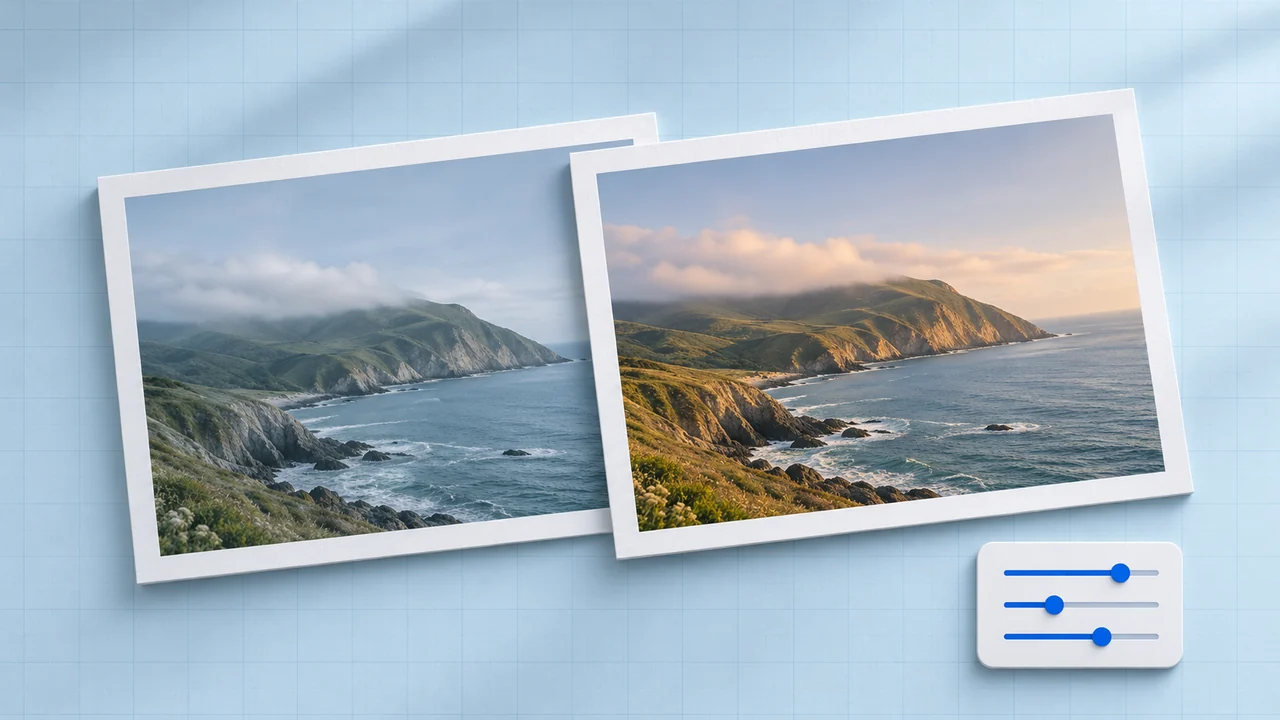
Put one matched before-and-after pair near the buy button. Use the same photo and crop. Name the applied preset and disclose extra adjustments, such as an exposure correction. State the number of looks, included formats, and supported apps in the product description.
- In Genesize Studio, choose Add product → I already have a product → Files & digital downloads. Attach the finished ZIP and save.
- Set your price and add your listing images. Connect Stripe for paid sales and finish the storefront setup.
- From Review & publish, select Test buyer experience and complete the simulated checkout. Open test delivery, open the test purchase, and download the ZIP under Included downloads. Check the archive before running your separate payment test.
- Publish and share the public product link. Buyers can open their download from the purchase page and return through the private link in their receipt.
5. Fix common Lightroom preset import problems
- Mobile won’t open the file. Save the ZIP to your device, extract it, and use Lightroom’s preset import control to select a file inside the extracted folder.
- The preset imports but is hard to find. Check the user presets group in the named app. Test with a photo format your preset supports. Review whether Lightroom is hiding partially compatible presets.
- The color changes less than the preview. Check whether the buyer’s preset needs a specific profile or photo format. Explain how to adjust exposure or white balance on the new photo.
- A file is missing from the purchase. Open the actual order download and compare the archive contents with your listing. Give the buyer a clear route to your support contact.
Common questions about selling Lightroom presets
Can I sell Lightroom presets as a ZIP?
Yes. Put the original preset files and a short install note in one standard ZIP. Offer it as a digital download. Tell mobile buyers to extract the archive first and select the individual preset files inside.
Do I need to include DNG files for Lightroom Mobile?
Current Lightroom Mobile documents direct import of individual XMP files. Include a DNG edition when you export from mobile or have a separate tested workflow that uses DNG. Name the exact app versions you tested.
Why does a preset look different on the buyer’s photos?
The preset reuses saved adjustments on photos with different lighting, exposure, and white balance. The result also depends on the original image format and any profiles the preset needs. Include a short note about what to adjust first and show examples from the file types you advertise.
Can I use Genesize to sell a Lightroom preset pack?
Yes. Create and export the presets in Lightroom, then upload a ZIP containing the files as a digital download in Genesize. Genesize hosts the sales page, connects to Stripe checkout, and delivers the attached file after payment.
Have your presets ready to sell?
Upload the finished ZIP, test what buyers receive, and share your product link.
See Free to Sell