
Prepare a separate bonus resource
Communities are included with Starter, Scale and Business. Bonuses are optional extras; the resources included in a membership keep their own access terms. Existing members and prepared checkouts keep their original bonus promises when you publish a revised tier.
- Publish the course or guide you want to offer from the same workspace. Review the exact published edition and its contents before promising it as a reward.
- Open Community in Studio, choose the community, and go to Plans & resources. Choose Edit tier for the membership that will offer the bonus.
- Keep essential membership resources under Genesize products. A resource already included there cannot also be selected as a level bonus. Bundles and product-option pages are not eligible bonus resources.
Bonus promises belong to a particular membership. Adding a bonus to a future offer does not add it to every earlier membership.
Choose the unlock level and publish
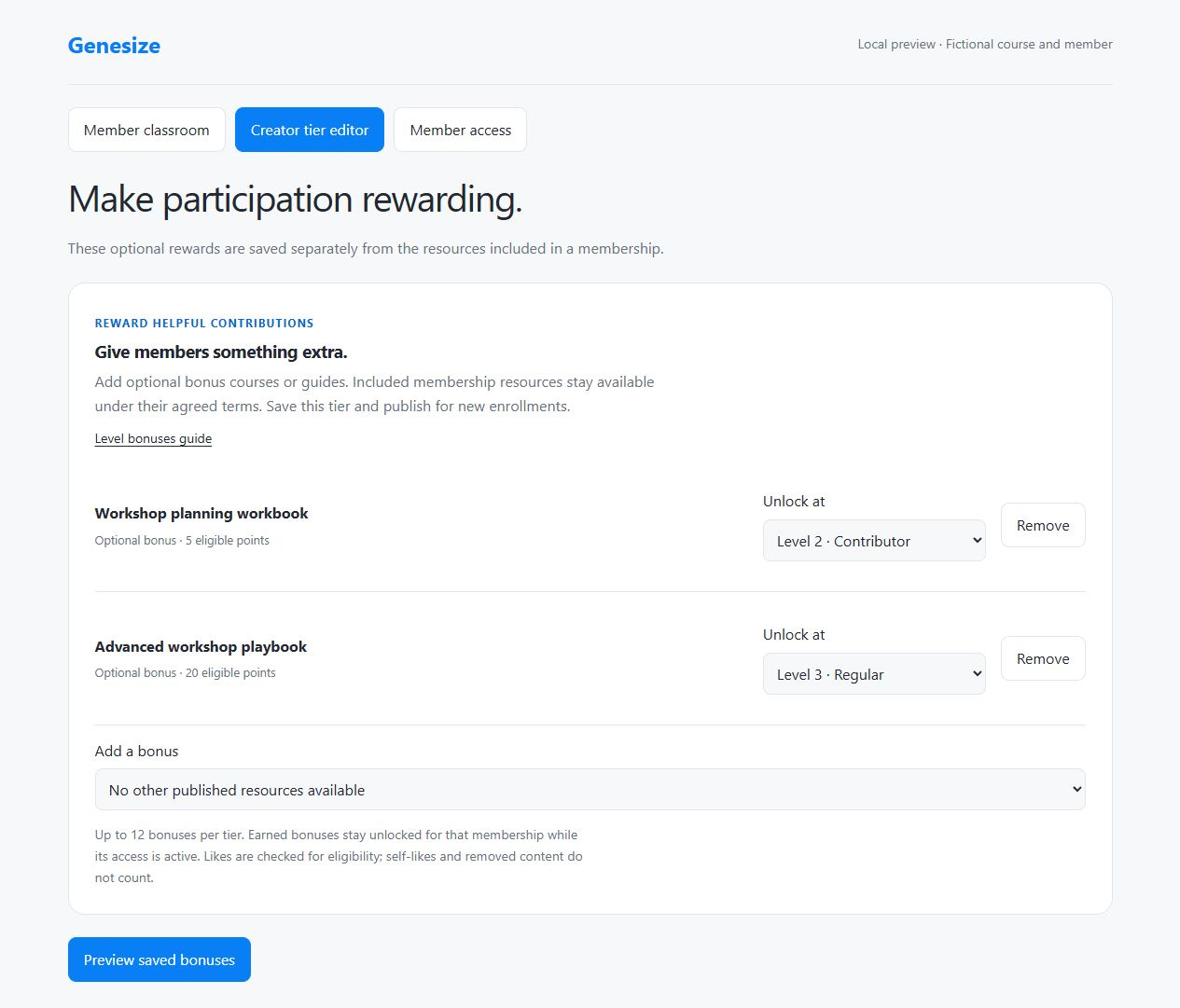
- Find Optional level bonuses, headed Give members something extra. Under Add a bonus, choose a published resource.
- Set Unlock at to a level from Level 2 to Level 9. Review the eligible-point requirement shown beside the bonus; level names can be customized, but the numbered level still identifies the threshold.
- Add any other bonuses you want, up to 12 per tier. Use Remove to take an item out of this draft, and check that the included resources still match your offer.
- Choose Save tier. Return to Setup, complete the launch review, and choose Publish reviewed draft. Review the published offer’s Optional level bonuses before sharing it.
Publishing changes future enrollments. Existing members and prepared checkouts keep the bonus promises they already agreed to; removing a bonus from a new draft does not rewrite those promises.
Check how members earn and open bonuses
- Members can open My memberships, choose the community, and go to Classroom. Under Your community bonuses, they can review their level, eligible points and progress for each promised reward.
- Members earn points when other active members like their helpful posts and replies. Self-likes and removed content do not count; a displayed like is not a guarantee that it qualifies.
- Choose Check bonus progress to refresh the eligible score and unlock state. When a bonus is available, choose Open bonus to read the protected resource.
An earned unlock stays recorded if points later fall. Opening it still requires active, unrestricted membership access. Earning a bonus does not change billing or replace the resources already included in the membership.
Unlock early or investigate a missing bonus
- As the workspace owner, open Members and the member’s details. Under Member tools, choose Bonus access, then Refresh bonuses to inspect that membership’s promised rewards.
- If you want to grant an unearned promised bonus early, choose Unlock early. Read the confirmation and choose Unlock bonus only when you want that permanent unlock for this membership.
- If a bonus is absent, check the member’s original offer and published edition. Only bonuses promised to that membership appear; an early unlock cannot add an unrelated product.
- If a previously earned bonus will not open, check the membership’s access status and any restriction. If a resource is missing from Add a bonus, check that it is published in this workspace, is not a bundle or options page, and is not already included or selected.
Early unlocks cannot be withdrawn and do not restore ended access or change payment terms. New early unlocks require an active membership in an open, published community and eligible creator access.
Was this helpful?
Your feedback helps us make these steps clearer.
Need help with your account? Contact support.