
Choose the course and its whole-resource release
Communities are included with Starter, Scale and Business. Use the workspace owner account to review lesson schedules. Start with a published course edition from the same workspace. Published changes apply to new enrollments; existing members and prepared checkouts keep their agreed edition and schedule.
- Open Community in Studio, choose the community, and go to Plans & resources. Choose Edit tier for the membership you want to update, or add a tier.
- Under Genesize products, select the published course the tier includes. Check its edition: later product drafts do not change that saved resource.
- Set Release for the whole course to Immediately, Days after activation or On a date. The whole-resource Release date (UTC) starts at midnight UTC on the date selected.
Lesson scheduling needs a supported course or workshop edition with individual lessons. An ebook or unsupported edition can still use a whole-resource release, but does not gain a lesson-by-lesson classroom.
Set the pace for individual lessons
- Expand Lesson-by-lesson schedule below the selected course. Choose Edit schedule if you are in its preview.
- For each lesson, choose With the course, Days after activation or On a date. For a weekly sequence, for example, leave the first lesson With the course and set later lessons to 7 and 14 days.
- For Days after activation, enter 0–3650 days. These are elapsed 24-hour periods from membership access activation, rather than from the application or unfinished checkout.
- For On a date, enter Your local time. This individual lesson control uses your local date and time; it is different from the whole-resource UTC date above.
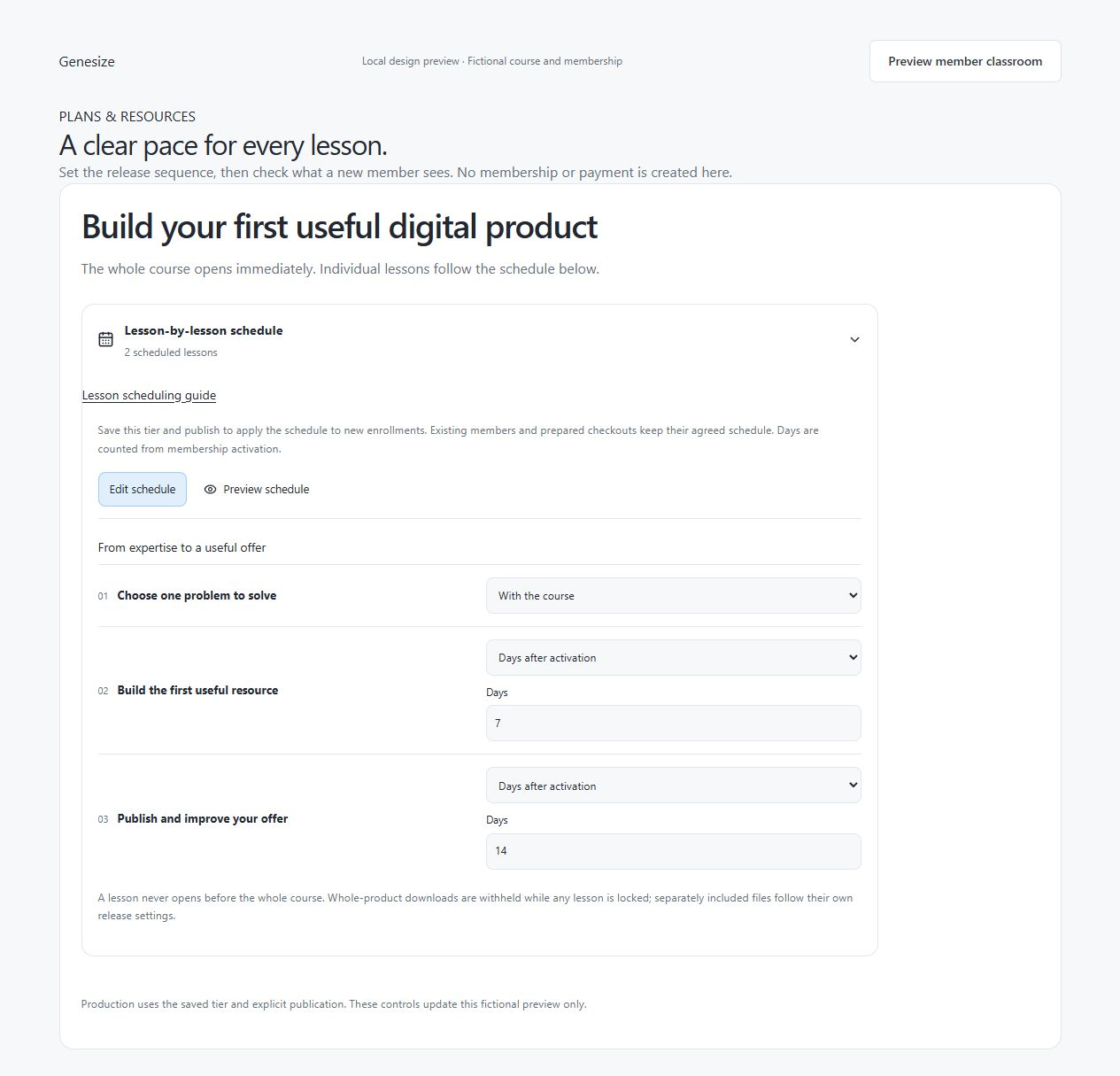
A lesson opens only when both its own release and the whole course’s release allow it. Choosing With the course does not bypass a later whole-course date.
Preview, save and publish
- Choose Preview schedule. Enter Membership starts (your local time), then change View after how many days? to check the beginning and each planned release.
- Review the Available and Locked until release results. Complete missing dates before relying on the preview, then return to Edit schedule if you need to adjust them.
- Choose Save tier. Return to Setup, complete the launch review, and choose Publish reviewed draft to apply the reviewed schedule to new enrollments.
Existing members and already prepared checkouts keep their agreed edition and schedule. Full-product downloads stay unavailable while any course lesson is locked; separately included files follow their own release settings.
Check a locked lesson or release it early
- For a member who reports a lock, check their actual membership and purchased schedule. In My memberships → community → Classroom, the member can choose Read resource to open lessons already available.
- As the owner, open Members and the member’s details. Under Member tools, choose Lesson access and select the Included course. Review the displayed release times.
- If appropriate, choose Release early for one locked lesson or Release all locked lessons, then read and confirm the prompt. An early release cannot be withdrawn for that membership.
- If no lessons appear, check the published edition and course type. If editing is unavailable, check the owner account and workspace access. If a time looks wrong, compare the local lesson time with the whole-course UTC date.
Early release applies only to that member’s included lessons. It does not restore expired or restricted access, open an unreleased whole course, or change billing. Refresh the schedule before retrying an uncertain result.
Was this helpful?
Your feedback helps us make these steps clearer.
Need help with your account? Contact support.