
Find a session and RSVP
Sign in with the account that joined the community. You can see events only in spaces your current membership allows.
- Open My memberships, choose the community and select Events.
- Browse Agenda, or select Month calendar and choose a day. Check the start and end in your device’s local timezone, plus the host and event description.
- Choose I’m going for a session you want to attend. To change your mind, choose Withdraw RSVP. Repeat this for each session you want in a recurring series.
An RSVP is an expression of interest. It does not prove attendance, make a payment or grant access to a space outside your membership.
Use the calendar, meeting and recording links
- Choose Add to calendar to download that session’s calendar file, then open or import it in your calendar app.
- Use Open meeting when the creator has added a meeting link. Follow the external service’s sign-in or joining requirements.
- Use Watch recording when the creator has added a recording link. If no link is shown, ask the creator whether the recording will be available.
- After a reschedule or cancellation, check Events again and update your own calendar entry. A downloaded calendar file is not a live calendar subscription.
Choose email and in-app reminders
- In Events, select Email me reminders for events I RSVP to when that option is available. Wait for Event email reminders are on.
- RSVP to each event you want a reminder for. Eligible reminders are sent about 24 hours and 1 hour before the event, subject to the event’s settings, your current access and delivery capacity.
- To stop these emails, clear the same checkbox. This preference applies only to this community and does not opt you into marketing.
- For in-app updates, open More → Updates → Notification preferences, check Events under In-app updates and review Mute spaces (optional), then Save. Manage event emails returns you to the separate email setting.
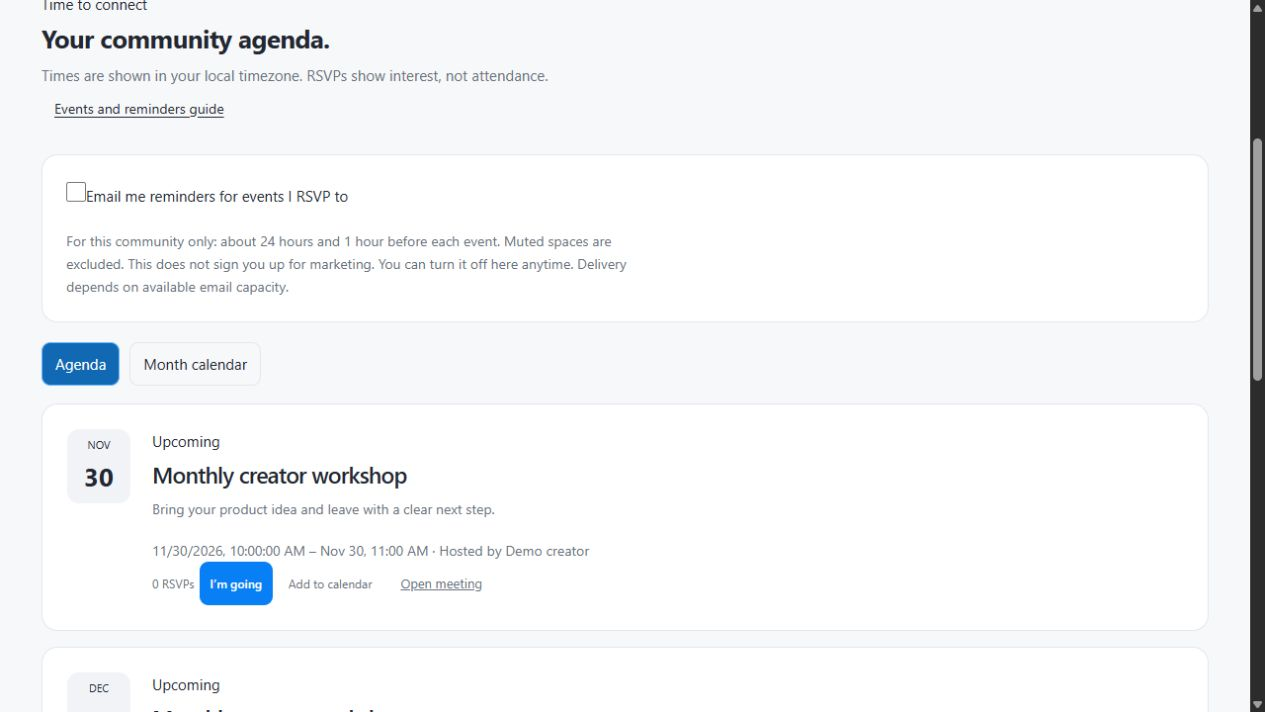
Muted spaces are excluded from reminder emails. In-app updates and reminder emails are separate preferences. Turning emails on after a reminder’s delivery window has passed does not guarantee a catch-up email.
If an event or reminder is missing
- Check that you are signed in to the account used to join and that your membership includes the event’s space. A canceled session is marked Canceled; an ended event is marked Past event.
- Check the event’s current time, your RSVP and the community’s email reminder checkbox. If times look wrong, confirm your device’s timezone before contacting the creator.
- Check that the event’s space is not muted. For email, check the inbox and spam folder for your verified account email. Delivery can be delayed or skipped when an event changes, access ends, the address is suppressed or sending capacity is unavailable.
- Contact the creator with the event title, expected time and the step you reached. Keep private meeting, purchase and sign-in links out of public posts.
Enabling a reminder or seeing an RSVP does not prove an email reached your inbox. Ask the creator about a missing event or recording; do not start a new membership payment to troubleshoot it.
Was this helpful?
Your feedback helps us make these steps clearer.
Need help with your account? Contact support.