
Create an event in the right space
Community building is included with Starter, Scale and Business. The community owner or an administrator with current building access can create and edit events.
- In Studio, open Community, choose the community, then open its Community tab and select Events.
- Choose Create event. Select Space, then enter Title, Description and Host. Only people with access to that space can see its events.
- Set Starts and Ends using the timezone shown in the form. For a single event, this is your device’s timezone; members see their own local time.
- Add a Meeting link (optional) and Recording link (optional) if needed. Use HTTPS links to sessions or recordings you have arranged separately. Review the In-app RSVP reminders checkbox, then choose Save.
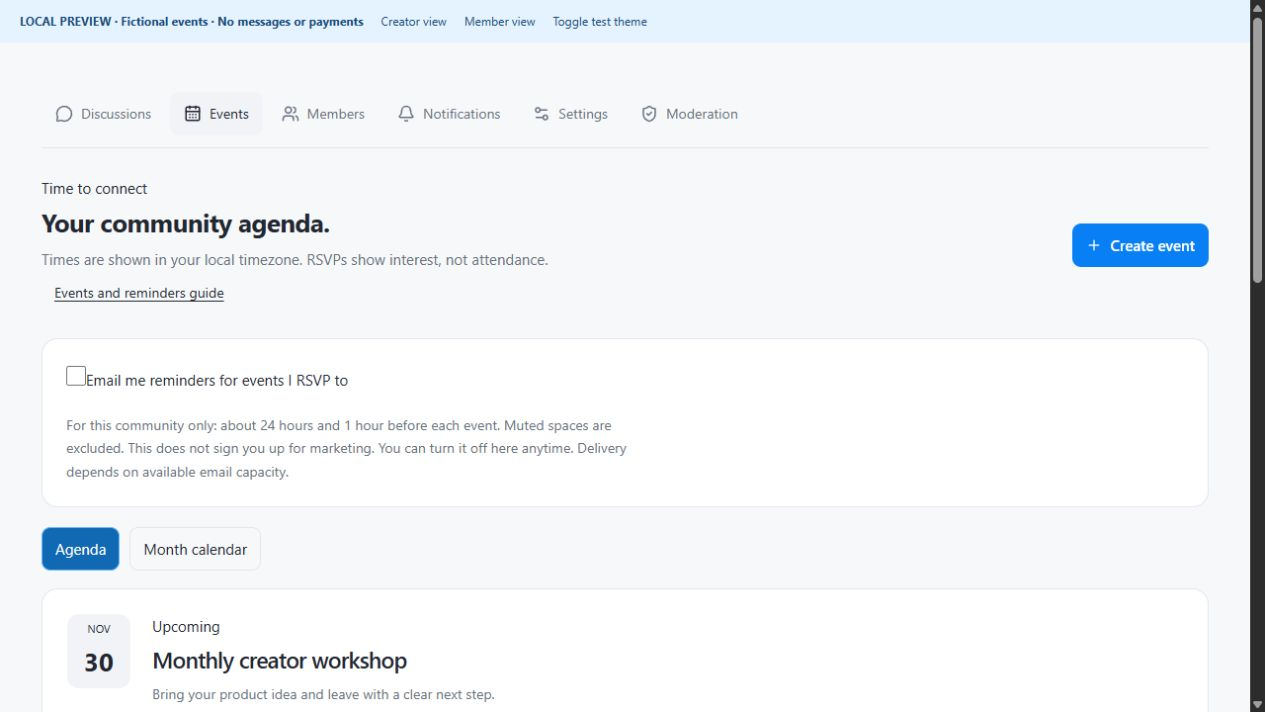
An event schedules the session and links to it. It does not create a video meeting or host a recording for you. Members still need any access required by the external meeting service. The event’s reminder setting must also stay on for opted-in reminder emails.
Repeat weekly or monthly
- While creating a new event, select Repeat this event. Under Recurring schedule, choose Weekly or Monthly in Repeat.
- In Ends, choose After a number of sessions and enter Number of sessions, or choose On a date and set Last event date (inclusive).
- Check Schedule timezone, such as America/Toronto. Enter Starts and Ends above as local times in that timezone, then choose Save.
- Review the saved sessions in Agenda or Month calendar. Each session has its own RSVP and keeps the selected duration.
A series contains 2–52 sessions, including the first, and each lasts up to 24 hours. Monthly dates use the last day of a shorter month when needed. If a session falls in a missing or repeated local time during a clock change, choose another start time before saving.
Review a series change or cancellation
- On an upcoming active recurring event, choose Manage series. In Apply to, choose This session only or This and later sessions.
- Choose Edit sessions or Cancel sessions under Action. For edits, select Change event details, Change the schedule, or both, and enter the revised values.
- Choose Review affected dates. Check every listed session, its timezone, new time and any shared meeting details. Use Back to editing if the scope or dates are wrong.
- Choose Save changes or Confirm cancellation. Past and already canceled sessions stay unchanged, and existing RSVPs are kept.
This and later sessions also includes individually edited future sessions in that part of the series. Unsent reminders are checked against the saved event, but sent messages cannot be recalled. Saving does not send a separate rescheduling email; communicate important changes to members.
Check the saved event and resolve common issues
- For a single event, choose Edit / cancel, review the fields, then Save. To cancel it, select Cancel this event before saving. Editing one event does not automatically change the other sessions.
- If Create event is missing, check your owner or administrator role, current community-building access and whether the community is closed. A moderator role alone does not manage events.
- If a date is rejected, review the start, end, timezone and recurrence range. Every changed recurring session must start in the future; choose an earlier end date if the series exceeds 52 sessions.
- If the series changed while you were reviewing it, use Refresh series and review the current affected dates again. If Month calendar cannot finish loading, use Agenda to inspect the paginated event list.
RSVP counts show interest, not confirmed attendance. Review member access to the event’s space before sharing the session. An email reminder also needs the member’s separate opt-in and available delivery capacity.
Was this helpful?
Your feedback helps us make these steps clearer.
Need help with your account? Contact support.