
Prepare two eligible products
The workspace owner can manage optional upsells on Starter, Scale and Business. Both products must be published individual products owned by that workspace, with fixed one-time paid prices in the same currency.
- Publish the main product and the extra product separately. Check each product’s files, sales copy, price and currency.
- Choose a useful companion that buyers can decline. Bundles, product-option offers, pay-what-you-want products and community memberships do not use this workflow.
- Open the main product’s Publish & sell editor. Finish saving and publishing its changes before editing the Optional upsell section below.
Review and publish the extra
- Under Optional upsell, choose a product in Extra product to offer. Use Load more products if it appears.
- Choose Review optional upsell. Check the extra product, its published price and the purchase details.
- Select I reviewed this offer and want to publish this change, then choose Publish optional upsell.
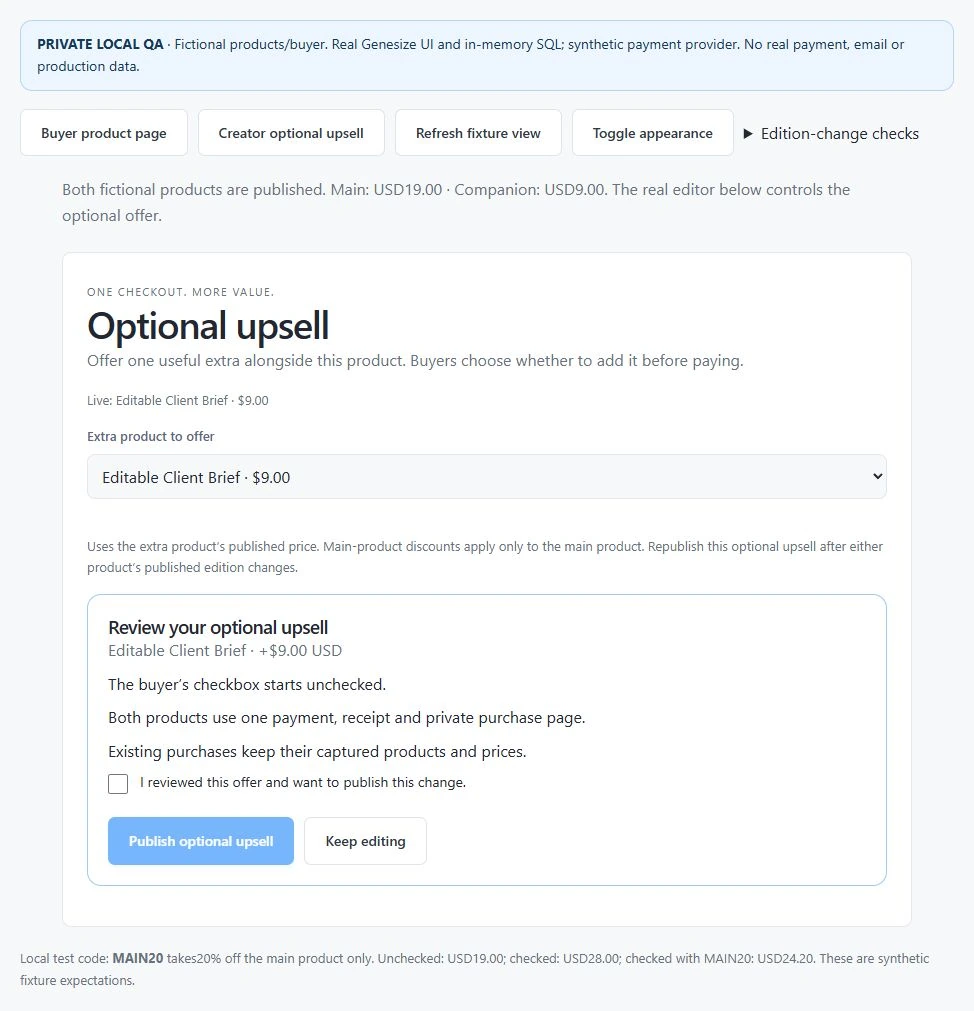
The extra uses its published price. An eligible discount on the main product does not reduce the extra product’s price. The combined prices cannot exceed 10,000 in the selected currency.
Check the buyer’s choice
- Open the published main product page. Confirm the extra starts unchecked and the total shows the main product only.
- Select the extra and check Total before tax. Clear it again and confirm the main-only total returns.
- Check that the product descriptions name the actual files or course materials buyers receive. A combined purchase keeps the two products separate on one private purchase page.
These page checks do not require a payment and do not prove payment or email delivery. Verify those separately in a supported test environment. The normal saved-draft buyer simulation does not by itself verify the published optional-upsell checkout.
Update or remove an optional upsell
- If either published product edition changes, review and publish the optional upsell again. A saved offer may pause until its current editions are reviewed.
- To remove it, choose No optional upsell, then Review optional upsell. Confirm the change and choose Remove optional upsell.
- If publication may have completed or an error asks you to refresh, choose Refresh saved settings before trying again.
If a product is missing, check its owner, publication, currency, fixed price and the combined price limit. Existing purchases keep their captured products and prices.
Was this helpful?
Your feedback helps us make these steps clearer.
Need help with your account? Contact support.