
Try the Freelance Client Brief content
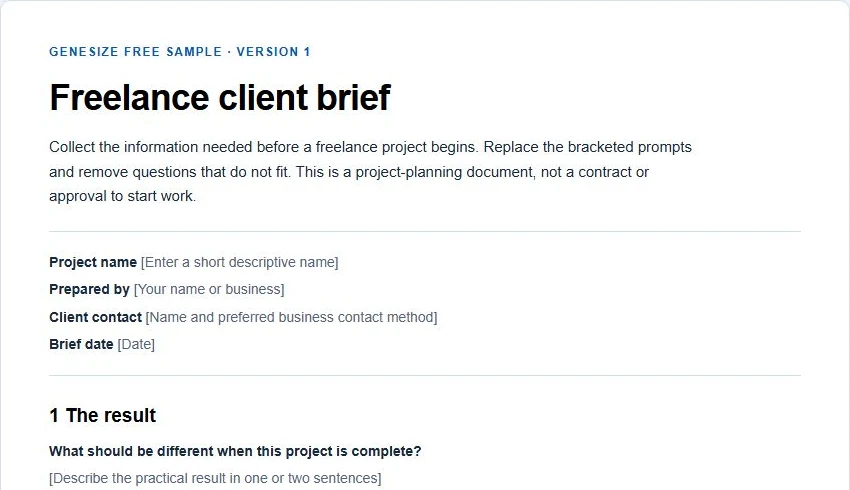
Use this short brief to compare sections, prompts and setup instructions with your own finished template. Copy the content into your own document, format it and check the result.
Open the copyable client-brief starterAlso download the plain-text starter. These are HTML and TXT samples, not a native Google Doc, a DOCX download or a verified Google conversion. The brief is for project discovery and notes, not a legal contract. Its permission covers your work and completed client documents, not resale of the blank starter.
Choose a Google Doc link or a downloadable file
| Deliver | Buyer action | Useful when | Check first |
|---|---|---|---|
| PDF containing your Google Doc link | The buyer opens a view-only master and makes their own copy. | You want to support a Google Docs workflow and can maintain the shared master. | External viewing, copying permission and the link inside the actual PDF. |
| Your original DOCX download | The buyer downloads the file, uploads it to Drive and opens it with Google Docs. | You want to deliver a file rather than depend on your live shared master. | Fonts, tables, spacing and pagination after opening or conversion. |
A visual preview is not the editable product. Name the actual deliverable in the listing. If you offer both routes, explain which file to open first and support both rather than implying they are identical.
1. Prepare the clean master and a specific offer
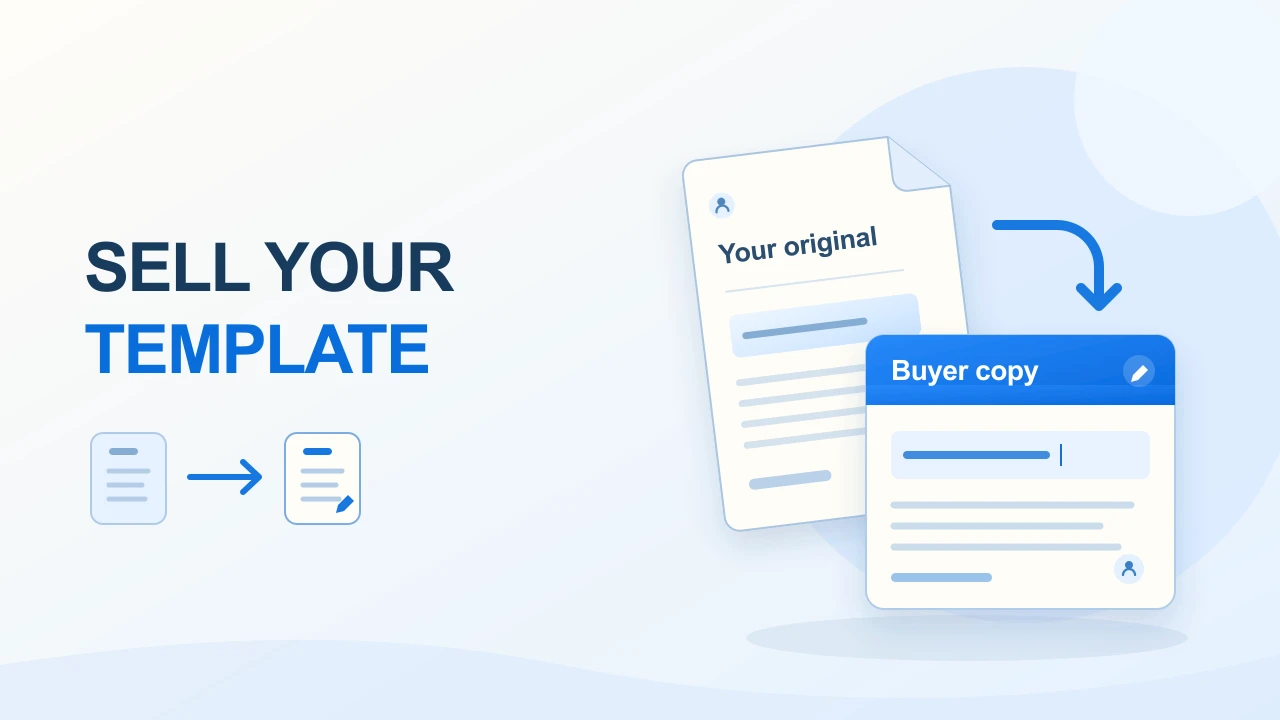
Separate the customer template from your working document. Replace real client details with clear placeholders, remove private notes and inspect comments, suggestions and links. Include only assets you can distribute for the promised use.
For your own original product, illustrated as a fictional $19 Freelance Client Brief, the useful promise might be organizing a kickoff conversation: goals, audience, deliverables, dependencies and next actions. State the file format, required application and instructions. The price is an example, not a market benchmark or sales result.
Use the personal and commercial permission planner to clarify internal or client use. A project brief should not be presented as a service contract unless that is actually what you have prepared and reviewed.
2. Set up a view-only Google Doc buyers can copy
Google’s sharing controls distinguish Viewer from Editor and allow copying restrictions. Where external sharing is permitted, use Anyone with the link → Viewer and keep copying enabled. Check effective access: work and school policies can restrict it.
Google’s desktop copy instructions use File → Make a copy, followed by a name and destination. Plan for the buyer to sign in to save and edit their own copy. Ask them to rename it before entering client details.
Google notes that a shared file exposes its owner’s name and email. Review the identity you are sharing. An open link can also be forwarded; keeping it inside a purchased PDF does not create per-buyer access control.
3. Put the verified master link in a short delivery PDF
Create a start-here PDF for your own product. Include its name, the normal view-only master link, copy steps, intended use, version date and support route. Keep the editable-template link distinct from any preview.
Open the exported PDF and click its link using a separate appropriate account. Confirm the buyer can create a copy without changing the master. Do not substitute an untested modified URL for that check or treat a copy-link format as payment security.
The free starter above contains copyable content, not a live Google master link. You supply and verify your own link before selling this route.
4. Or deliver your own checked DOCX
You can use File → Download to choose an export format for your finished document. For a DOCX offer, keep the exported file clearly named and include setup instructions.
Google documents Office-file editing and conversion: an uploaded Office file can be edited in its original format, while conversion creates a Google-format copy. Instruct buyers to upload the DOCX to Drive and open it with Google Docs. If native conversion is part of your promise, check that result too.
Test long answers in tables, heading styles, fonts and page breaks, then reopen the saved result. Give the buyer a preview of the intended layout without promising identical rendering in every application.
5. Upload the delivery files and publish the offer
- Choose Add product → I already have a product → Files & digital downloads in Genesize.
- Attach your completed delivery PDF, DOCX or both, plus any useful README. This is original-file delivery, not manuscript import or a Google-native file upload.
- Describe the contents, compatibility, permissions and required Google steps. Set the price and currency, then complete the payment and sales-commission requirements shown for a paid offer.
- Review the public page and exact buyer delivery before publishing and sharing the sales link.
Uploaded files appear under Included downloads on the buyer’s purchase page. Free to Sell supports selling ready products without a monthly subscription; applicable sales commissions and Stripe processing remain separate. Review current selling fees and the launch checklist.
Genesize does not set Google permissions for each order or automatically make a separate Google Doc for each buyer.
6. Check the exact copy a buyer will use
- Open the actual delivered file rather than your working draft.
- For a link offer, use a separate account and verify the master stays unchanged.
- For DOCX, open your downloaded file in the promised workflow.
- Replace a placeholder, add a long answer, save and reopen the buyer’s copy.
- Check the support and usage instructions as well as the layout.
Run these checks on the exact files and links in your finished offer. A simulated buyer test can inspect delivery without proving a real payment; see the different checkout and delivery checks.
For updates, distinguish a delivered file from a live external master. Existing Genesize purchases keep their purchased edition, but an external link may still point to a master you later change. Explain your version and update policy rather than promising automatic changes to buyers’ separate copies.
Fix common access and layout problems
| Problem | Next check |
|---|---|
| The buyer sees Request access | Check the exact delivered URL, its access setting and the account being used. An organization may restrict external sharing. |
| Make a copy is unavailable | Check copying permissions and try the desktop instructions while signed in. Do not fix it by giving every buyer Editor access. |
| A buyer can change the master | Review the effective file and parent-folder permissions. Use a clean master with the intended access. |
| The DOCX looks different in Google Docs | Inspect a fresh import. Simplify the affected table, font or page break, then repeat the editing and export check. |
| The delivery PDF opens but its link fails | Click the link inside the downloaded PDF, not a link copied from your editor. Correct the source and review the new delivery edition. |
Common questions about selling Google Docs templates
How do I sell a Google Docs template online?
Prepare a clean master, choose a delivery route and explain what buyers receive. You can deliver a PDF containing a view-only Google Doc link with copy instructions, or your own DOCX file for the buyer to open in Google Docs. Genesize can sell and deliver those supported uploaded files.
Should buyers edit my original Google Doc?
For a reusable template, guide buyers to their own copy rather than a shared working original. Check the master’s effective permissions. An accessible link can be forwarded, so a view-only setup is not per-buyer payment enforcement or DRM.
Can I sell a DOCX for use in Google Docs?
Yes, if you describe it accurately as a DOCX download and check its intended workflow. Google supports Office-file editing and conversion, but that is not a guarantee that every layout will remain identical. Test your own finished file before promising compatibility.
Why does a buyer need to request access?
The delivered link may be restricted or the account may be subject to organization rules. Check the actual URL and sharing configuration. A successful payment does not itself change Google Drive permissions.
Does Genesize connect to Google Drive or generate the Google Doc?
This workflow uses a document you prepare outside Genesize and files you upload for delivery. It does not connect Google Drive, create a native Google Doc, verify a copy URL or automatically grant each buyer Google permissions.
Do customers automatically get changes to my template?
Do not promise that editing the master will update a customer’s separate copy. Explain how revised versions will be provided. Genesize’s later product edits do not automatically replace an existing purchase’s published edition; keep any live external master and your update promise consistent.
Sources and what was checked
Reviewed November 18, 2026. Sources: Google’s sharing controls, copy and download instructions, Office-file workflow and shared-owner visibility guidance. Menu availability and organization policies can differ.
The starter is original sample content, not a native Google Doc, a legal contract or a customer success example. Native copy permissions and imported layouts must be checked on your own finished product.
Deliver an editable product with a clear first step
Choose the route you can support, label the files honestly and verify the buyer’s next action. If your template is ready, explore Free to Sell. For other formats, compare our Google Sheets and Canva template guides.
Open the free client-brief starter