
Try the Client Portal UI Kit sample
This original sample has a fictional client dashboard and a panel of button, input, and card examples. The FIG contains editable text and vector layers using Inter. The ZIP includes the FIG and a READ-ME explaining import, colors, and sample usage.
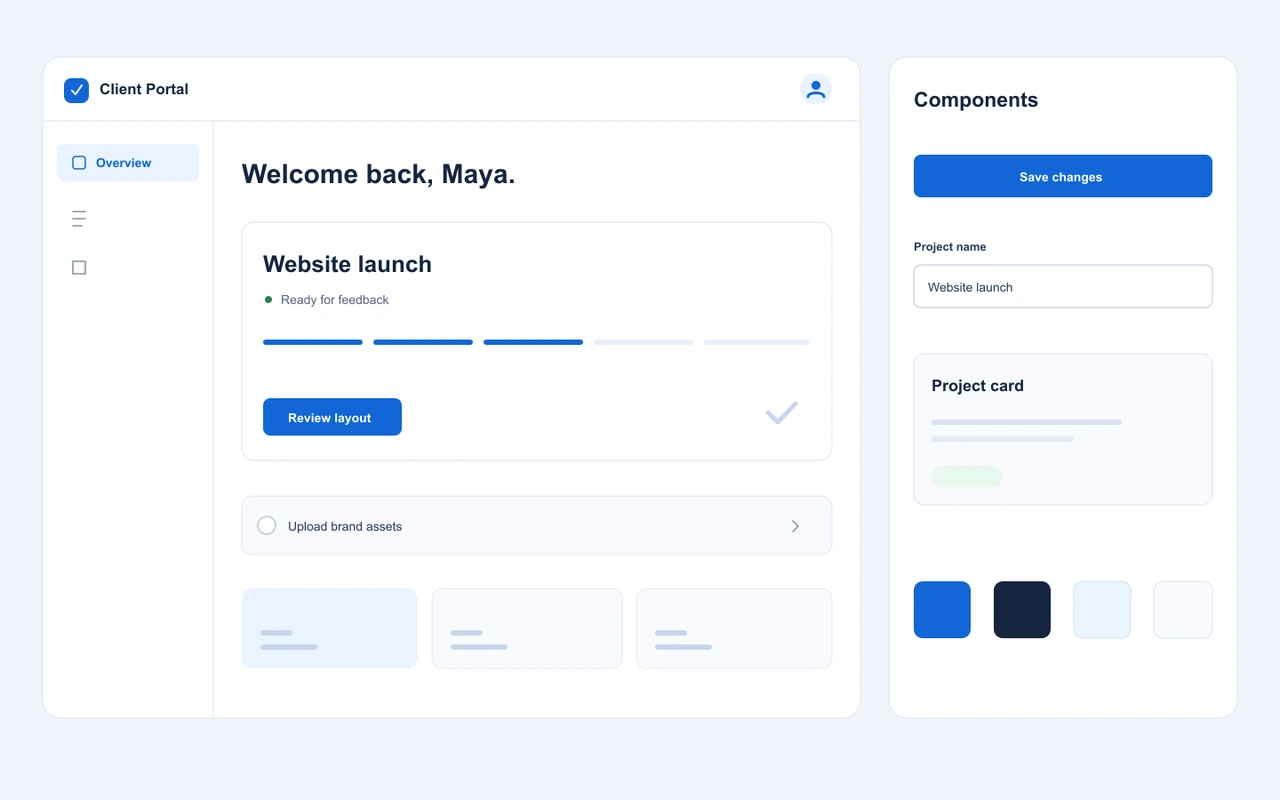
Free editable UI kit and import instructions
Extract the ZIP and open the READ-ME before importing the FIG file.
Can you sell through your own checkout?
Figma’s selling documentation permits third-party payment sites. As checked on November 17, 2026, it also says that approvals for new creators selling paid Community files are paused. You can prepare a product page and delivery through your chosen selling service while following its supported formats and terms. Figma’s current selling policy
With an external checkout, explain who provides support and how the customer gets the file. State the included design, account requirements, usage permission, and any update promise on the product page.
Prepare the design buyers will edit
- Make a clean release copy. Replace private client details with sample text. Remove unused frames and working material that buyers do not need.
- Keep the required components together. Include the components and styles the template needs. Check any dependency on private libraries, paid features, plugins, or image assets.
- Choose and name the fonts. List the fonts and weights. If you use a custom font, explain where buyers can obtain it and whether they need to install it.
- Show a useful customization. Tell buyers which heading to replace, how to change an accent color, and where to swap an image. Use a screenshot that reflects the delivered revision.
Reopen the release copy with the font and library access you expect a buyer to have. Figma’s missing-font alert can prevent text editing until the relevant font is available. Figma’s font troubleshooting guide
Export a FIG copy and package the download
- Open the release file in Figma Design. Use Main menu → File → Save local copy to download the .fig file.
- Put the FIG file in a folder with a short READ-ME.txt. Explain import, fonts, the first edit to try, and the usage permission.
- Add preview images if they help buyers understand the kit. Compress the delivery folder into a ZIP and extract it again to check the contents.
Attach the ZIP to Genesize; direct FIG uploads are unsupported. Each uploaded archive can be up to 50 MB, with up to 10 attachments per product, subject to storage allowances. Keep SVG files, nested ZIPs, encrypted archives, and executable files out of the delivery folder. Use PNG or JPEG previews and check the completed ZIP before listing it.
Figma treats a reimported local copy as a new file. Its components become new main components, and the copy receives its own edits. Describe how buyers will receive new versions if you offer updates. Figma’s local-copy instructions
Set up the product page and delivery
- In Genesize, choose Add product → I already have a product → Files & digital downloads. Upload the supported ZIP under Your content.
- Explain who the design helps and what is inside. State that the buyer receives an editable Figma Design file in a ZIP, plus the included instructions.
- Show representative preview images, specify the price and currency, and name the font and Figma requirements.
- Connect your Stripe account for a paid offer. Review and test the delivered files, publish the product, and share the public product link.
Genesize stores and delivers the ZIP. The buyer imports the extracted FIG into Figma to customize it. Use the finished-product setup guide for the storefront and payment steps.
Download the buyer’s copy and edit it in Figma
- In Studio, choose Review & publish → Test buyer experience, then Complete simulated checkout. Open the private test delivery link while signed out of Genesize and download the ZIP.
- Extract the archive. In the buyer’s Figma file browser, choose Create new → Import → Import from computer, select the FIG file, and complete the import into Drafts.
- Open the imported file. Change a heading and a color, then reopen the file to check that the changes saved. Compare the result with the source to confirm you are editing a separate copy.
- If Send test receipt is available, send it to your verified seller email. Open the message starting with [TEST] Your purchase while signed out of Genesize and check its download too.
The private test link expires 30 minutes after the test starts and stops working if you change the draft. Run a new test when needed. Share the published public product link with customers.
Figma’s import instructions for all plans
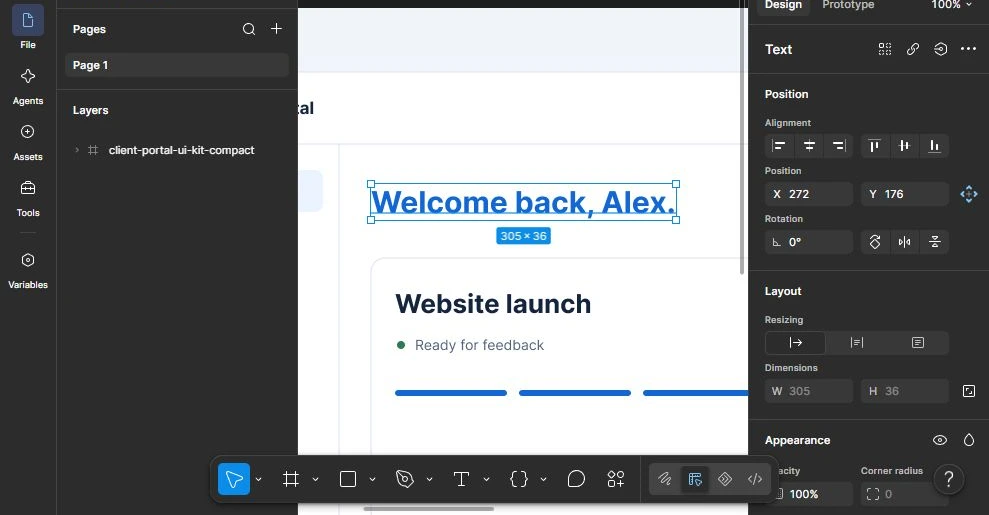
What we verified. The sample ZIP passed Genesize’s upload checks. We downloaded the matching archive through a simulated purchase’s test receipt in a signed-out browser emulating an iPhone. We extracted the FIG, imported that delivered file into a separate Figma file, and changed its heading and color. Both edits persisted after reopening.
Fix common import and editing problems
| What happens | What to check |
|---|---|
| Genesize rejects a direct FIG upload | Put the exported FIG file and instructions inside a valid ZIP, then attach the ZIP to the product. Check the completed archive against the upload limits. |
| Figma says a font is missing | Check the font name, weight, and availability. Give buyers the setup instructions for any custom font and test with the fonts you name in the listing. |
| The file opens, but the buyer can only select one image | Check that the delivered file is the editable FIG export. A PNG or PDF preview shows the design, while the FIG carries its editable layers. |
| Components depend on your private library | Include the components buyers need in the delivered file, or explain and test the external library requirements before you sell. |
| A previous buyer cannot see a newer revision | Publishing revised files changes what future orders receive. Existing Genesize orders keep their purchased edition, and imported Figma copies stay independent. If your offer promises updates, arrange private delivery of the revised FIG for eligible buyers. |
For the difference between a new release and a previous buyer’s update, see how Genesize handles purchased editions and later file updates.
Common questions about selling Figma templates
Can I sell Figma templates outside Figma Community?
Yes. Figma’s selling policy permits a third-party payment site. You handle the product listing and supported delivery through that service. Check the current Community rules separately if you also plan to publish there.
What file should I deliver for an editable Figma template?
Export the Figma Design file as a local FIG copy. Package it with import and customization instructions. Buyers import that copy into Figma and edit their own file.
Can buyers import the template on a free Figma plan?
Figma documents local-file import into personal Drafts on all plans. Team collaboration, shared libraries, and other paid features can have separate requirements, so state any features your particular template depends on.
Will the buyer’s imported copy receive my later design updates?
Figma treats an imported local copy as a new file. Explain how you will distribute revised files if your offer includes updates.
Does Genesize create the Figma design?
Create the design in Figma, export it, and use Genesize to sell and deliver the supported ZIP download. Buyers use Figma to customize the design.
If your design is ready, sell the finished download with Genesize Free to Sell. For other template formats, see the digital templates guide.