
Try the three-chime sample pack
This original sample contains a start cue, a transition cue, and a completion cue. Each comes as MP3 and PCM WAV. The ZIP includes a READ-ME with the filenames and usage instructions. It is a free example you can use to inspect the packaging.
Listen to the sample preview, about 10 seconds
Three cues in MP3 and WAV
Seven files in the ZIP, including the listening instructions. Total ZIP size is about 692 KB.
Choose MP3 for listening or PCM WAV for editing
| Format | What buyers get | What to check |
|---|---|---|
| MP3 | Compressed audio for listening downloads | Useful when buyers want a smaller file for a lesson or recording. Listen to your final export and name the bitrate in the product notes if it matters. |
| PCM WAV | Lossless audio for editing or precise timing | Useful for sound effects, cues, and loops. Check the sample rate and bit depth your buyer’s software needs, and measure the full pack’s size. |
Export a listening MP3 from your lossless master. Repeatedly editing and re-exporting the same MP3 adds another lossy encoding step. For a loop or a timed cue, test PCM WAV because MP3 encoder delay can affect the start and end. Audacity’s format guide · Audacity’s MP3 export guidance
Compare the same 2.8-second start cue
| Download | Export settings | Measured file size |
|---|---|---|
| Start cue WAV | 44.1 kHz, stereo, 16-bit PCM | 493,964 bytes, about 482 KB |
| Start cue MP3 | 44.1 kHz, stereo, 192 kb/s | 69,007 bytes, about 67 KB |
Duration and export settings determine the size of a longer recording. For illustration, ten minutes of stereo 44.1 kHz, 16-bit PCM audio is about 106 MB, while a constant 128 kb/s MP3 is about 9.6 MB, plus file headers. These are calculated examples. Listen to your own export before choosing its bitrate.
Package the recording your buyer expects
- Export the playable files. Open the final export outside your editor and listen from start to finish. Check for long silence, missing sections, clipping, and a cut-off ending.
- Name the tracks clearly. Put an order number before the title. For a lesson pack, use names such as 01-introduction.mp3 and 02-first-exercise.mp3. Match those names in the listening guide.
- Separate the preview. Export a short excerpt that lets visitors hear the voice or sound quality. Make it clear what the full purchase includes and whether a buyer receives downloads, written materials, or both.
- State the usage terms. Tell buyers whether the recording is for personal listening or may be used in their own projects. Use audio and background music you own or have permission to distribute in the product.
Attach individual tracks when that makes them easier to find on a phone. A ZIP is useful for a sound pack with several formats. Include a short READ-ME with the order, durations, and which format buyers should open. A ZIP of tracks, or several tracks attached to one listing, is one product. To sell several separately published products together, see how to create a digital product bundle.
Set up the product, checkout, and delivery
For the worked example, imagine a $9 USD one-timelisting for the Three-Chime Sample Pack. The listing would say that buyers receive three short cues in two formats, plus the usage instructions. The sample in this article is available free.
- In Genesize Studio, select Add product → I already have a product → Files & digital downloads. Attach your original files under Your content.
- Write the title, duration, track count, and format. Add the price and currency. Show the preview clip on the page or channel where you describe the offer.
- For a paid product, connect your own Stripe account and finish its payment setup.
- Review the listing and buyer experience, publish the product, and copy the public product link to share.
Genesize accepts MP3 and WAV originals up to 50 MB each, with up to 10 files per product, subject to storage allowances. Check the size of your finished file before uploading.
Free to Sell has a $0 monthly price. Genesize charges 10% on direct sales and 30% on Marketplace sales, before tax. Stripe processing fees are separate. Follow the finished-product setup guide.
Test the download and playback while signed out
- In Review & publish, select Test buyer experience, then Complete simulated checkout.
- Open the private test link in a browser where you’re signed out of Genesize. Download the audio under Included downloads.
- Open the saved MP3 or WAV in the phone’s audio player. Check the track name, duration, sound, and ending. If the product includes a ZIP, extract it and check the instructions and all promised tracks.
- If Send test receipt is available, send it to your verified seller email. Open the message starting with [TEST] Your purchase while signed out and check the audio download from its link.
The private test link expires 30 minutes after the test starts and stops working if you change the draft. Run a new test when needed. Share the published public product link with customers.
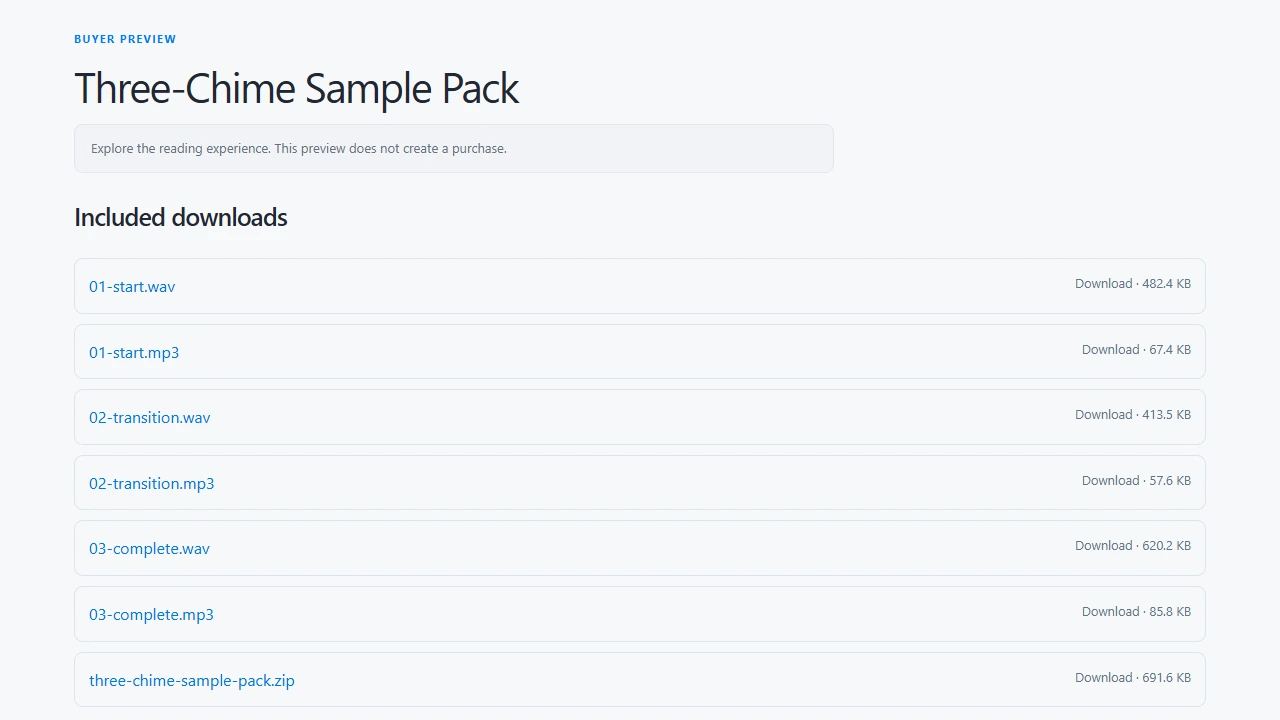
What we verified. All six sample audio files and the ZIP passed Genesize’s upload checks. Through a simulated purchase’s test receipt, we downloaded matching copies in a signed-out browser emulating an iPhone. Each MP3 and WAV decoded and played in that browser.
On an iPhone, look in Files → Browse → iCloud Drive → Downloads or use Safari’s Downloads button. Apple’s download instructions
Fix common audio download problems
| What happens | What to check |
|---|---|
| The file is too large to upload | Check its actual size. Export a listening copy at a suitable MP3 bitrate, or split a long recording at useful chapter boundaries. Check each part and state the track order. |
| The buyer cannot find the recording on an iPhone | Open Safari’s Downloads button or Files → Browse → iCloud Drive → Downloads. The location can differ if the buyer changed Safari’s download setting. |
| The recording is silent, distorted, or cut off | Play the exact exported file all the way through. Check the volume, peaks, muted tracks, beginning, and ending before replacing the published file. |
| A loop has a gap when it repeats | Check a WAV copy and test it in the buyer’s intended app. MP3 encoder delay can add silence that affects loops and precise synchronization. |
| The ZIP opens but the buyer does not know what to play | Name tracks in order, group formats clearly, and add a short READ-ME explaining which file to open first. |
| The buyer lost their access email | Use My purchases with the checkout email address. Check the order and payment status if access still fails. |
Common questions about selling audio files
Can I sell MP3 files online without a website?
Yes. A hosted product page can explain the recording, collect payment, and deliver the download. On Genesize, upload the finished MP3, connect your own Stripe account for paid sales, and share the published product link.
Should I deliver MP3 or WAV?
MP3 usually gives listeners a smaller download. PCM WAV preserves the exported audio without lossy compression and can suit editing, loops, and timed sound cues. Test the file in the app your buyers will use.
Can I sell an audio project file?
Give ordinary listeners a playable export such as MP3 or WAV. A project file belongs to its editing app and may depend on source files, plugins, and a particular software version. Explain those requirements if you sell source materials separately.
Can I put several recordings in one download?
Yes. Package supported files in a ZIP with clear track names and listening instructions, or attach the recordings individually within the product’s file and storage allowances.
How do buyers listen after purchasing on Genesize?
Buyers open their purchase, download the included audio, then open the saved file in their device’s audio player. Explain this in your listing and listening instructions.
If your recording is ready, upload it with Genesize Free to Sell. For a mix of videos and supporting files, see how to sell a course you already recorded.