

EPUB vs PDF for ebooks
A Genesize EPUB is reflowable. In a compatible reading app, readers can make the text larger, and the words wrap to fit the screen. A PDF keeps the original page size and layout. That makes a difference if your reader needs to print a checklist or follow a diagram on a specific page. W3C EPUB standard
| Reader needs to | Best fit | What to check |
|---|---|---|
| Read chapters on a phone or e-reader | EPUB | Enlarge the text and use the table of contents to jump chapters. |
| Print a worksheet or follow a page reference | Print a page and check the margins, labels, and writing space. | |
| Read a guide and use its exercises | Both | Read the chapters in EPUB and check the exercises in the PDF. |
For example, a freelancer might read a client kickoff guide on their phone on the way to a meeting and print its checklist when they arrive. Both formats can come from the same ebook project.
How to export EPUB and PDF in Genesize
- Open the editable ebook. Save your chapter edits and check that the chapter titles, images, and captions are in order.
- Open Design & exports. Check your book title and author details. Set the book language if needed.
- Choose Export EPUB. Open the downloaded .epub file in a compatible reading app, such as Apple Books. Try a larger font and open a chapter from the contents. Apple Books import guide
- Export the designed PDF. Check the first page, the most crowded page, and any page you expect someone to print.
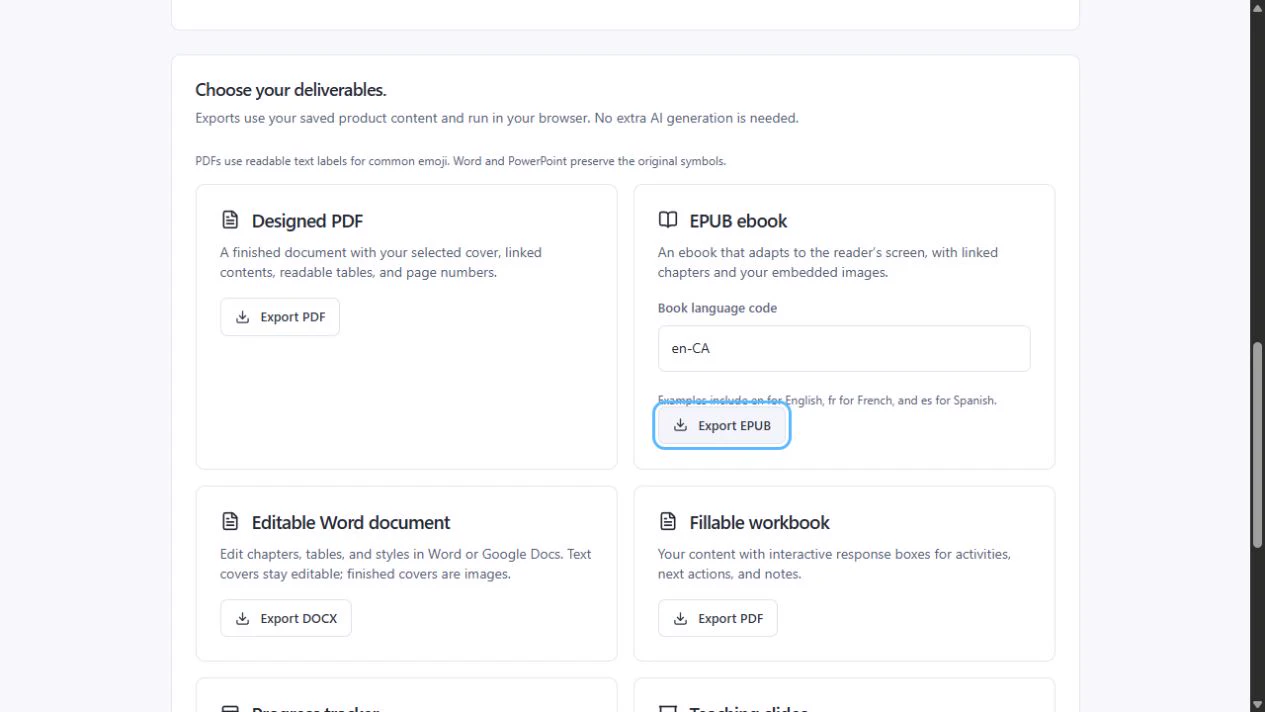
If a sentence points to “page 12,” use the chapter or section name where you can. EPUB page numbers can change when readers resize the text. If you’re still working on the manuscript, start with the ebook creation guide.
How to sell the EPUB and PDF in one checkout
- Choose Publish & sell in the editable ebook. Set the offer details, choose PDF for delivery, and save the Store draft. This delivery option includes both downloads for an editable ebook.
- Open Buyer Preview and select Saved draft. Use Download preview PDF and Download preview EPUB to check the files for this edition. Buyer Preview creates no order.
- Review & publish. Connect Stripe if you’re charging for the ebook. Publish the reviewed product and open the live sales page. Check for “Read online or download as PDF or EPUB.”

Already have finished files from another tool? Add them as Files & digital downloads and attach the PDF and EPUB to the same product. See Free to Sell for selling ready-made files, or follow the Genesize publishing guide for the full setup.
Check what readers receive
- EPUB. Try a larger font. Open a middle chapter from the contents and check that a caption stays with its image.
- PDF. Check page breaks, links, and worksheets. If a worksheet is for printing, print one page before launch.
- Sales page. Tell buyers what they get. Try: “Includes an EPUB for reading apps and a PDF you can print.”
If an older listing offers PDF only, republish the reviewed ebook to give future buyers both formats. Earlier orders keep the edition and formats included when they bought.
For store distribution beyond Genesize, check the retailer’s rules and preview the exported file there before submitting. Kindle Direct Publishing file requirements
Common questions
Can I export an EPUB without publishing my ebook?
Yes. Open an editable ebook in Genesize and choose Design & exports, then Export EPUB. You can open the file in a reading app before deciding whether to publish. Exporting your saved ebook uses no AI credits.
Can buyers get the PDF and EPUB in one purchase?
Yes. When you publish an editable Genesize ebook with PDF delivery, the purchase includes both downloads. Buyers can also read the ebook online from their purchase page.
Will an EPUB look exactly like the PDF?
A Genesize EPUB wraps the text to fit the reader’s screen and text settings. The PDF keeps its designed pages, so use that version for page references, printouts, and exercises that need a fixed layout.
Can I use the EPUB for Kindle or Apple Books?
You can open a compatible EPUB in a reading app such as Apple Books. For Kindle Direct Publishing or the Apple Books store, check the retailer’s file requirements, preview the book using its tools, and submit it separately.
Ready to check your ebook?
Open your ebook in Genesize and try both downloads before you share the sales link.
Open Genesize Studio