
Open Messages and enable the community inbox
Private messaging is available within a published, open community on Starter, Scale and Business. The creator enables it for the community. Both people need completed profiles, active community access and their own messaging opt-in. Messages are text only, up to 4,000 characters; file attachments are not supported.
- As the creator, open Community in Studio, choose the community, then open the Community tab and select Messages. Under Community messaging, choose Enable messaging.
- As a member, open My memberships, choose the community and select Messages. Use the same verified account you joined with and check that your community access is active.
- If Complete my profile appears, choose it and finish your community profile before returning to Messages.
A creator can choose Turn off messaging to pause new sends. Existing conversations remain available while the participant has community access. Pausing messaging does not delete earlier messages.
Opt in and start a conversation
- Choose Turn on my messages. Use Turn off my messages whenever you want to stop receiving and sending new private messages.
- Choose New, labeled Start a conversation. In Find a member, type at least two letters of the person’s name. Discovery includes available members who opted in and made their community profile visible.
- Choose the person, enter Your message and select Send message. Messages are text only, up to 4,000 characters. Use an existing conversation to read replies or choose Load earlier messages for older entries.
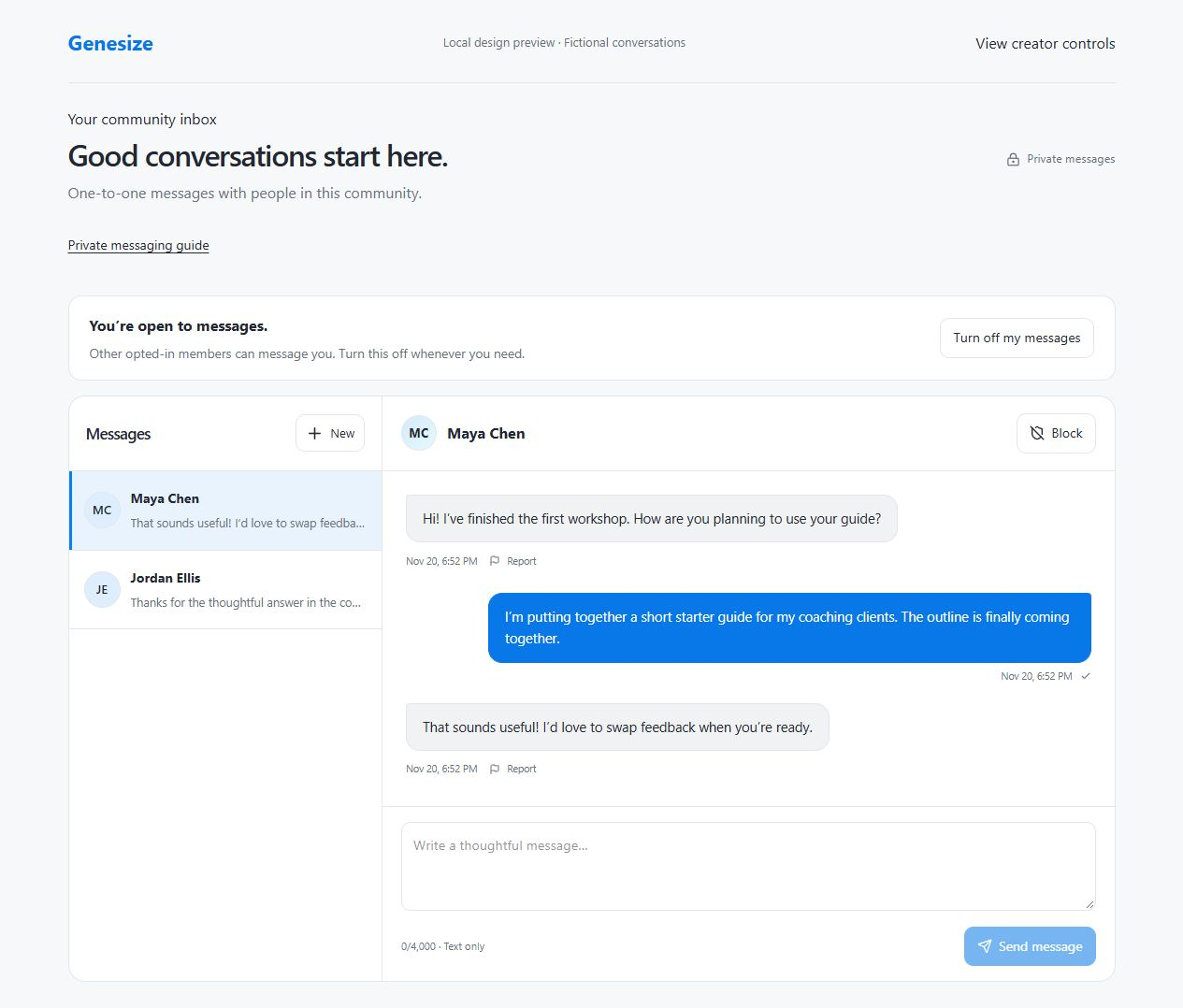
Community private messages do not send email notifications. A Sent indicator confirms the message was saved; it does not confirm an email or that the other person read it. This inbox is separate from Genesize support chat.
If a member is missing or a message will not send
- If Messages is unavailable, check your verified sign-in, active community access and whether the community is still open. The creator should also check Community messaging is enabled.
- If New is disabled or no member matches, complete your profile, turn on your messages and check the person’s exact display name. The recipient must also opt in and make their profile visible to appear in search.
- If the thread says new messages are unavailable, check for a block, a paused community inbox or an opt-out. A community restriction can also prevent sending; contact the creator if you need help understanding it.
- If a send reports an error, read the existing conversation and use Try again when shown before repeatedly sending the same message. Keep unsent text before leaving the view; drafts are not a completed send.
Turning off your messages, blocking someone or pausing the inbox does not erase message history. For an account or privacy request, contact Genesize support; do not assume these controls delete a conversation.
Was this helpful?
Your feedback helps us make these steps clearer.
Need help with your account? Contact support.