
Check your email setup
Checkout recovery requires an eligible paid Scale or Business plan and verified sender details. It works with fixed-price direct Storefront checkouts, including bundles and product options.
- Open Email campaigns in Studio and select Settings.
- Complete your sender details, including your reply address, business name and business mailing address.
- Open Checkout recovery and resolve any items listed under Before enabling recovery.
Choose when to send the reminder
- Under Send a reminder, choose After 1 hour, After 24 hours, or After 48 hours. The timing starts when the buyer opens checkout.
- Enter an Email subject and write Your reminder. Read the Content preview to see what the buyer will receive.
- Select Enable recovery for new eligible checkouts and tick I reviewed this reminder and its sending rules. Choose Save recovery settings.
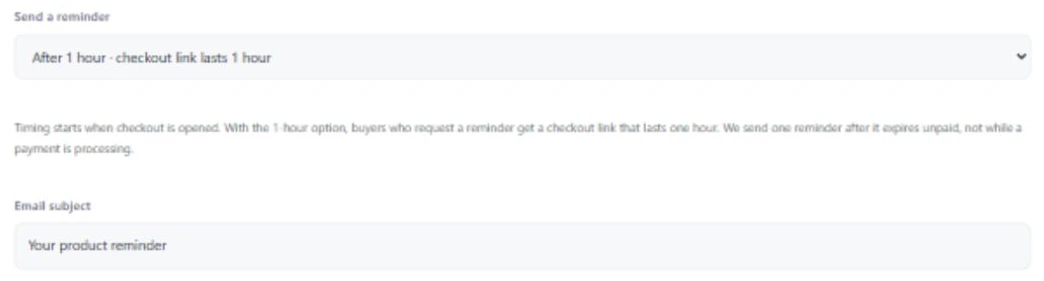
Genesize waits for the checkout to expire unpaid and checks its payment status before sending. A processing payment stays out of recovery.
See what buyers receive
- Open an eligible fixed-price product page in a private browser window. Check for the separate reminder checkbox beside the purchase form.
- A buyer must tick that checkbox to request a reminder. Their choice applies to that reminder only.
- In the reminder email, Review current offer opens the latest product page. The buyer can check the current price and start a fresh checkout.
Genesize limits reminders to one per buyer and product within seven days. Unsubscribes and sending limits still apply. Checkout recovery is available for direct Storefront sales. Funnels and pay-what-you-want purchases are excluded.
Check activity or stop reminders
Use Waiting, Queued, Sent, Stopped, and Needs review in Checkout recovery to track recent activity.
- To change the timing or message, edit the settings, review them again, and save. Your edits apply to new checkouts.
- To stop pending reminders, select Turn recovery off.