
See what buyers get in the $19 example
The Client Kickoff Deck is a fictional $19 USD offer for freelancers. It covers the client and project name, goals, scope and deliverables, timeline and approvals, and next steps. The sample uses editable text and shapes so buyers can adapt it to their own client.
Free five-slide Client Kickoff Deck
Open the PPTX to try editing a slide, or use the PDF to see the layouts.
View the five-slide PDF preview
Try personalizing the sample
- Text. Open a copy in PowerPoint, click the client name on the cover, and replace it with your own.
- Color. Select a colored shape, open Shape Format → Shape Fill, and choose an accent that fits the client.
- Image. Add a client logo from Insert → Pictures. In a deck that already has a picture you want to replace, select the picture and use Picture Format → Change Picture. Microsoft’s picture instructions
Which format should you deliver?
| Format | What it is | When to use it |
|---|---|---|
| PPTX | Editable presentation | Deliver this as the main file if buyers will open and edit a copy in desktop or web PowerPoint. |
| POTX | Reusable desktop template | Genesize does not accept direct POTX uploads. Save an editable PPTX for delivery and browser editing. |
| Slide preview | Show the design and slide order before purchase, or include it as a read-only reference. |
For a Genesize listing, attach the PPTX and PDF. If you already have a POTX, open it in desktop PowerPoint and use File → Save As to save a PowerPoint Presentation (.pptx). Upload that copy to OneDrive and reopen it in PowerPoint for the web to check browser editing. Saving in PowerPoint writes the actual file format. Microsoft’s instructions for web editing · Microsoft’s desktop template guide
Prepare the editable file and the preview
- Duplicate your master deck. Replace real client details with neutral prompts. Check slide notes, comments, and hidden slides for information that belongs only in your working file.
- Make the changes buyers need easy to find. Give them one slide to start with. Say which text they should replace, where to change colors, and which shape or image they can swap.
- Check fonts and graphics. Use assets you can distribute inside an editable template. Give buyers the font names and any setup instructions. Test on another account or device to catch font substitutions and shifted text.
- Export a PDF preview. Pick the slides that show how the deck works. When you preview a paid deck publicly, decide how much to show and keep the paid PPTX attached to the offer.
A straightforward PPTX with editable text, shapes, and PNG or JPEG images is easier to test. If your deck has an embedded Excel workbook that the upload check rejects, include the workbook as a separate XLSX and use a chart image in the slide. Test the exact file you will deliver. Microsoft’s font embedding guidance
List your finished slide deck
- In Genesize, choose Add product → I already have a product → Files & digital downloads. Attach the finished PPTX in Your content.
- Write the listing around the job the buyer can do. For the example, say “Plan a client kickoff with five editable slides for goals, scope, decisions, and next steps.” Put Editable PPTX · 5 slides · $19 USD one-time near the price.
- Name the app you tested. If your deck needs desktop PowerPoint or specific fonts, state that in the listing. Link to the PDF preview wherever you describe the offer.
- Connect your own Stripe account to accept paid orders. Review the files and buyer experience, publish the offer, then share the public product link.
Download the buyer’s copy and edit one slide
- In Studio, open Review & publish → Test buyer experience, then choose Complete simulated checkout.
- Open the test delivery link in a browser where you’re signed out of Genesize. Download the PPTX under Included downloads.
- Open the downloaded copy in the app you list. Replace the client name, change one accent color, and save it. Reopen the copy to check your edits and confirm the slide order still matches the preview.
If Send test receipt is available, use it to email the private delivery link to your verified Genesize account email. Open that message on your phone while signed out. The link expires 30 minutes after you start the test and stops working if you change the draft. Run a new test if needed. Share the published product’s public sales link with customers.
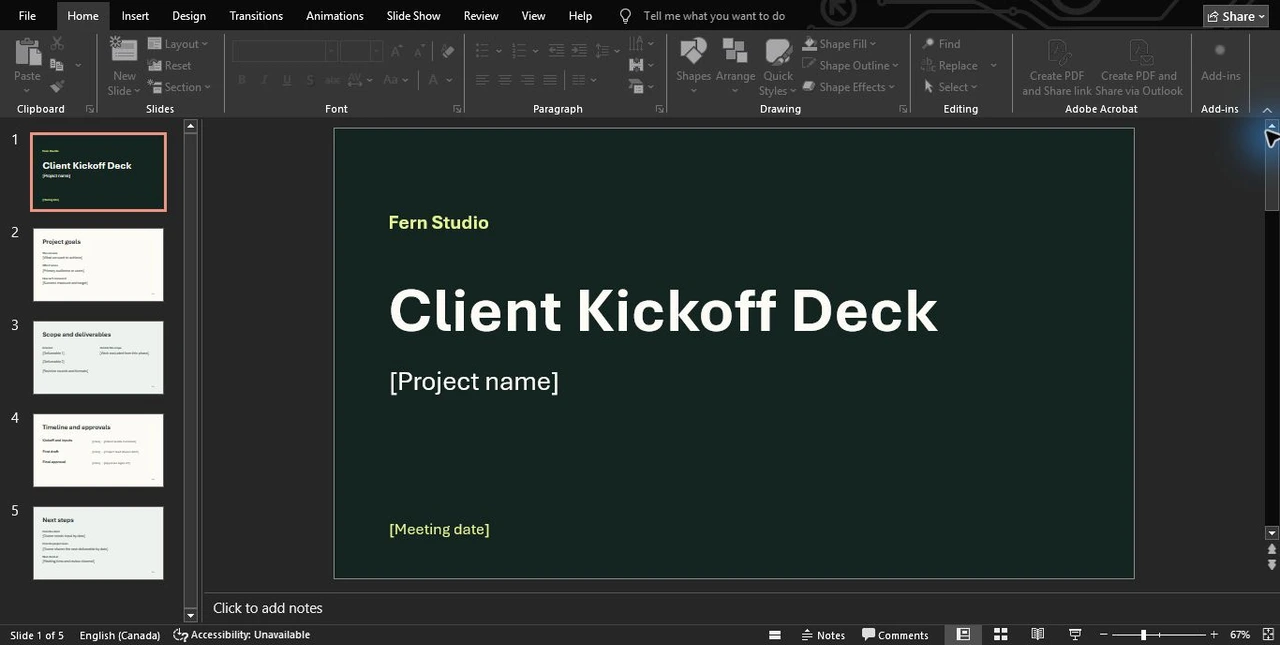
What we verified. The sample passed Genesize’s file upload checks. We opened the simulated purchase’s test receipt in a signed-out browser emulating an iPhone. The downloaded PPTX matched the original file. We opened that copy in desktop PowerPoint for Windows, changed the client name, saved it, and reopened the deck with the edit intact.
Common questions about selling PowerPoint templates
Can buyers edit a PowerPoint template in a browser?
They can upload an editable PPTX to PowerPoint for the web and edit their copy. Check that text, layouts, and any features you advertise work in the editor you list.
What should a paid PowerPoint template include?
Include the editable PPTX, a short guide to changing it, and a list of any required fonts or software. Use a separate PDF or slide images so visitors can see the design before buying.
Can I sell a PowerPoint deck through Genesize?
Yes. Attach your finished PPTX to a digital download, connect Stripe for a paid offer, and share the published product page. Buyers get access after confirmed payment.
Can I deliver a PPTX and a PDF together?
Yes. Label them clearly in the product description and file names. Give buyers the PPTX for editing and the PDF for viewing or printing.
Ready to sell your deck? Upload your finished product with Genesize Free to Sell. For other formats, see the digital templates guide.